Activate 3DGS expansion pack
Access the Mapmost Studio platform front-end page through a browser. The page address varies according to the access method configured in the config-studio.yaml configuration file during deployment:
- During intranet access
The page address is:
http://<openresty_ip:openresty_port>/mapmost-studio-web/
Among them, openresty_ip and openresty_port are the OpenResty service IP and port number respectively, that is, the mapmost-studio.openresty parameter configuration in the config-studio.yaml configuration file.
- When accessed via public network IP
The page address is:
http://<public_access_ip:openresty_port>/mapmost-studio-web/
Among them, public_access_ip and openresty_port are the public network access IP and OpenResty service port number respectively, that is, the mapmost-studio.public_access_ip and mapmost-studio.openresty parameter configurations in the config-studio.yaml configuration file.
- When accessing public network https domain name
The page address is:
https://<public_access_https_host>/mapmost-studio-web/
Among them, public_access_https_host is the public network access domain name, which is the mapmost-studio.public_access_https_host parameter configuration in the config-studio.yaml configuration file.
The platform page is as follows:
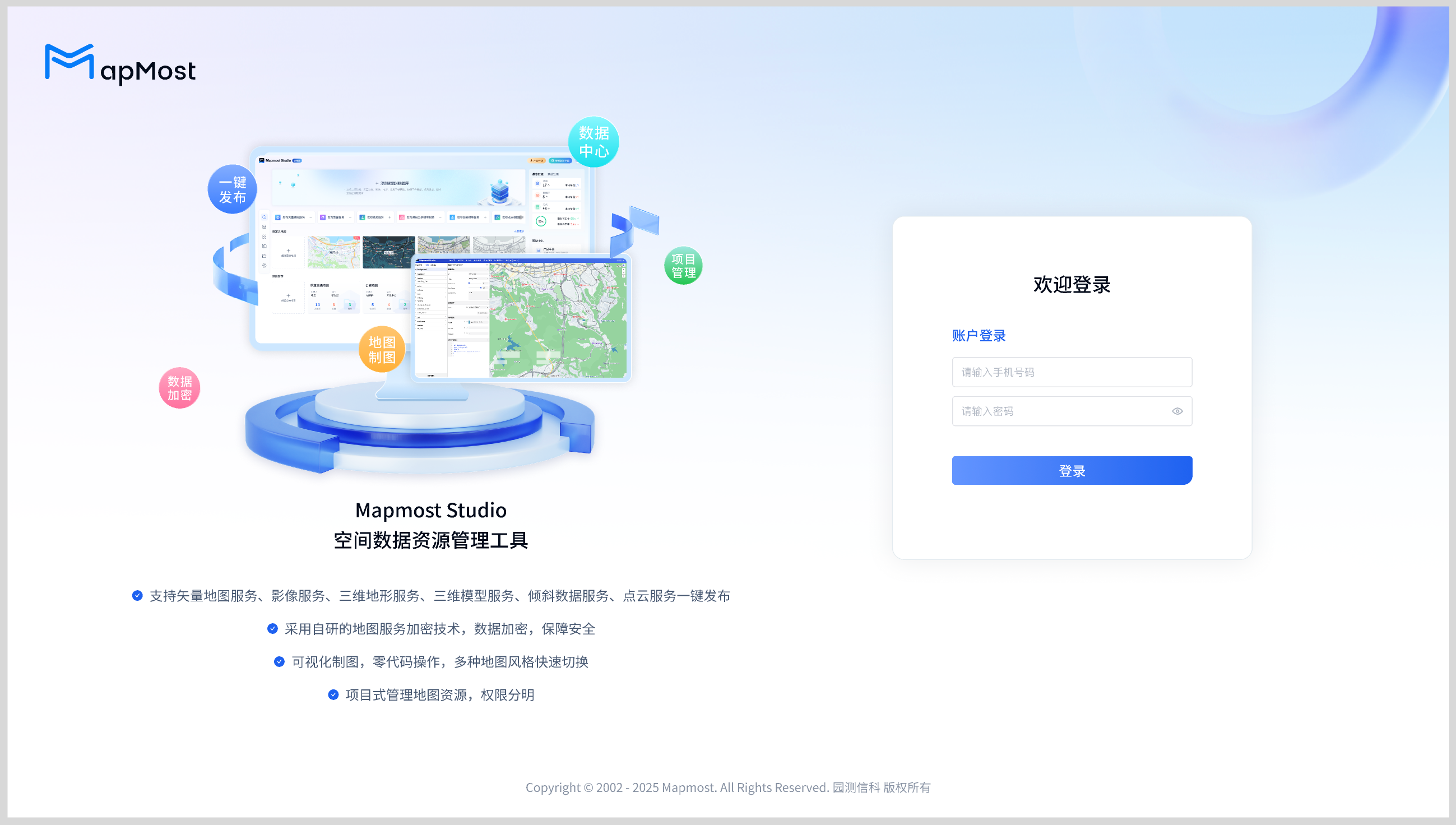
The default account is sipsd and the default password is MmS@3D#Geo!2024.
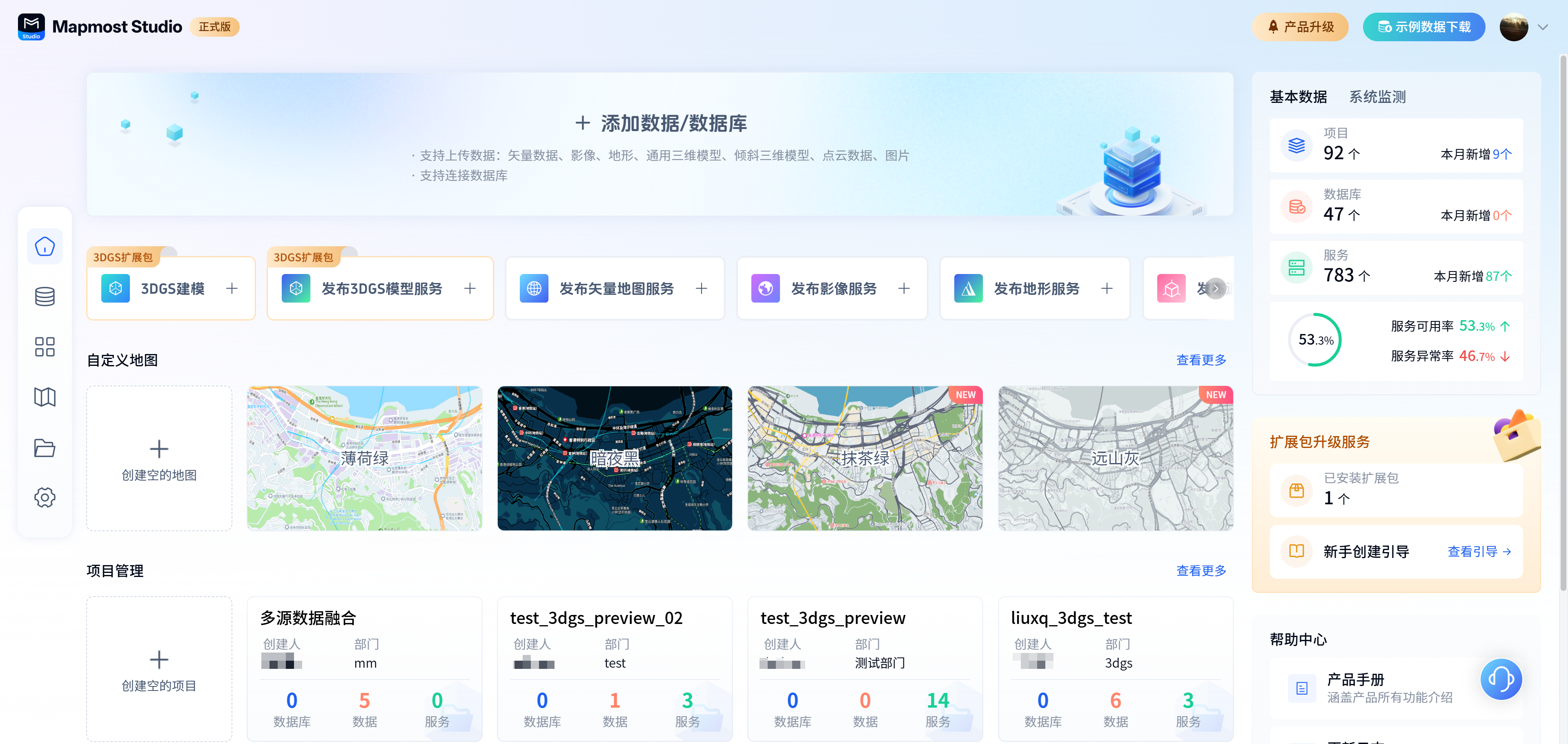
On the premise that the Mapmost Studio system has been activated, after entering the default account password and clicking to log in, the system page will look as follows:
When the 3DGS extension package has been deployed but not activated and clicks 3DGS Modeling or Publish 3DGS Model Service, it is prompted that the extension package is not activated. The user needs to click the "Copy Machine Code" button and send the machine code to Mapmost Studio staff. After obtaining the activation code, fill the activation code into the input box on the page to activate the system:
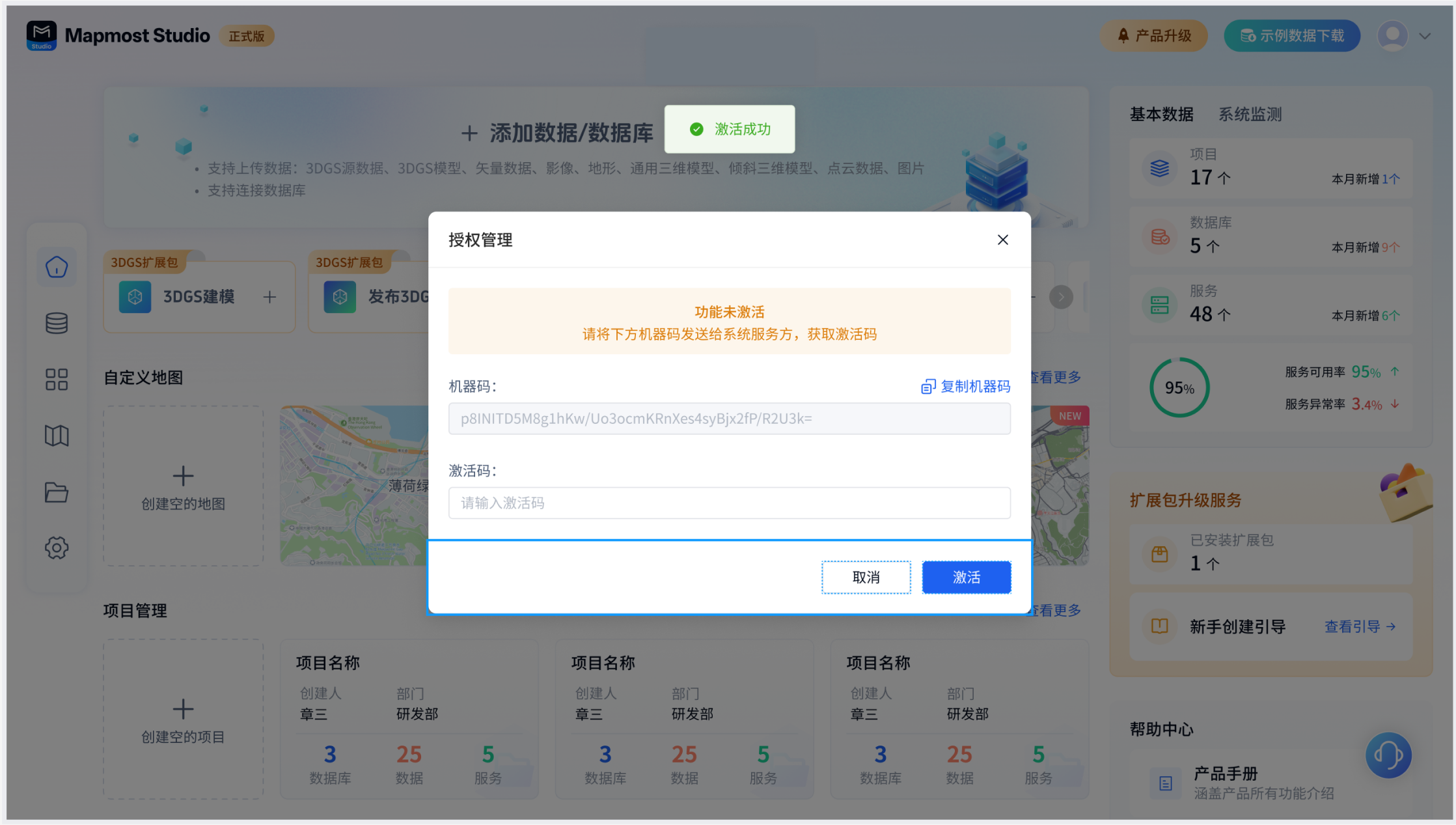
At this point, the Mapmost Studio 3DGS expansion package has been activated.