my project
The My Project module provides functions such as project creation, editing, and resource management. It supports the creation of new projects and the association of data, databases, services, map styles and other resources in the project. It also supports one-click preview of associated services and map styles.
1. New project
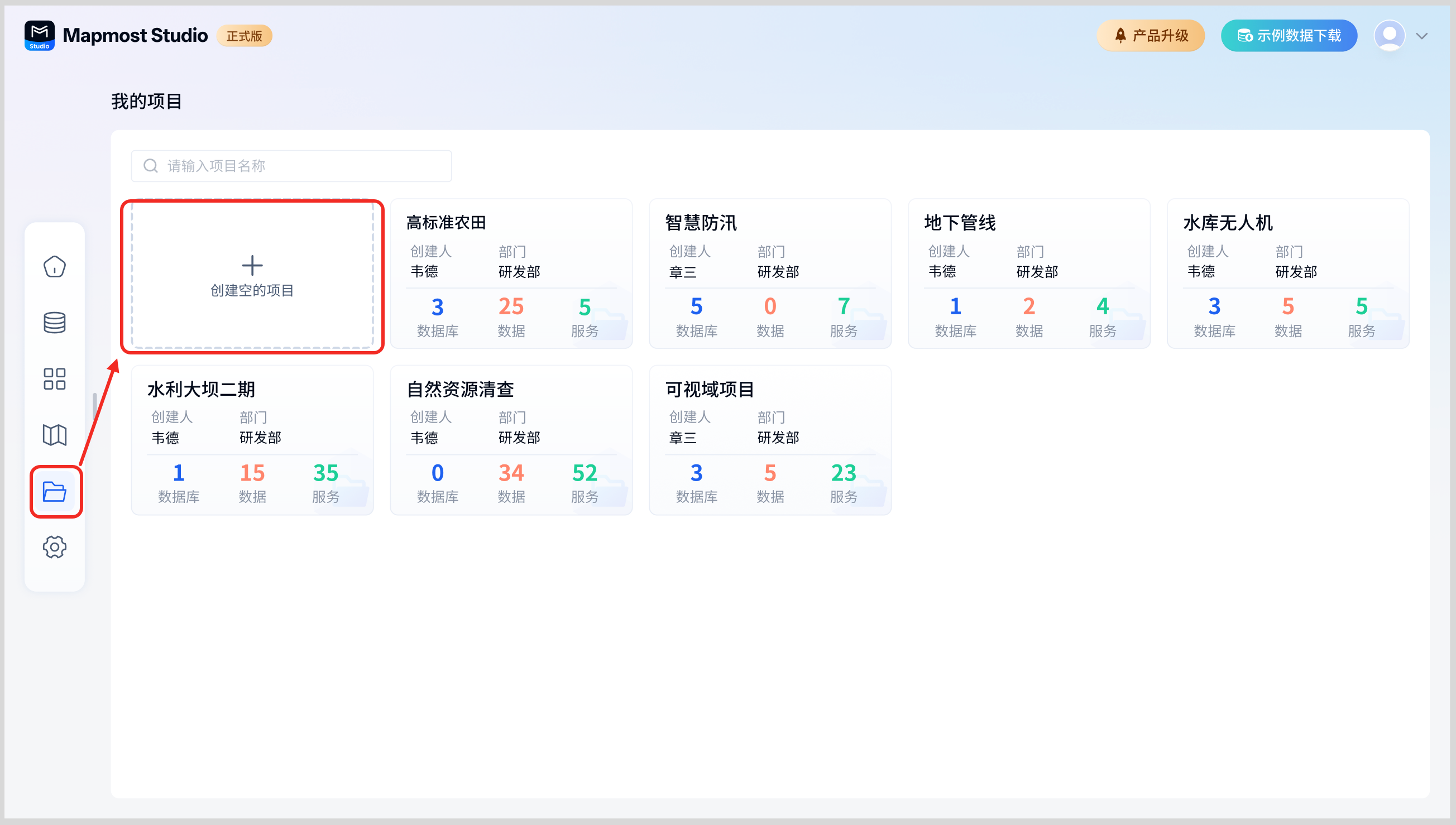
Open the "Mapmost Studio" software, switch to the "My Projects" module in the left navigation bar, and click "Create an Empty Project" to enter the corresponding new project page.
The new project contains three parts, namely basic information, project members and project resources. The project name and department in the basic information are required, otherwise the project cannot be created.
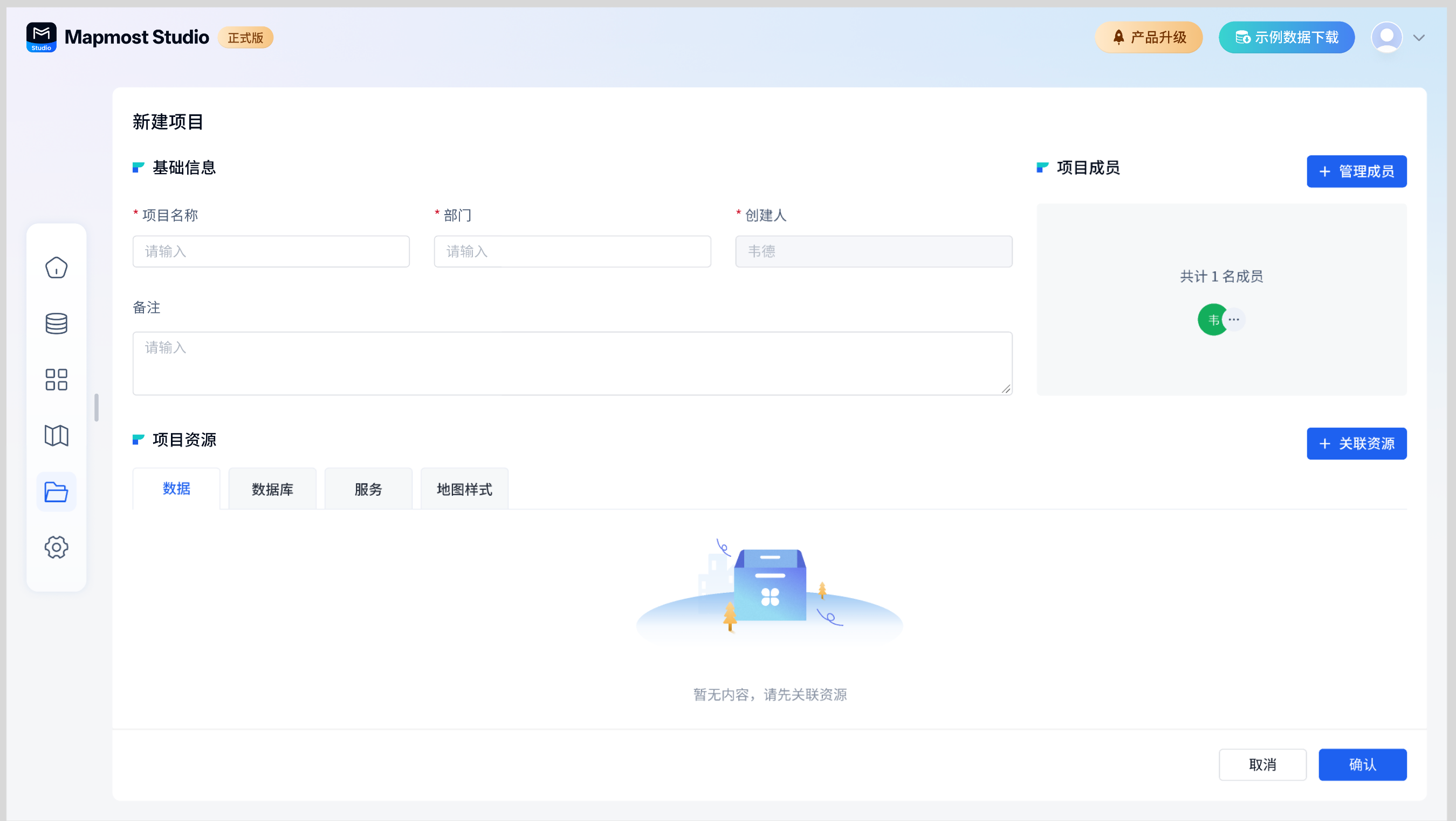
1.1. New project-basic information
The basic information is introduced in the following table:
| Basic information fields | illustrate |
|---|---|
| Project name | Required and cannot be the same as an existing project name. |
| department | Required, fill in according to actual situation. |
| Creator | Required, automatically entered, cannot be modified. |
| Remark | It is not required and can be filled in according to the actual situation. |
1.2. New project - add members
Click "Add Members" to display a pop-up window for adding project members. Members who need to collaborate during the actual project can be added to the same project.
Only the project creator/super administrator can delete/add project members.

1.3. New project - associated resources
Click "Associate Resources" to display the associated resource pop-up window. Members within the project can associate their own data, databases, services, and map styles into the project.
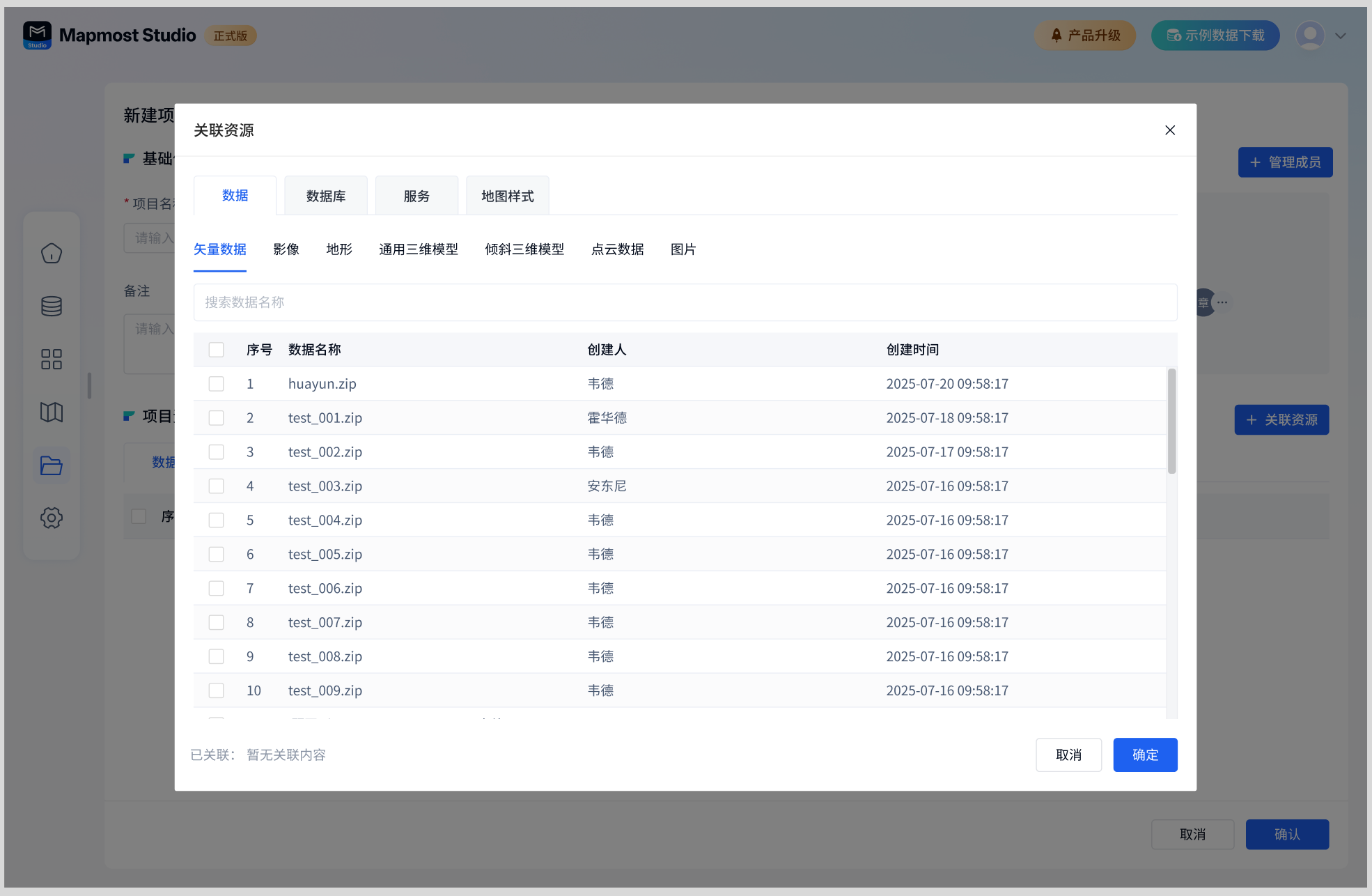
Supports searching for matching resources by data name, service name, database alias, and map style name. The bottom of the pop-up window displays the resource category and number associated with the current project.
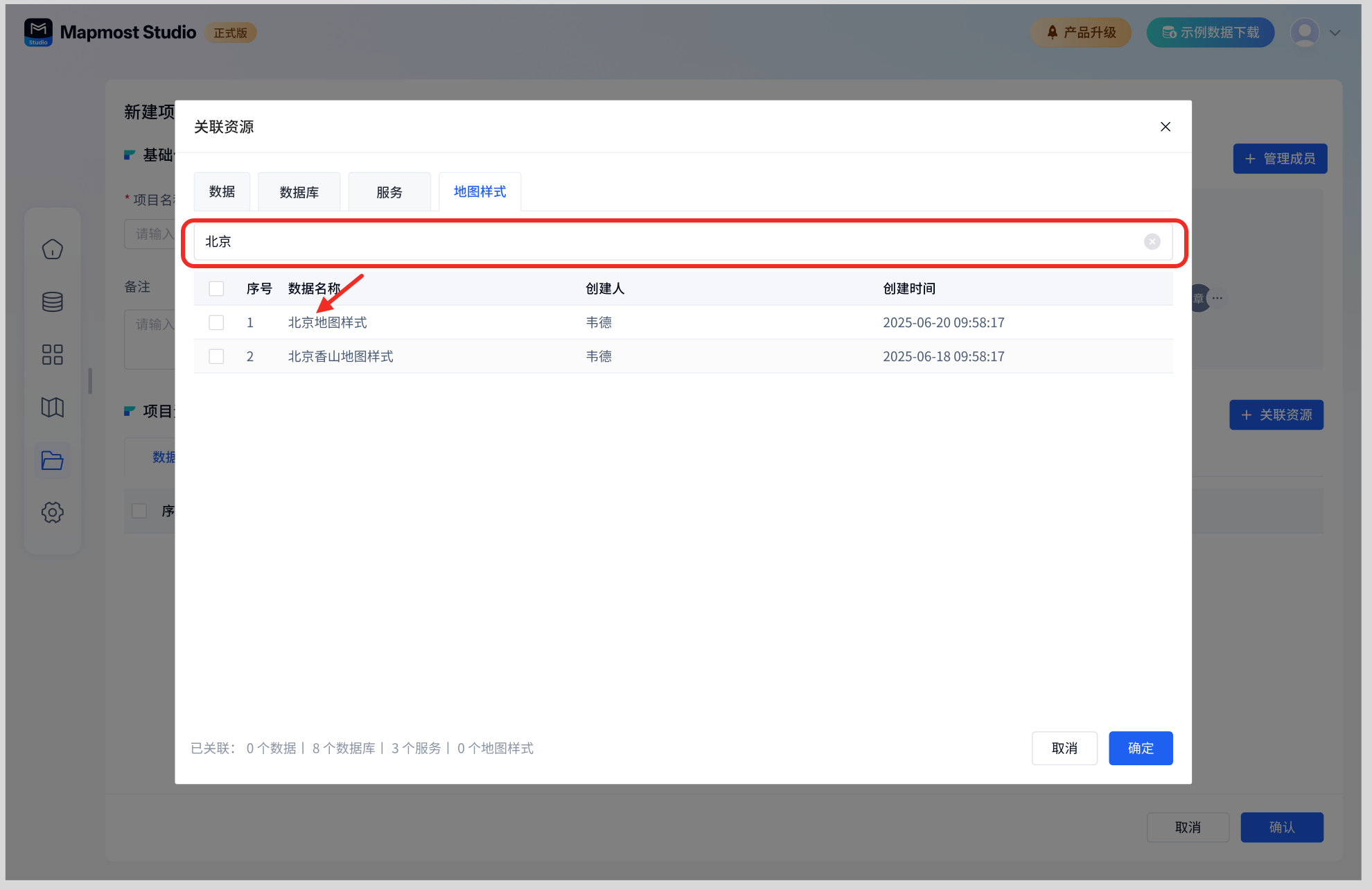
The resources associated with the project creator and members are displayed according to the classification of data, database, service, and map style. Only display category names with content.
For example: If there is no image data under the project, there is no "Image" category under the project resource list-data tab.

1.4. New project - Confirm/Cancel
| Cancel | Click Cancel to exit the current new project process and return to the My Project page, and the entered content will not be saved. |
|---|---|
| confirm | Click OK to save the current content and enter the project details preview page. |
2. Project details
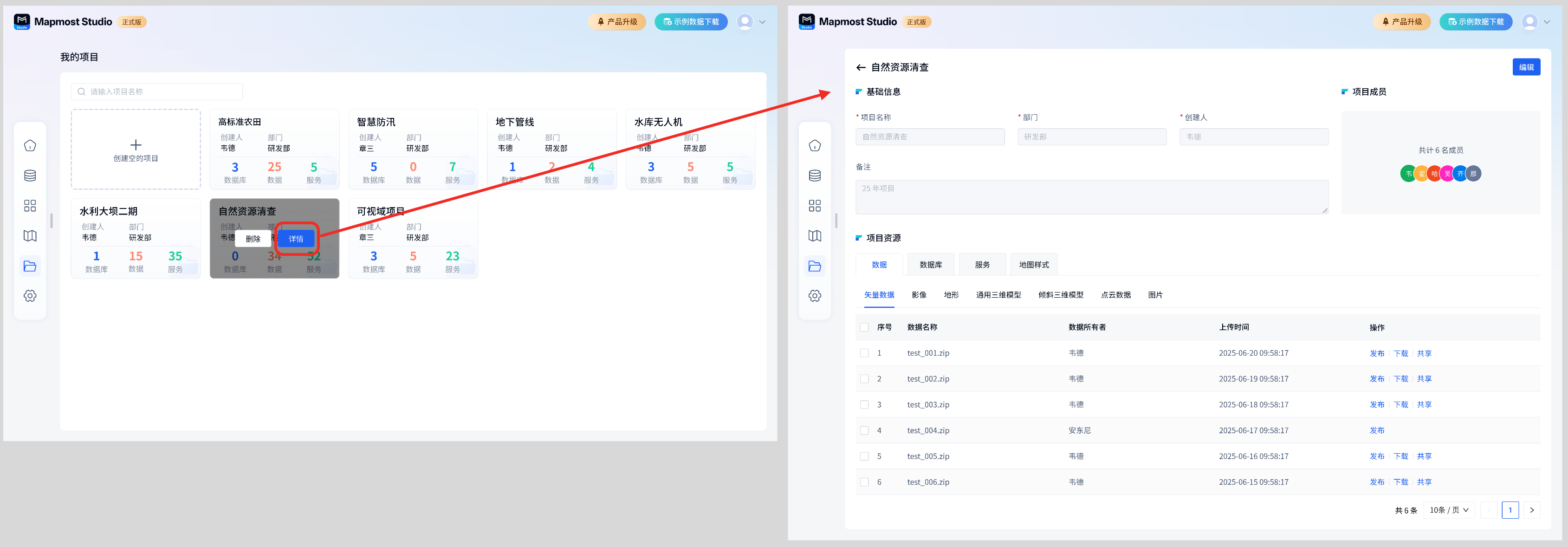
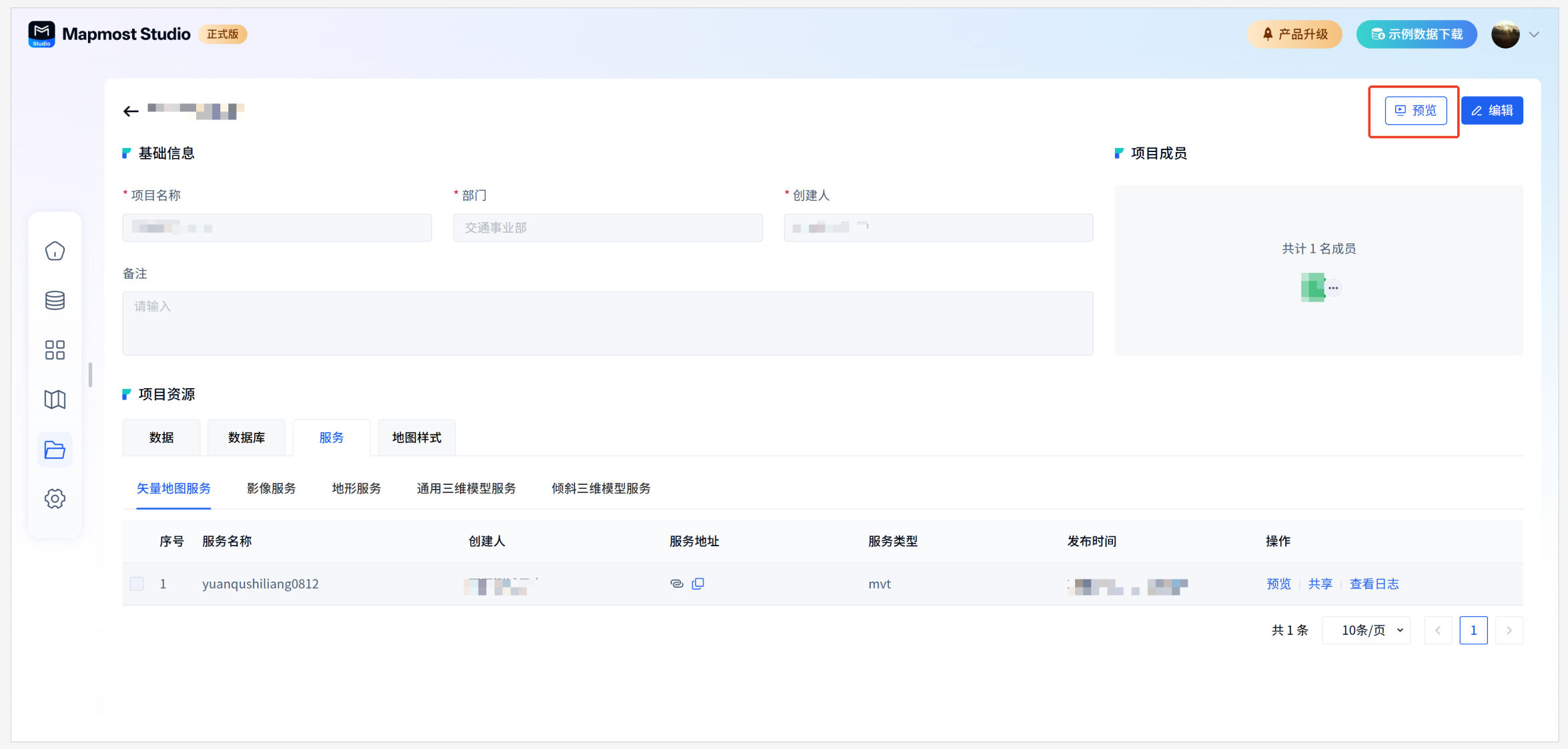
Project supports viewing project details. When the cursor stays on the project card, the card will display the "Delete" and "Details" buttons. Click "Details" to jump to the project details page, as shown in the figure below.
2.1. Project details-edit
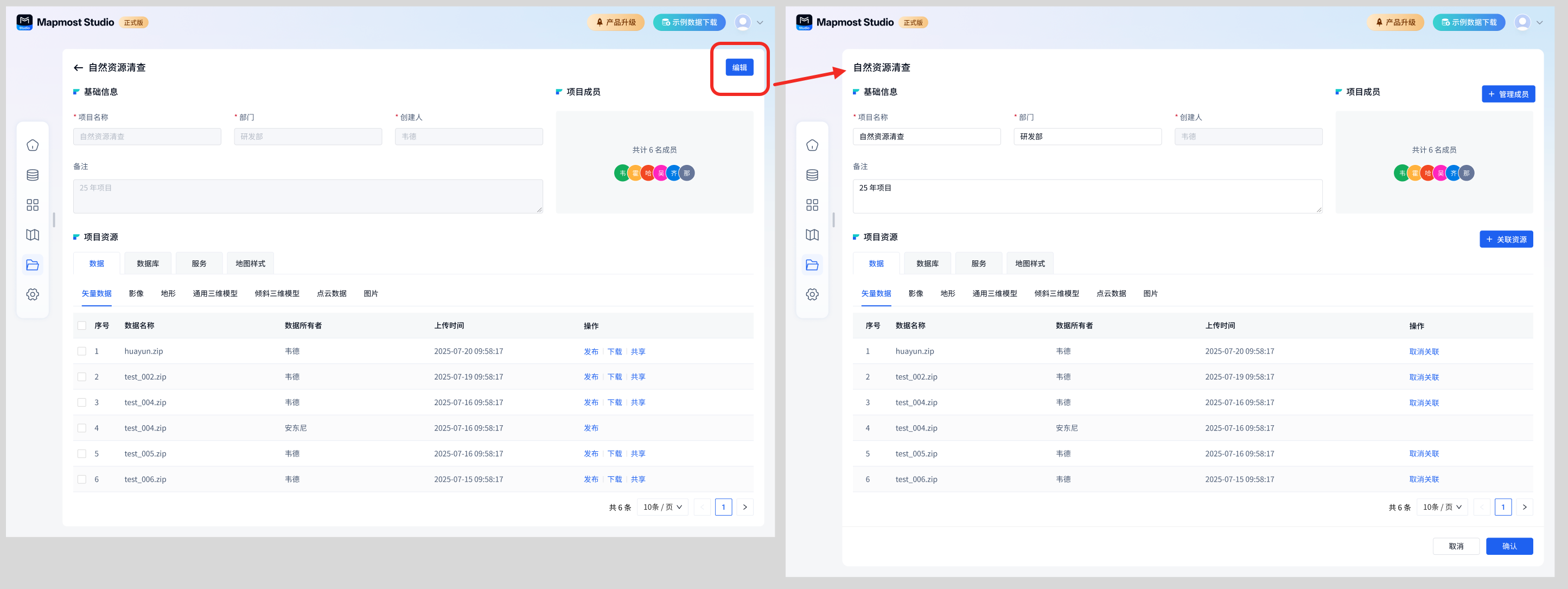
Click the "Edit" button in the project details to support modifying basic project information, project members, and project resources.
Click the return button in the upper left corner of the project details to return to my project page.
The specific operation of the project details page is the same as that of the new project, which can be viewed at Click here to jump.
Different resources have different operation permissions. The specific rules are as follows:
Edit status:
Data permissions
- The data I uploaded is associated with the project, and "cancel the association" is supported.
- The data shared by others is associated with the project and supports "cancel association"
- There is no operation for data associated with others in the project team.
Database permissions
- The database I connected to is associated with the project and supports "cancel the association"
- Others associate it with the database in the project team, and there is no operation.
Service permissions:
- The services I publish are associated with the project and support "cancel association"
- The services shared by others are associated with the project and support "cancel the association"
- There is no operation for services added by others to the project team.
Map style permissions
- My own map style supports "cancel association"
- There is no operation for map styles added to the project group by others.
2.2. Project details-resource operations
When viewing project details, related operations on resources are supported. Different resources have different operation permissions. The specific rules are as follows:
Preview status:
Data permissions
- The data I uploaded is associated with the project and supports "publishing, downloading and sharing"
- The data shared by others is associated with the project and supports "publishing"
- Data that others associate to the project team supports "publishing"
Database permissions
- The database I connected to is associated with the project and supports "publishing and editing"
- The database that others associate to the project team supports "publishing"
Service permissions
- The services I publish are associated with the project and support "preview and sharing"
- The services shared by others are associated with the project and support "preview"
- Services added to the project team by others support "preview"
Map style permissions
- My own map style, supports "preview, creation, copy link"
- Map styles added to the project group by others support "preview, creation, copy link"
3. Delete items
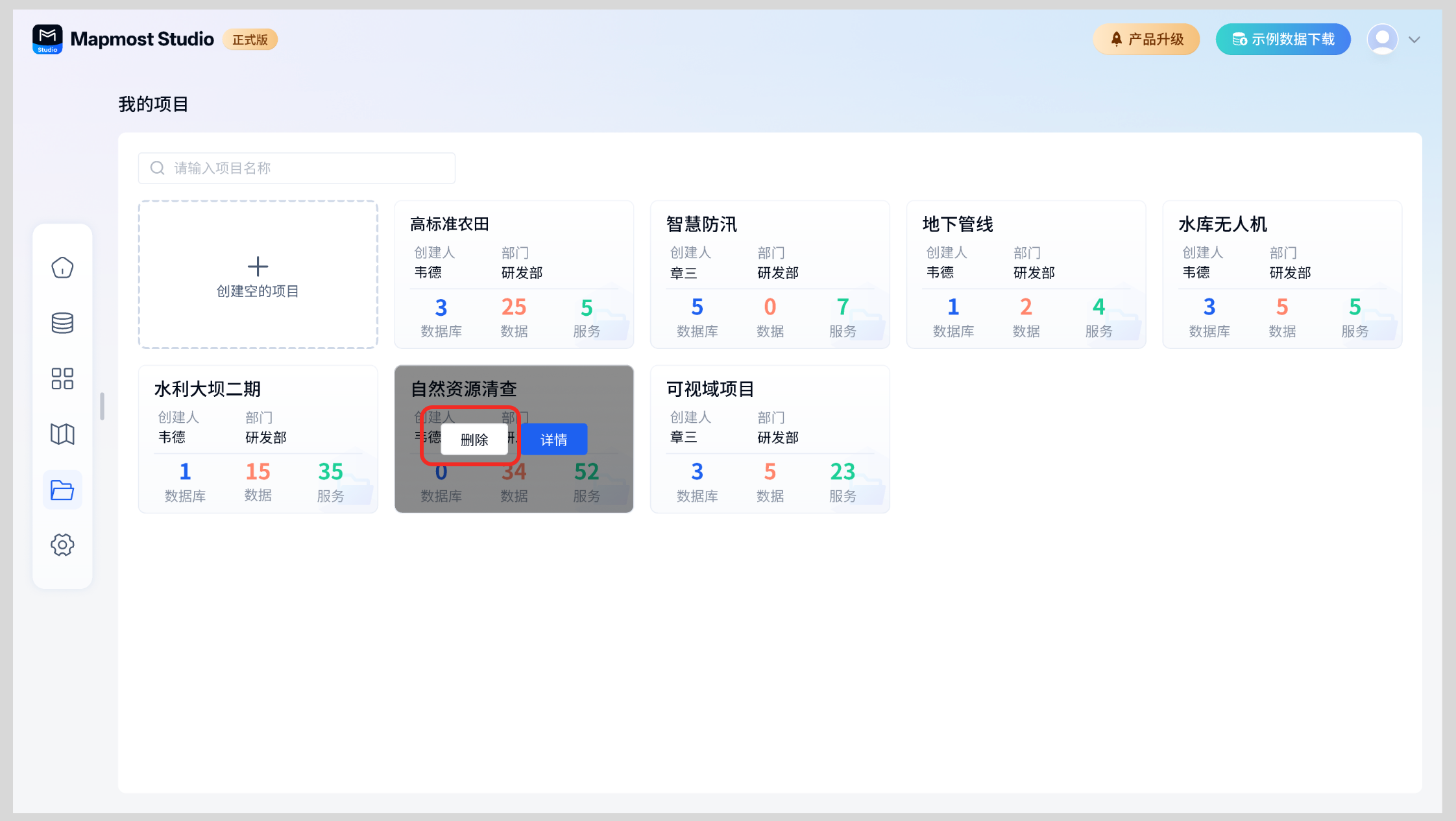
When the cursor stays on the project card, the card will display the "Delete" and "Details" buttons. Click the "Delete" button to delete the project. The resources (data, databases, services, map styles) associated with the project will not be deleted. Deleted items cannot be retrieved, please proceed with caution.
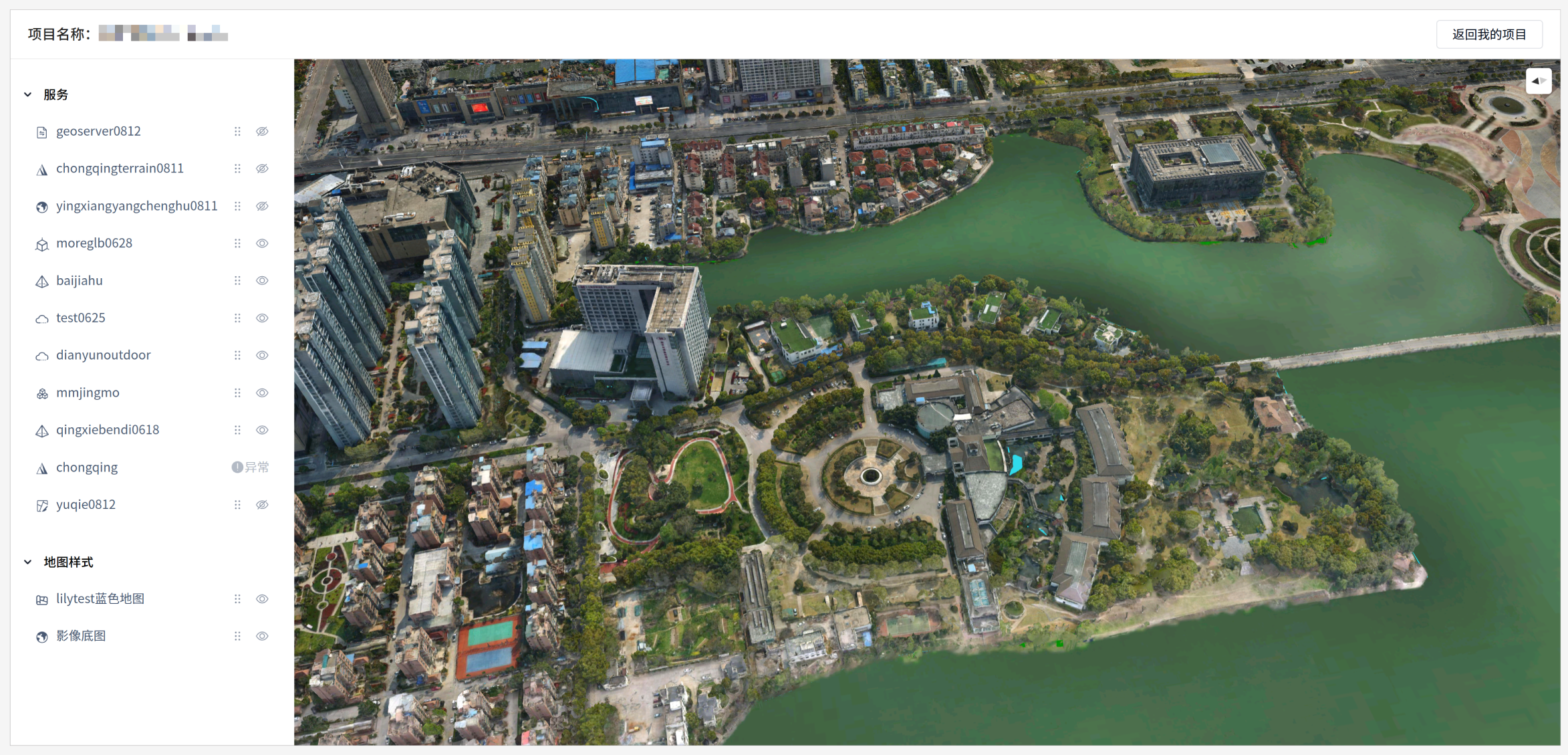
4. One-click preview of project resources
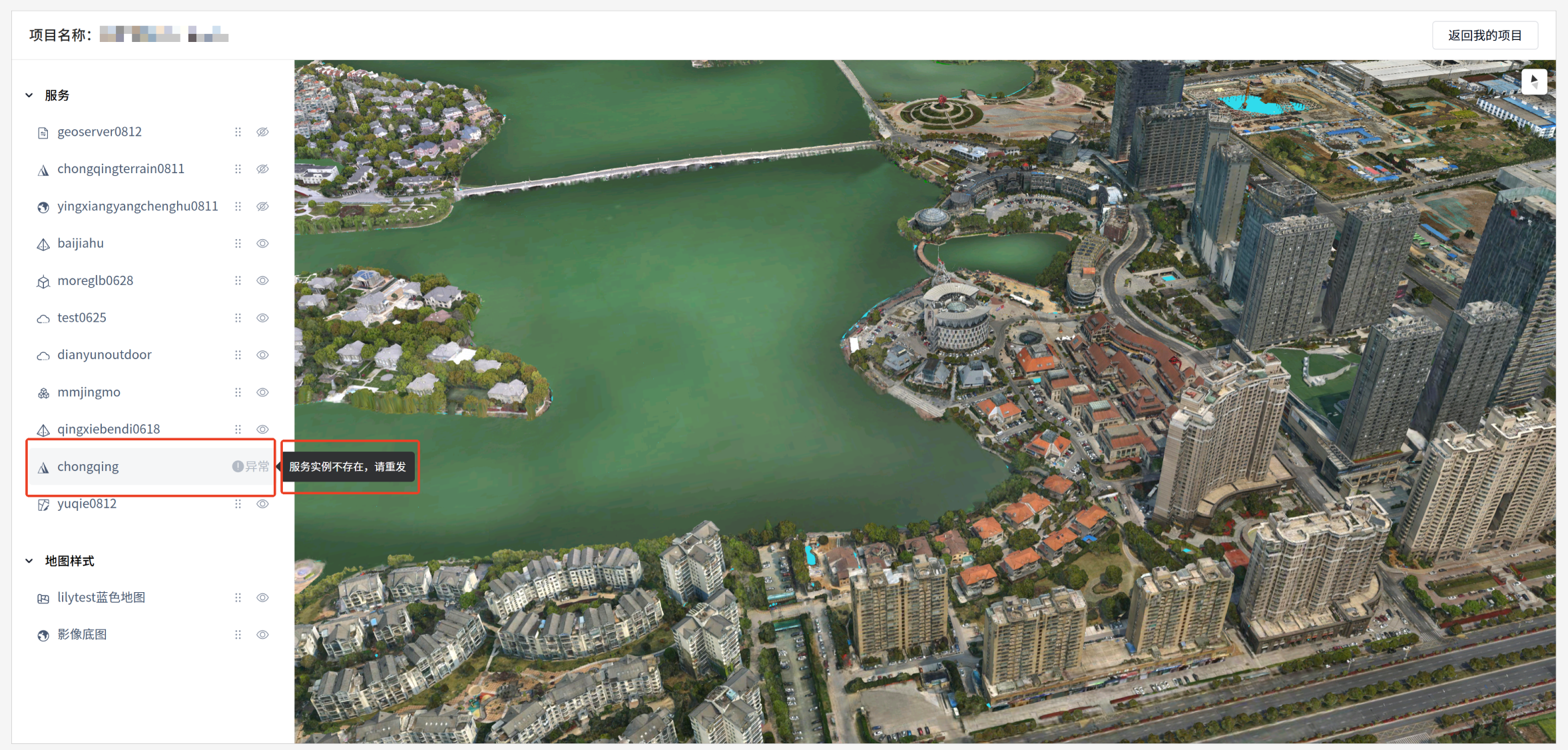
The Preview Project page displays the associated services and map styles in the project. By default, services are at the top and maps are at the bottom.
4.1. Resource display and hiding
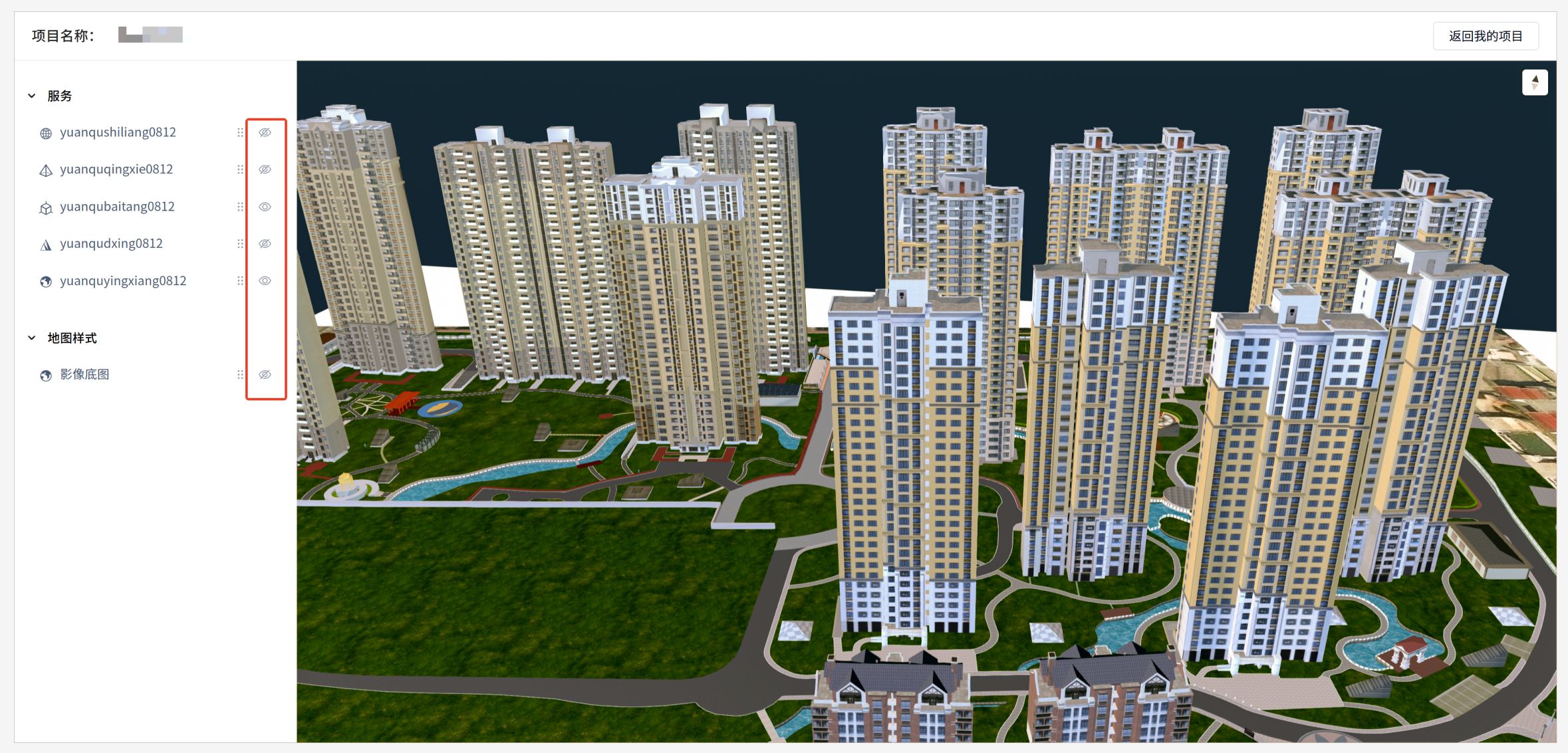
Click the "little eye" icon to control the display or hiding of service resources and map resources in the right display area.
4.2. Layer order adjustment
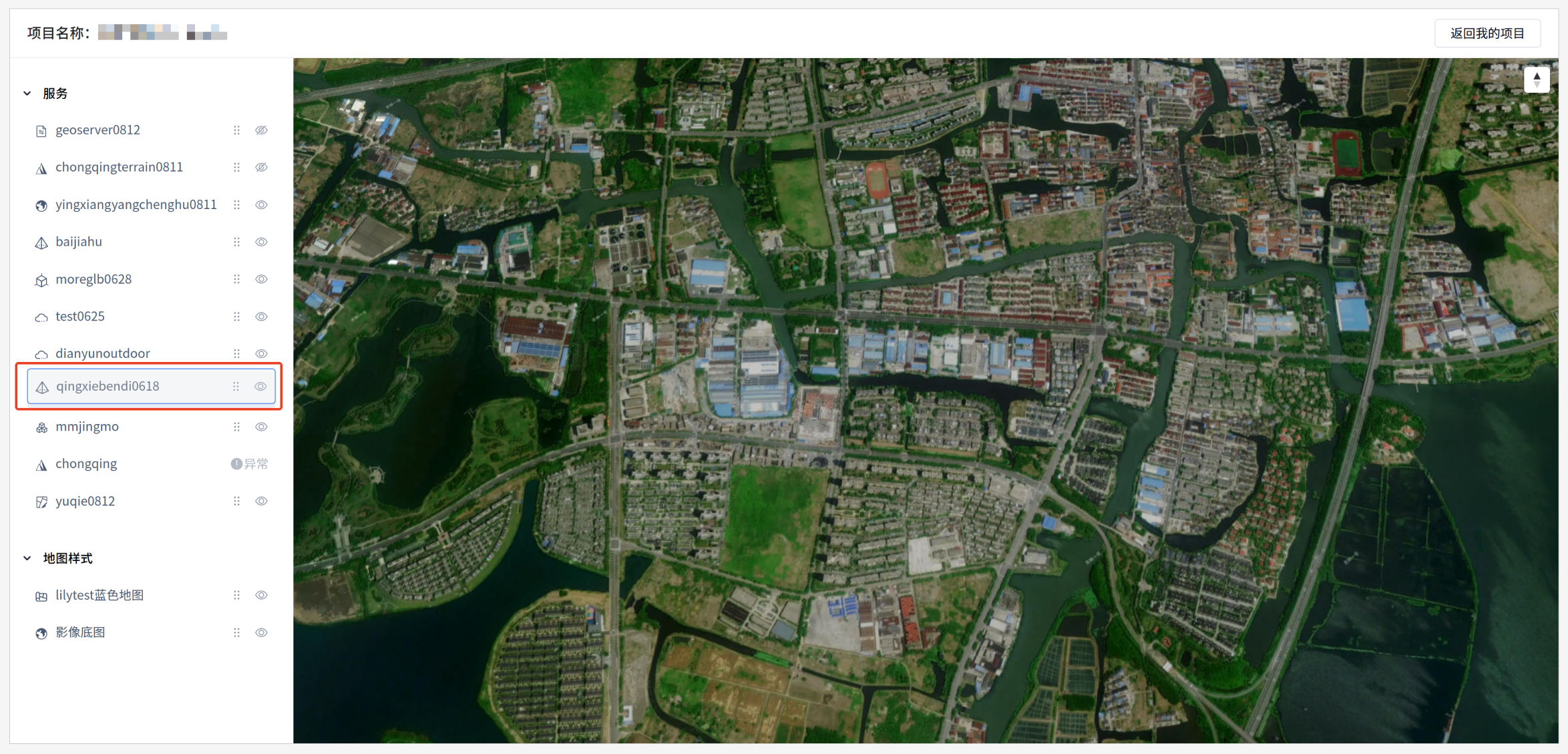
Service resources and map styles support dragging and adjusting the order within the group where they are located. Service layers cannot be dragged under the service category to the map basemap category.
4.3. Service exception prompt
If an exception occurs during the preview process and the service cannot be used normally, there will be an exception prompt and the service will not be loaded and displayed.