offlineFAQ
#Offline deployment issues
1. Offline authorization deployment failed
📖 【Question content】
- Start the deployment script, and the log shows an exception.
💡【Suggested Plan】
Check the /dist/root/s1.log log to see if there are the following exceptions.

If this exception exists, it means that the server system lacks a runtime library. Please contact the Mapmost team to statically compile and deploy the package for the server release version.
2. Browser configuration
📖 【Question content】
- WebGL offline authorization deployment is completed without error, but the map still cannot be loaded normally and a white screen appears.
- Various layers cannot be displayed.
💡【Suggested Plan】
- Check whether the Chrome browser is a 64-bit browser, and the browser version needs to be 100+.
❗️【Notes】
- Please use Chrome browser and enable WebGL feature.
3. Mixed use of online authorization and offline authorization
📖 【Question content】
The console reports an error "Authorization verification failed, please check the network or contact the Mapmost team!".
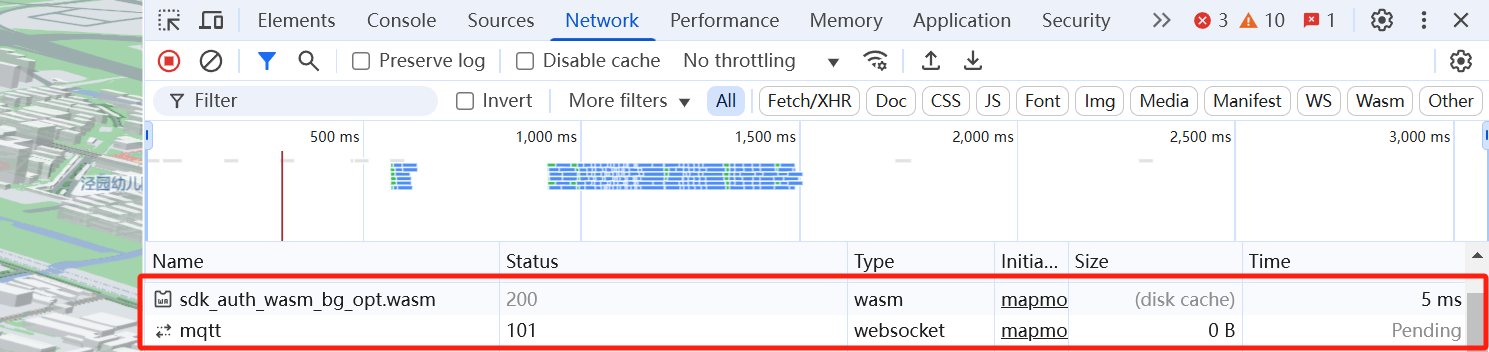
Console mqtt request and wasm file request are normal.
💡【Suggested Plan】
- Check if the wasm file request is https://delivery.mapmost.com/cdn/auth_wasm/0.4.2/sdk_auth_wasm_bg_opt.wasm.
- Check if the mqtt request is wss://message.mapmost.com/mqtt.
- If so, it is a problem of mixing online authorization and offline authorization. The authorization code uses the offline authorization code, but the mqtt and wasm requests are online authorization requests. Please replace the wasm and mqtt requests with the corresponding offline authorization requests.
❗️【Notes】
- Each person has an independent authorization code and cannot use other people’s authorization codes.
- Authorization codes for different products cannot be mixed.
4. Authorization expiration
📖 【Question content】
- The console reports an error "Authorization verification failed, please check the network or contact the Mapmost team!"
- Console mqtt request and wasm file request failed
💡【Suggested Plan】
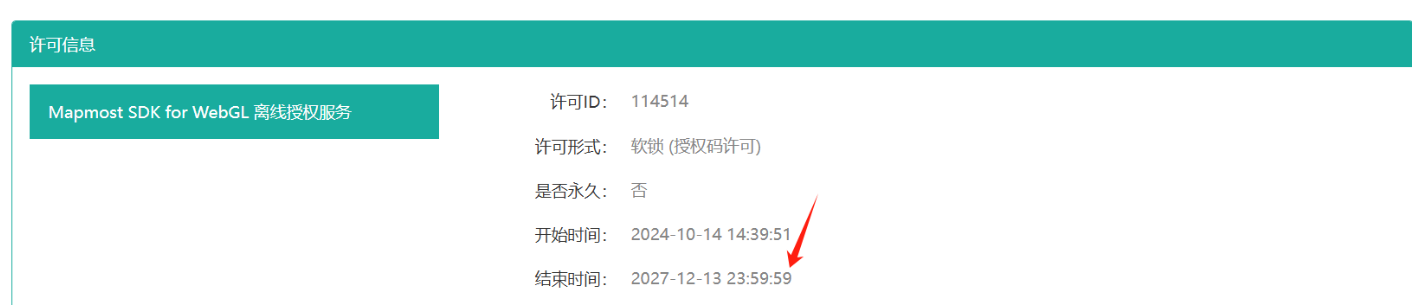
Check whether the offline authorization has expired.
Visit the address https://user.lm.virbox.com/sn/login.html to check whether the offline authorization has expired.
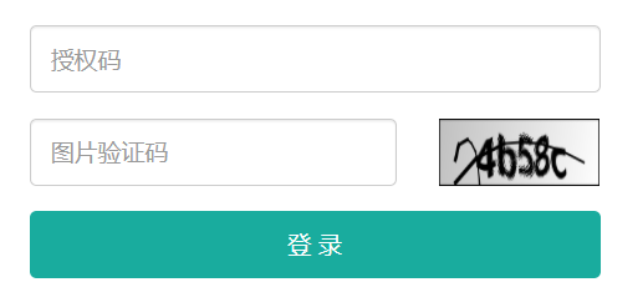
- The authorization code can be obtained from offline authorized deployment/operation and maintenance personnel. It is a string separated by - (minus sign) into four sections. Each section consists of numbers and uppercase letters; the format is similar to 1AAA-B2BB-CC3C-DDD4.
❗️【Notes】
- If the offline authorization has expired, please contact the project manager in time for procurement renewal.
- The procurement renewal process takes time. Please project managers pay attention to Mapmost’s push text messages. SMS notifications will be sent 7 days before expiration. Please handle the renewal matters in a timely manner to avoid affecting the use of the project.
5. Authorization exception
📖 【Question content】
- The console reports an error "Authorization verification failed, please check the network or contact the Mapmost team!".
- The console mqtt request and wasm file request are abnormal.
- The self-check authorization at the address https://user.lm.virbox.com/sn/login.html has not expired.
💡【Suggested Plan】
- Contact offline authorized operation and maintenance personnel promptly to check whether the server is running normally and the load condition, mainly checking the disk, memory, and CPU.
- If the server is running normally and the load is normal, please contact the Mapmost team for troubleshooting.