Quick Start
Welcome to Mapmost 3D Video Integration. This guide takes you from software download and installation to your first calibration task.
1. Request a Trial
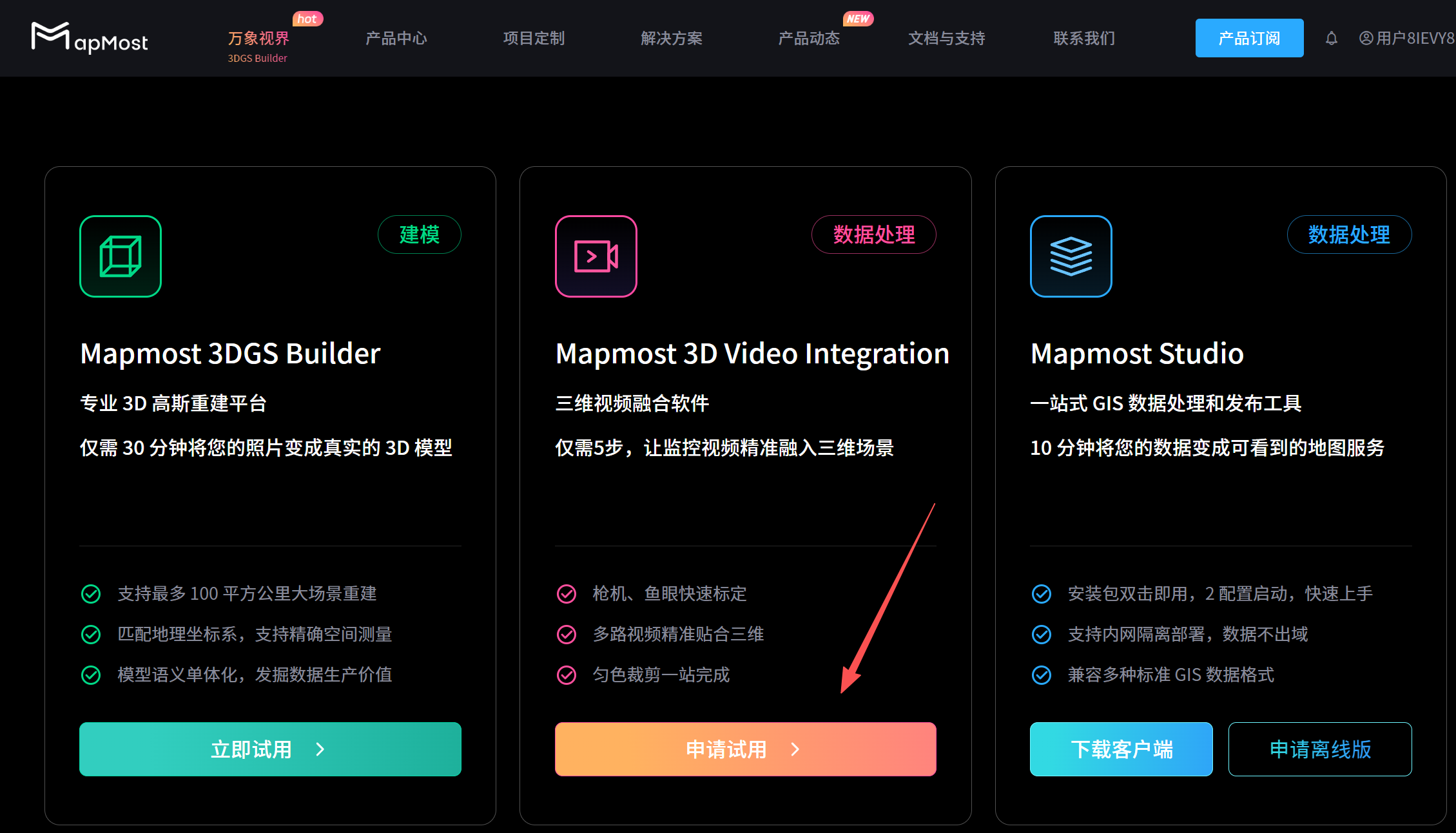
Visit the Mapmost website, open the Product Center, and select Mapmost 3D Video Integration.

Click Request a Trial to open the application page.
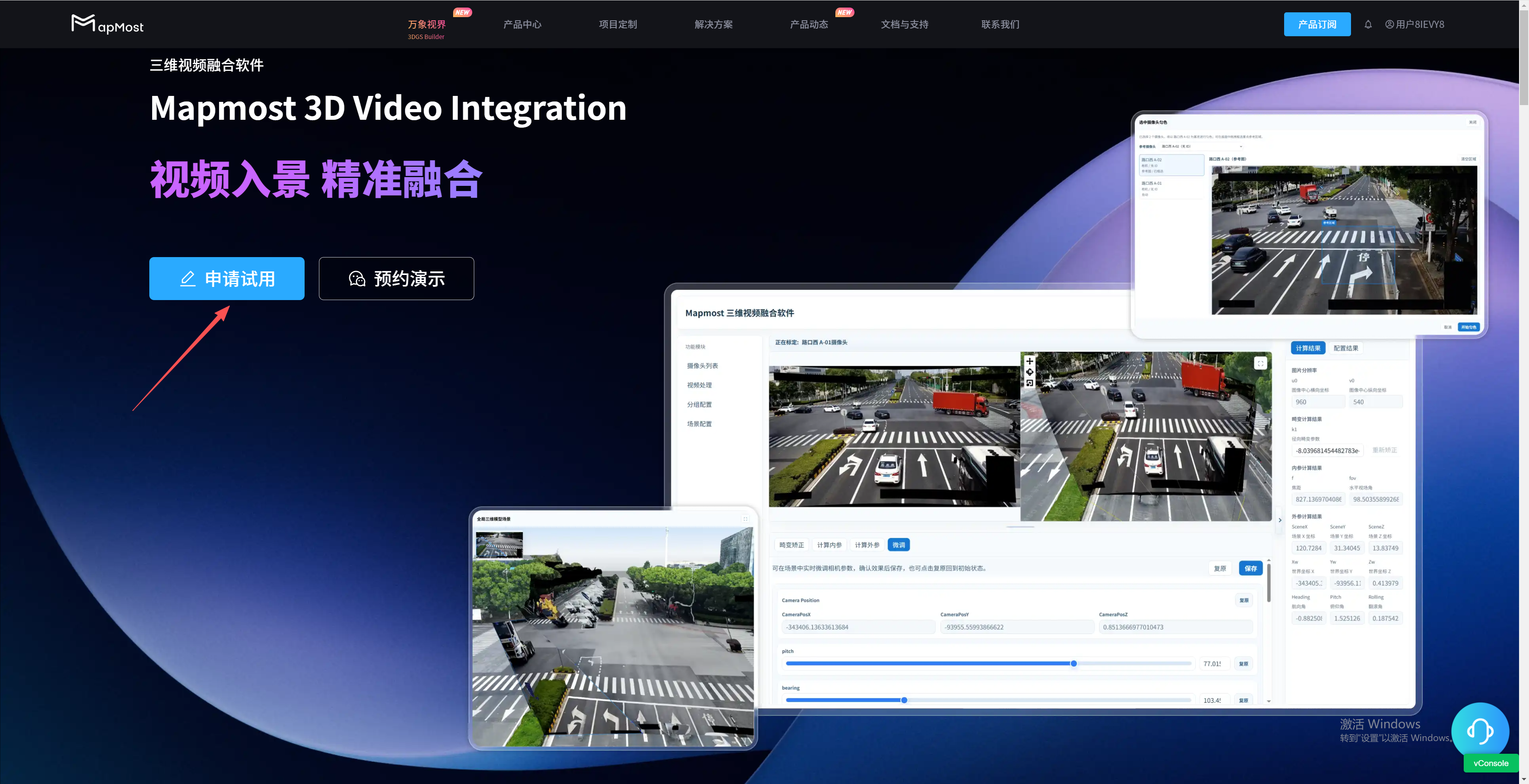
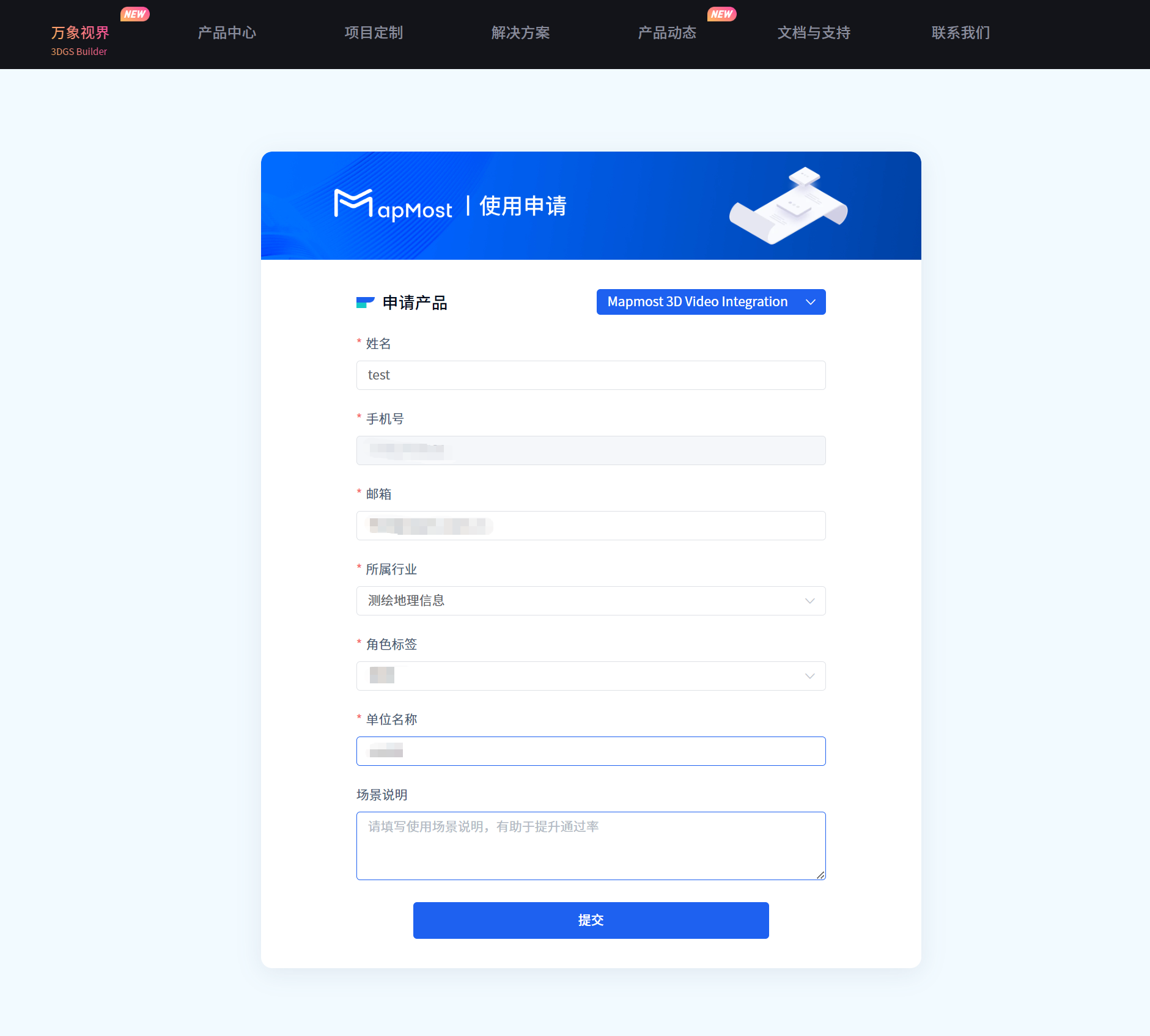
The installation package is sent by customer service, and only an approved mobile number can sign in.
2. Install and Sign In
2.1 Install the Software
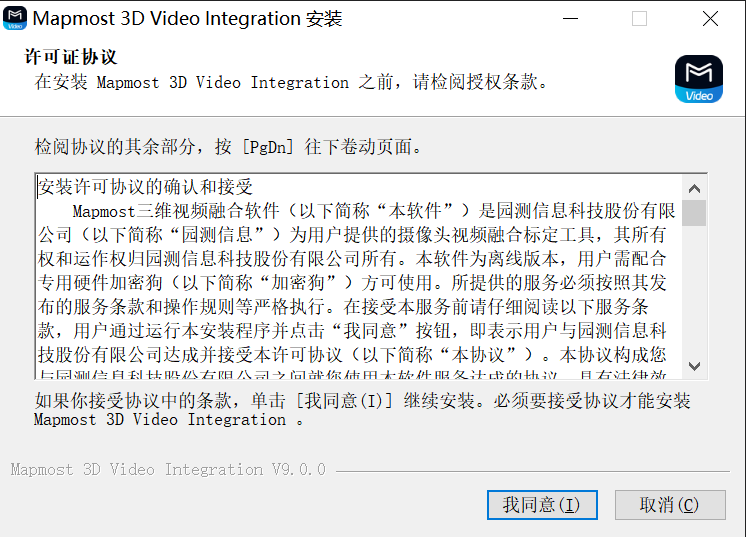
- Start the installer and click I Agree.
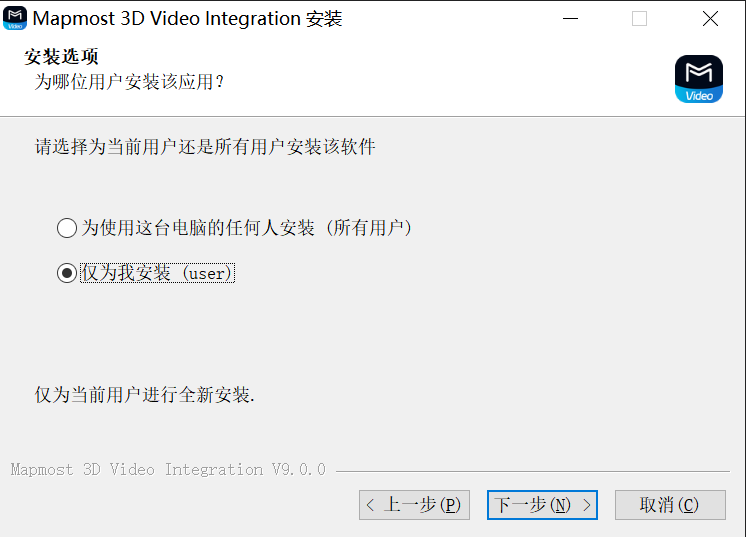
- Select the users who should have the software installed, then continue.
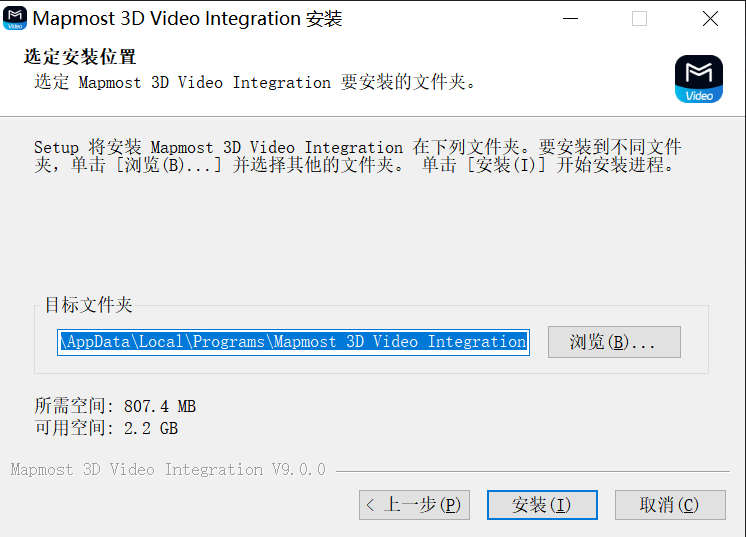
- Select the installation folder and click Install.
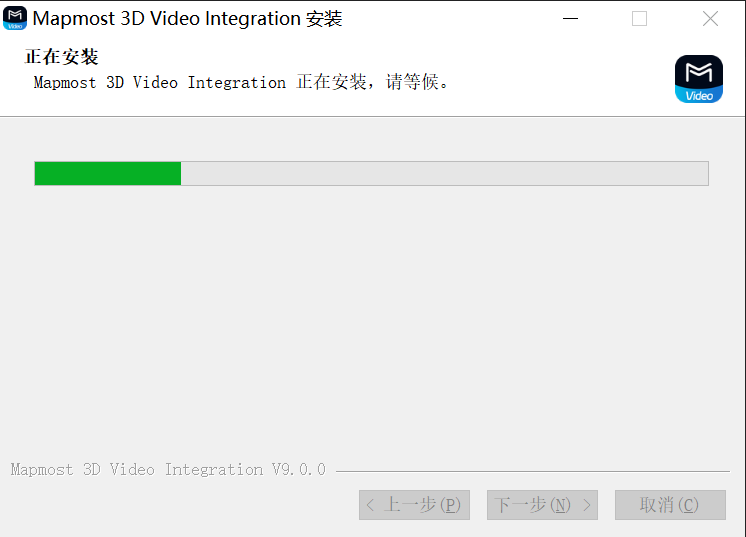
- Wait for installation to finish.
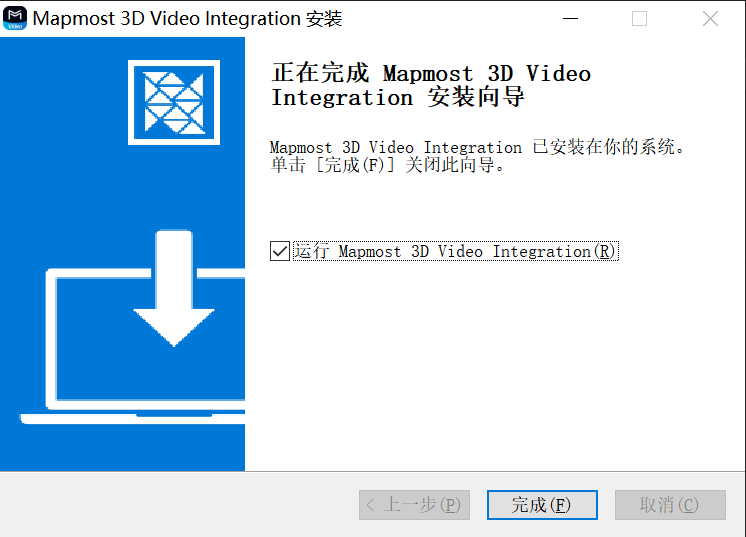
- Click Finish to launch the software.
2.2 Sign In
You can register and sign in using a mobile verification code.
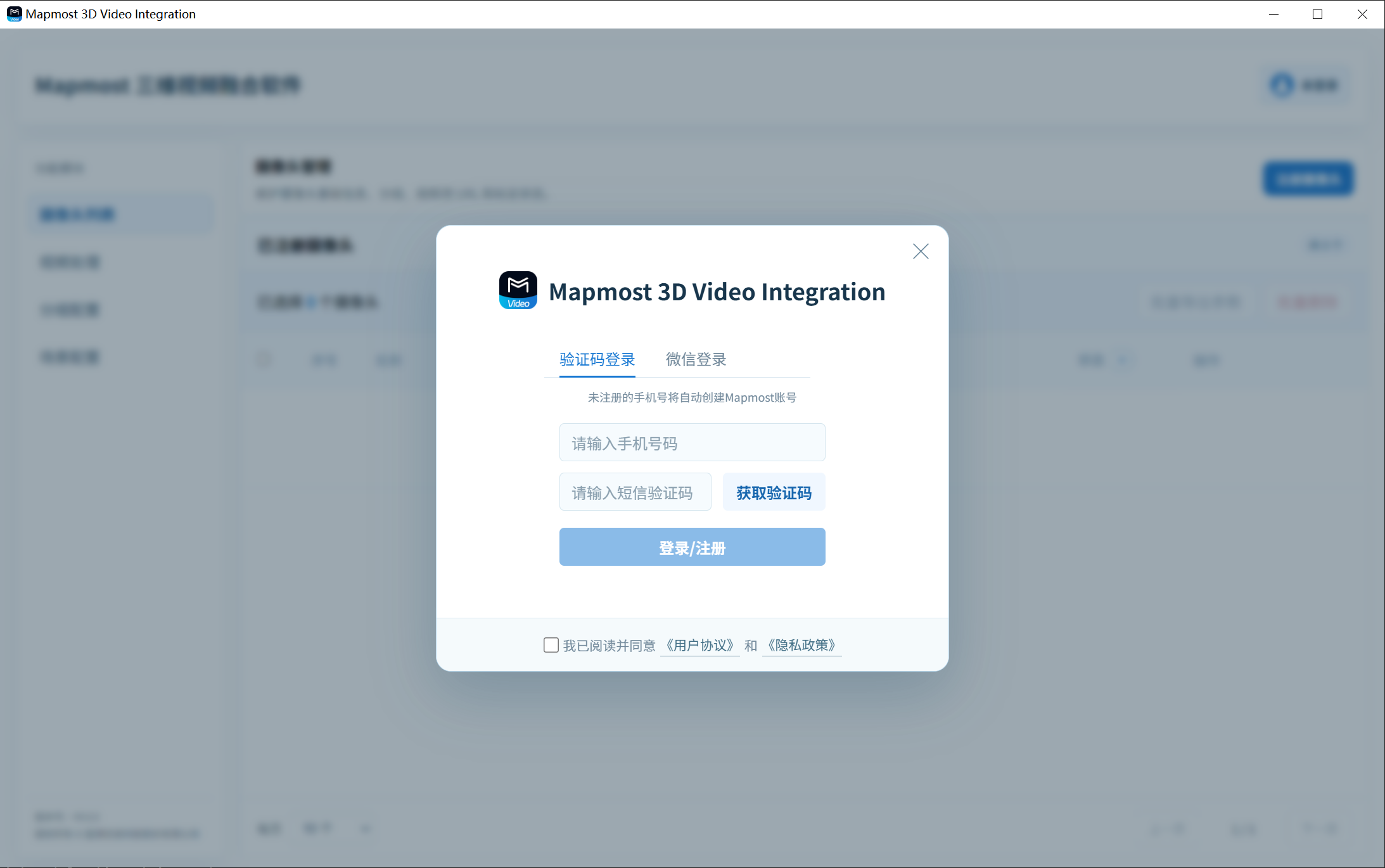
You can also register and sign in by scanning a WeChat code.
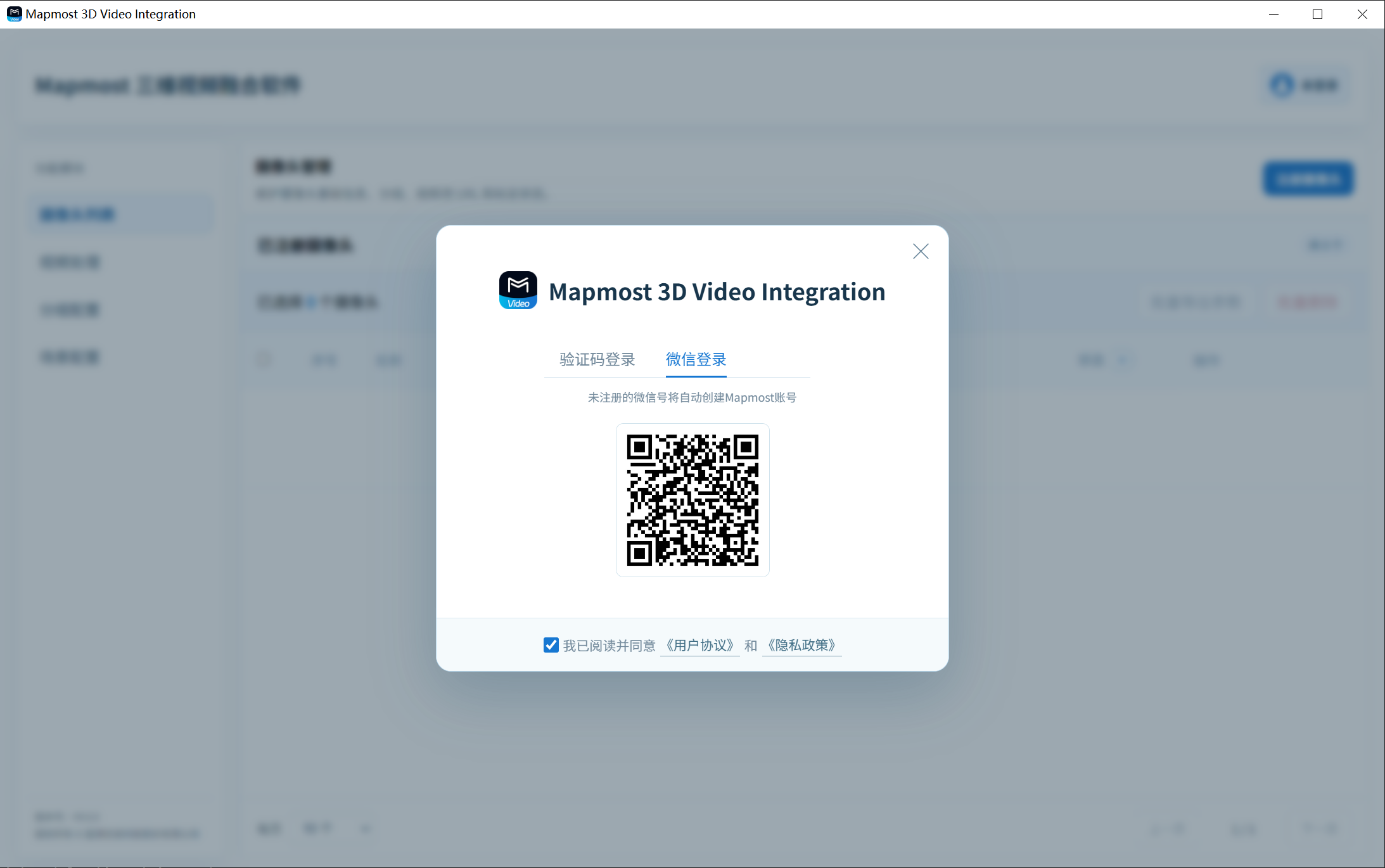
After a successful sign-in, the home page opens.
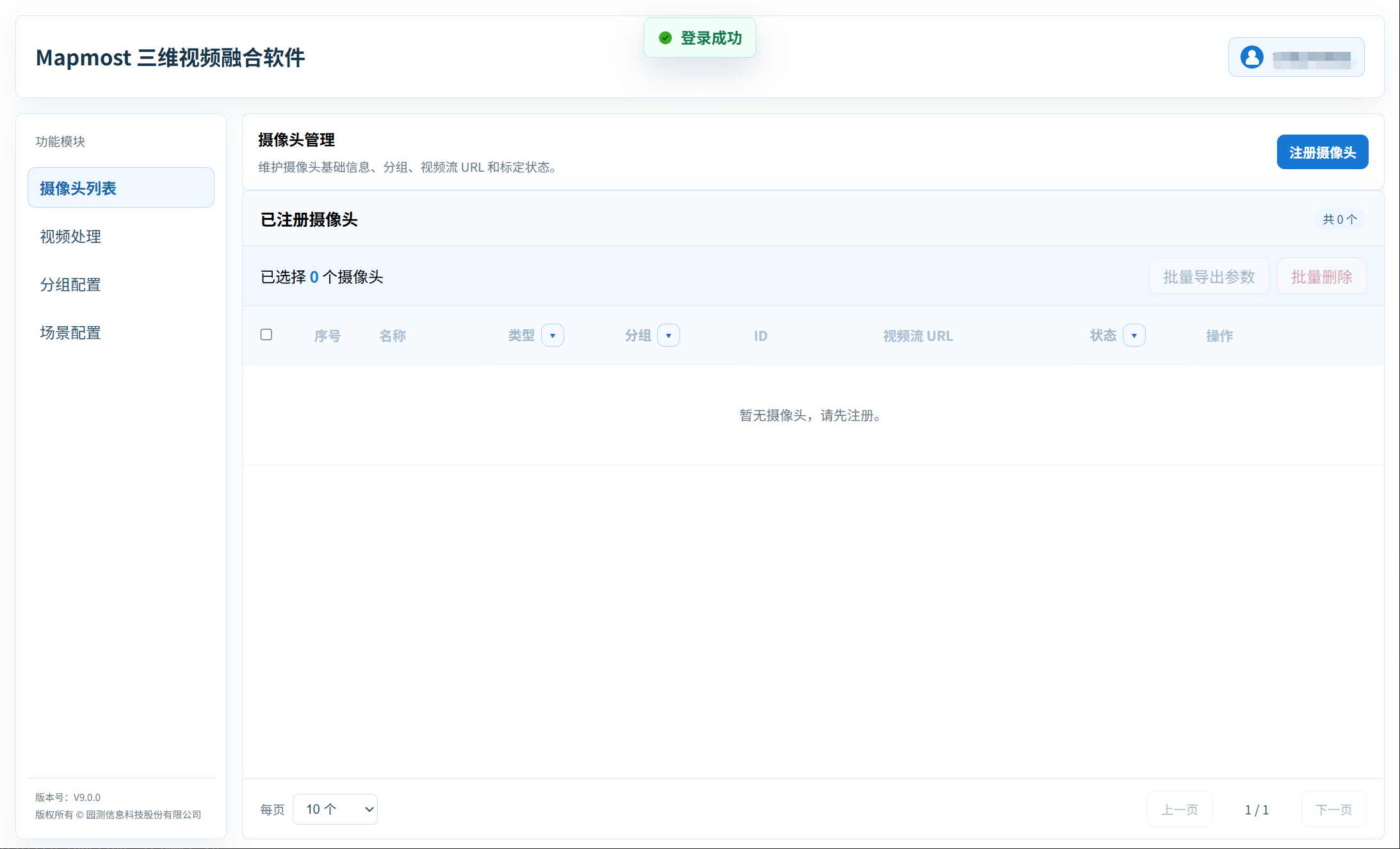
3. Complete Your First Calibration Task
3.1 Register a Camera
Open Camera List, click Register Camera, and enter the camera name, type, camera ID, video-stream URL, and group.
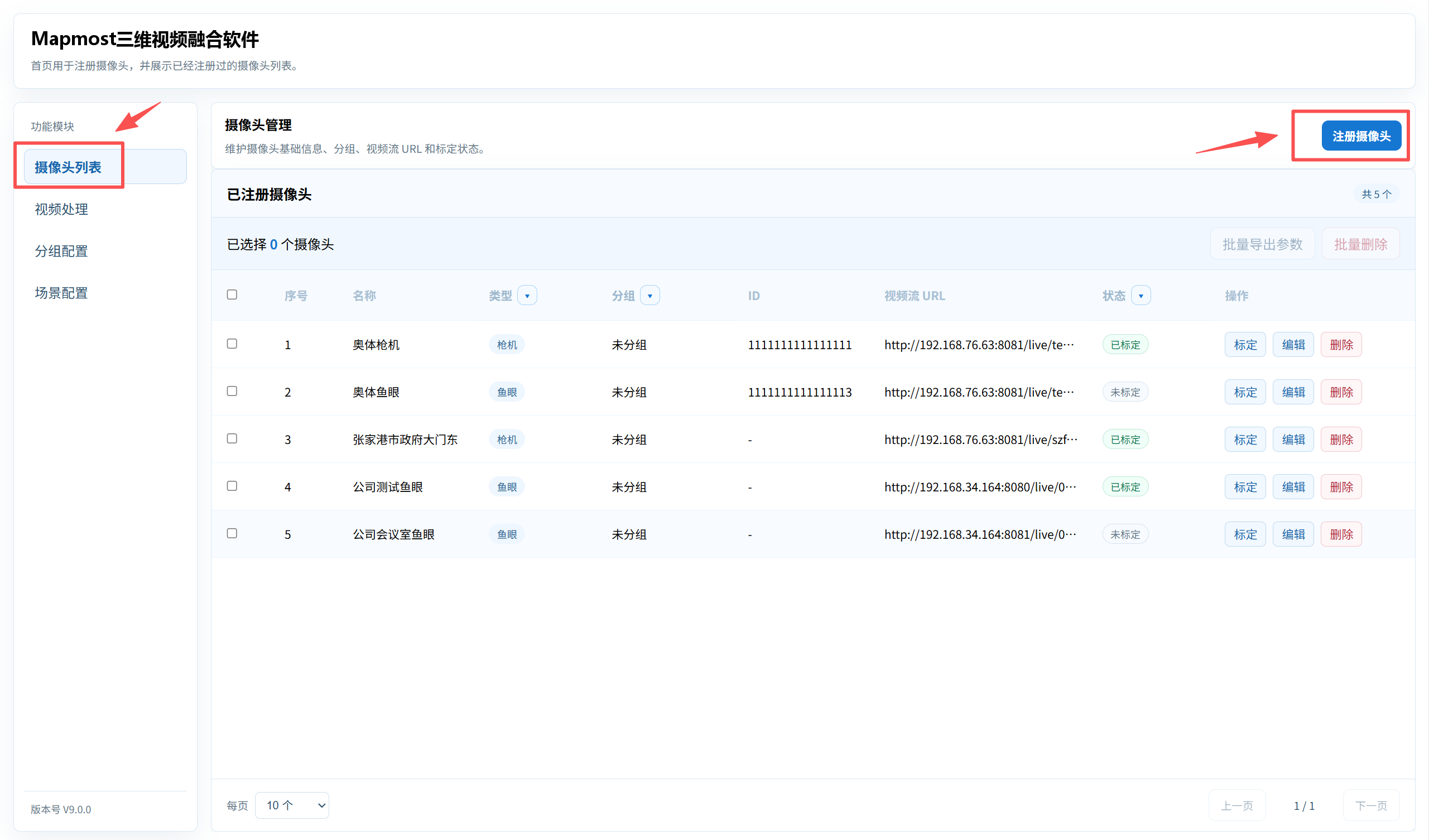
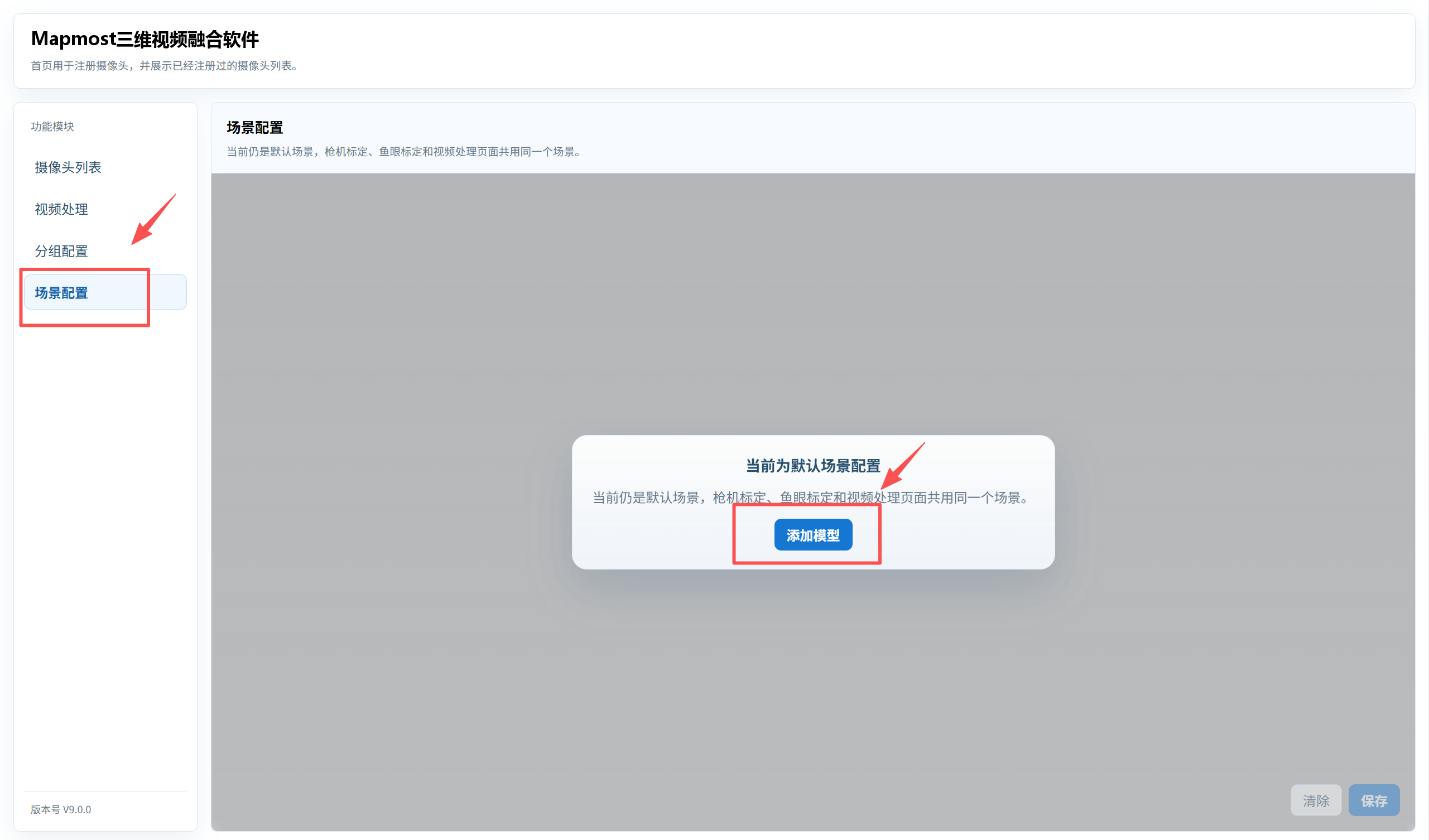
3.2 Configure the Scene
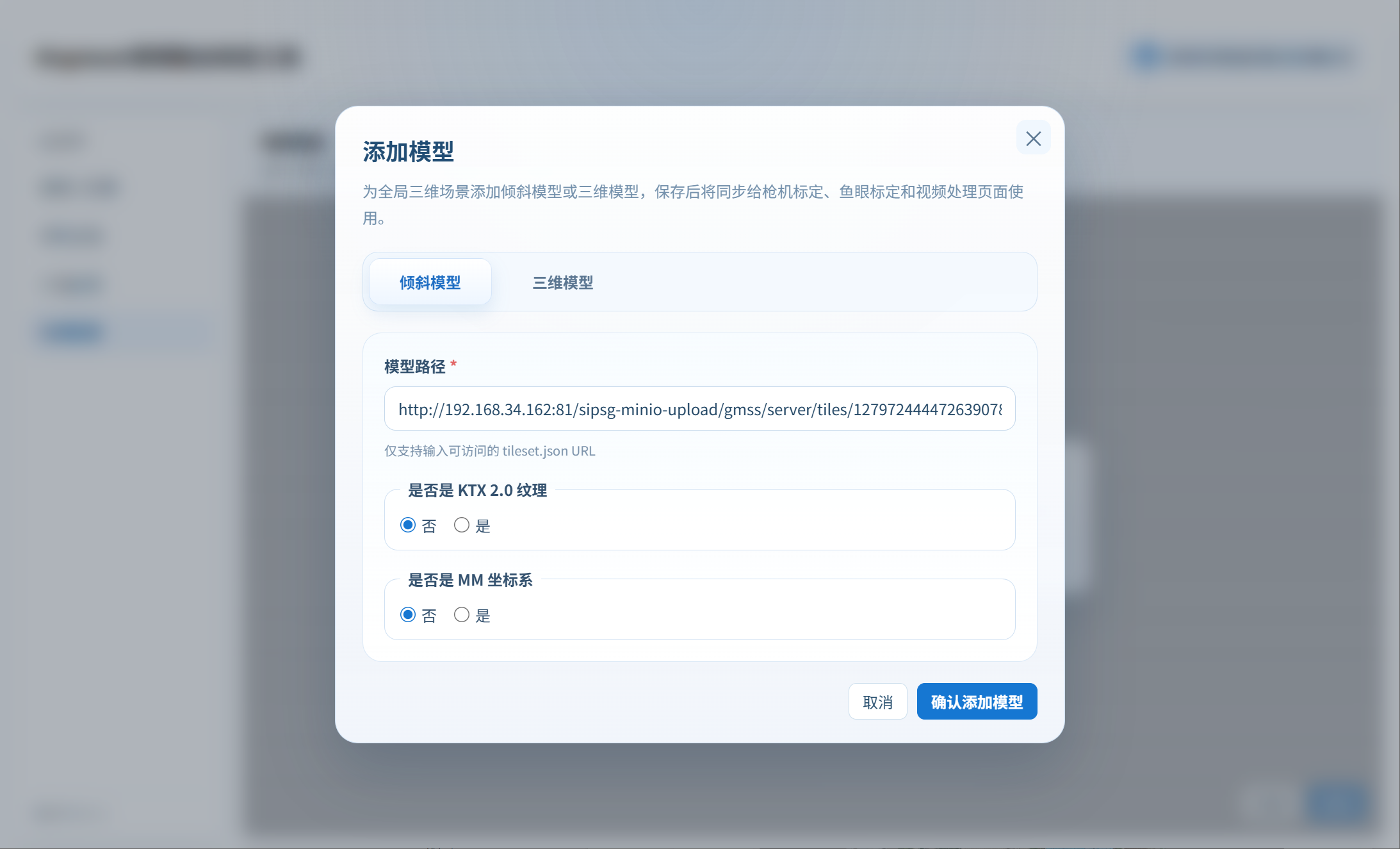
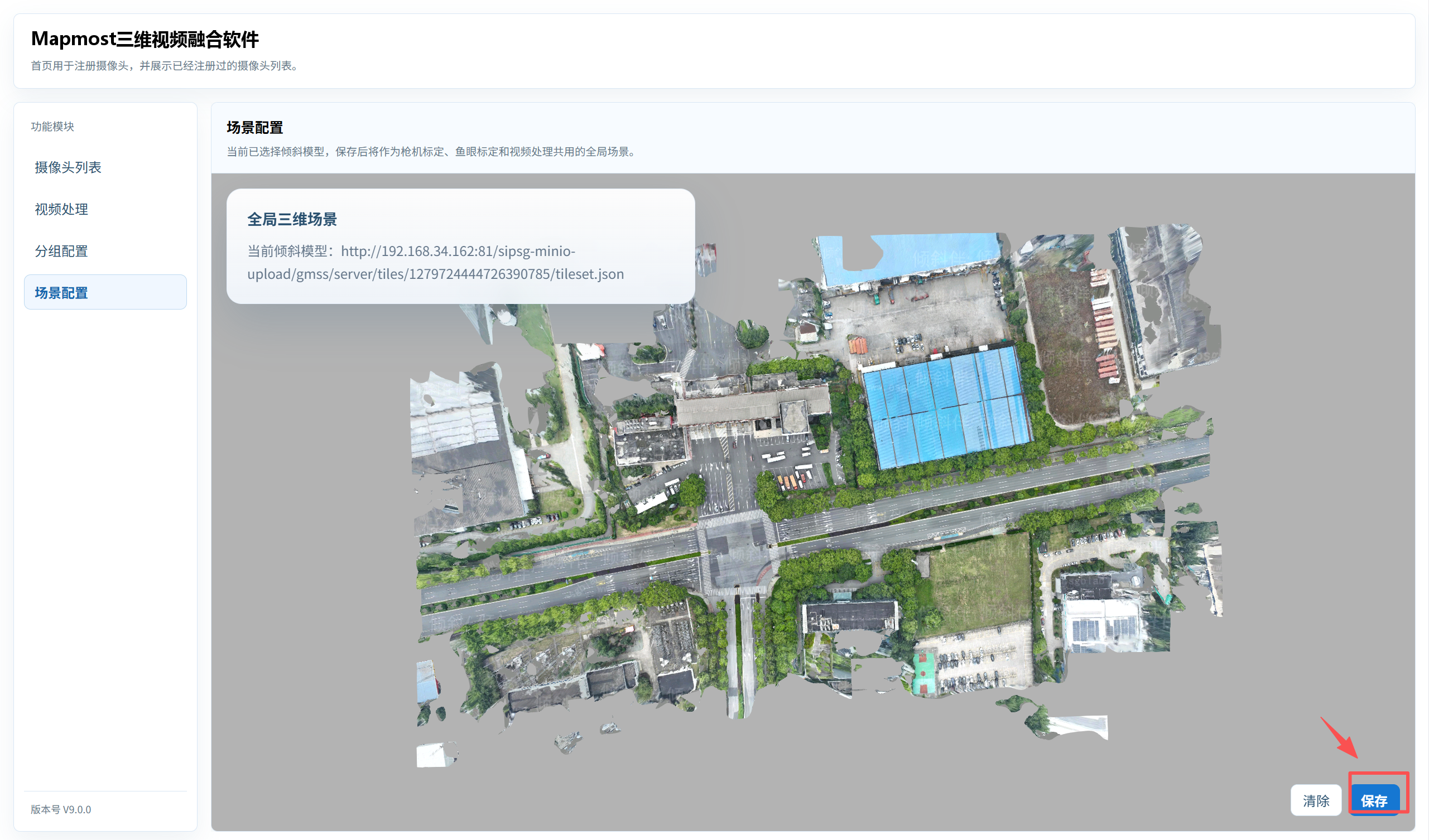
Open Scene Configuration, click Add Model to add the global 3D model scene, review the preview, then click Save.