Basic Workflow
Use Mapmost 3D Video Integration to register cameras, maintain groups, configure a global 3D scene, calibrate fixed and fisheye cameras, and configure video processing. Complete a video-fusion setup in the following order.
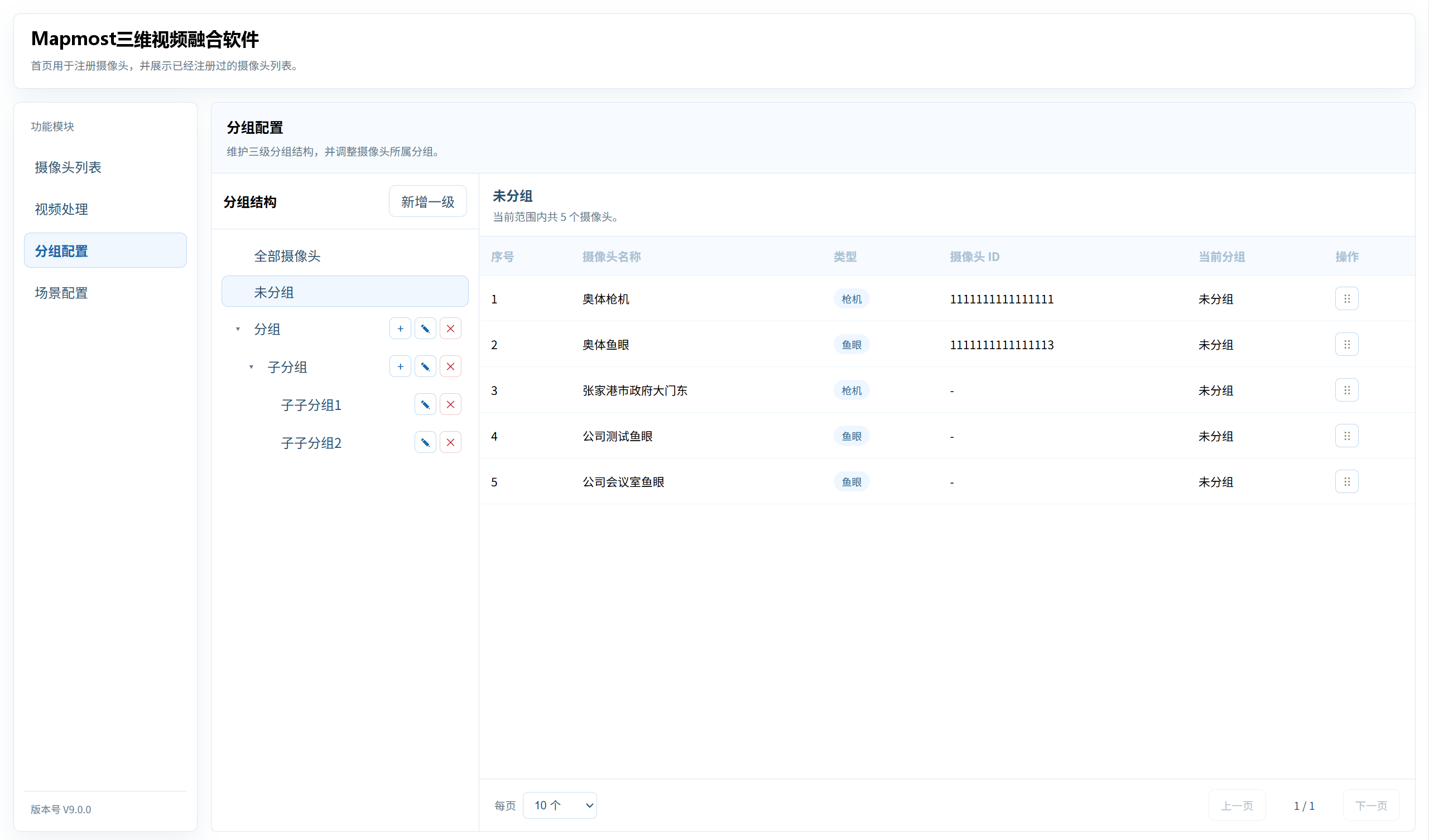
- After opening the system, verify or maintain the camera-group hierarchy in Group Configuration.
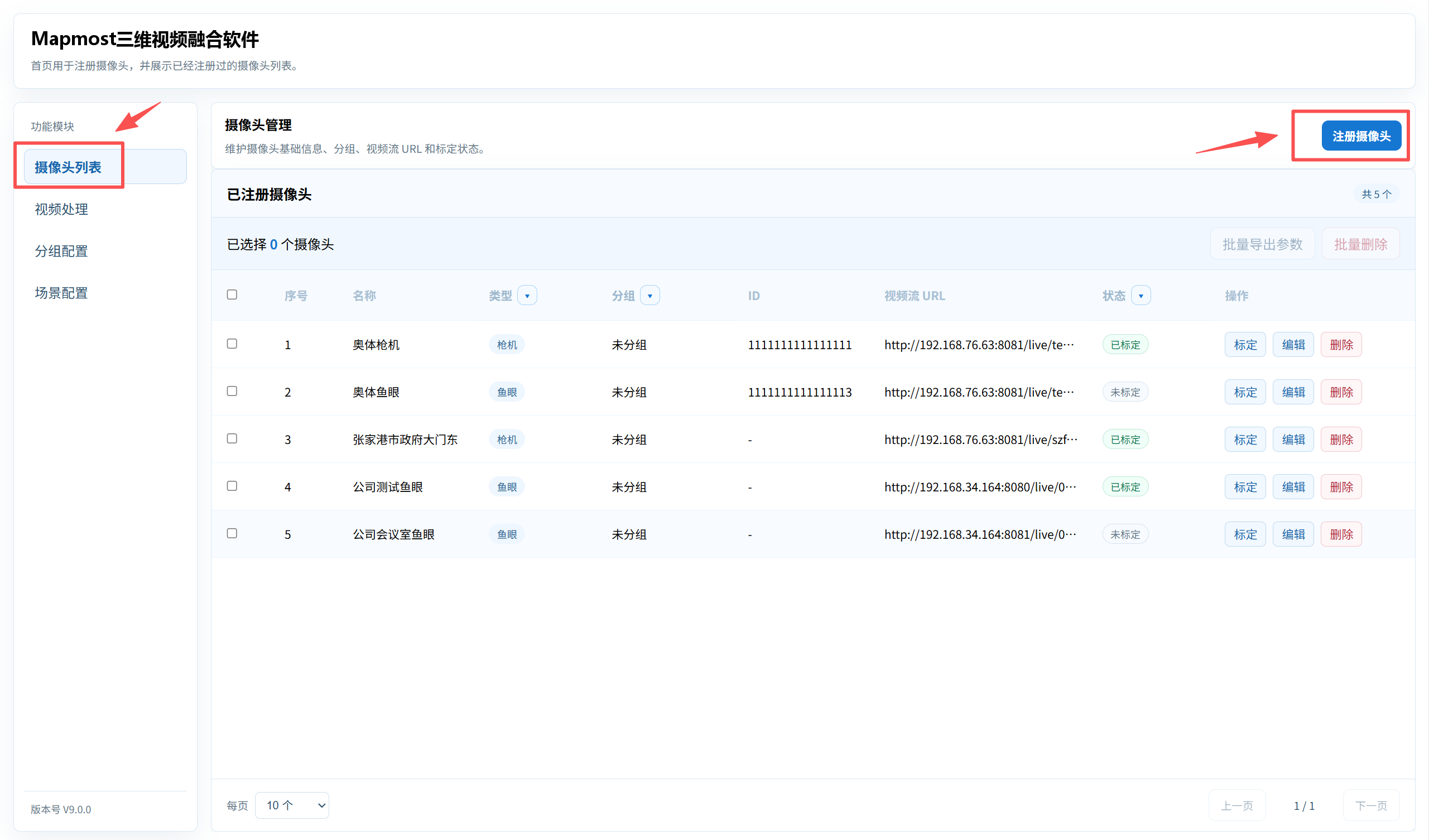
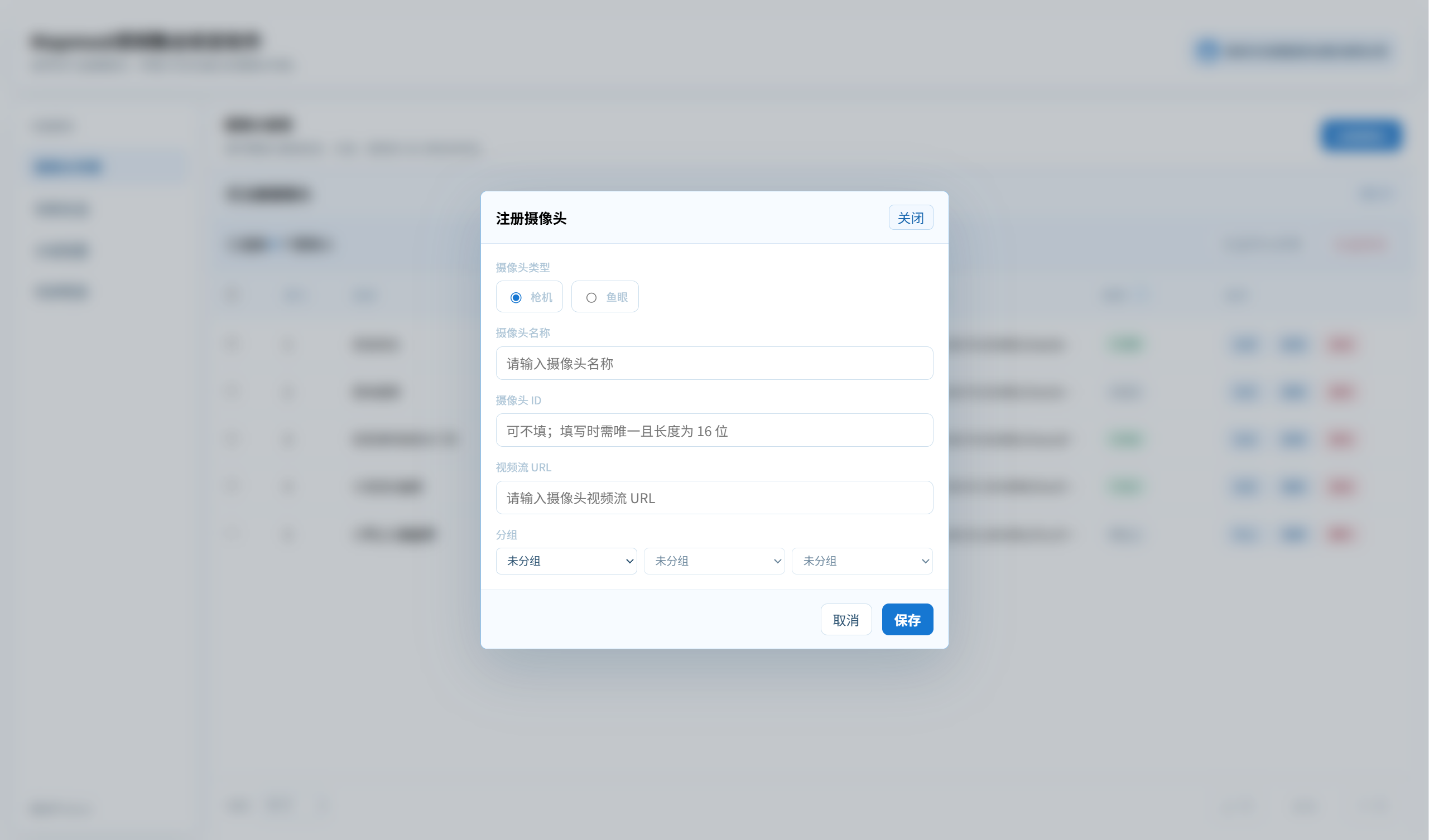
Open Camera List, click Register Camera, and enter the camera name, type, ID, video-stream URL, and group.
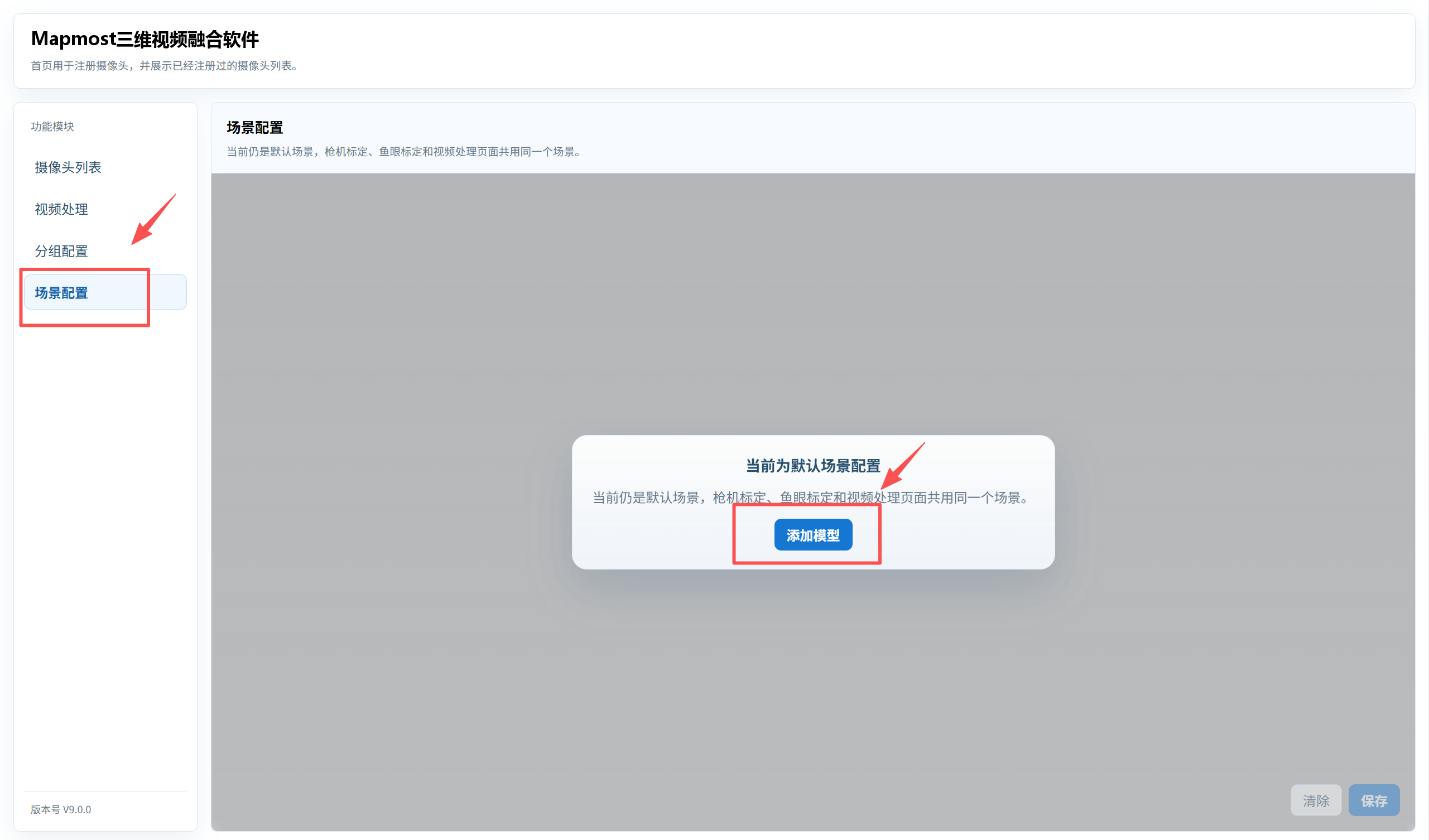
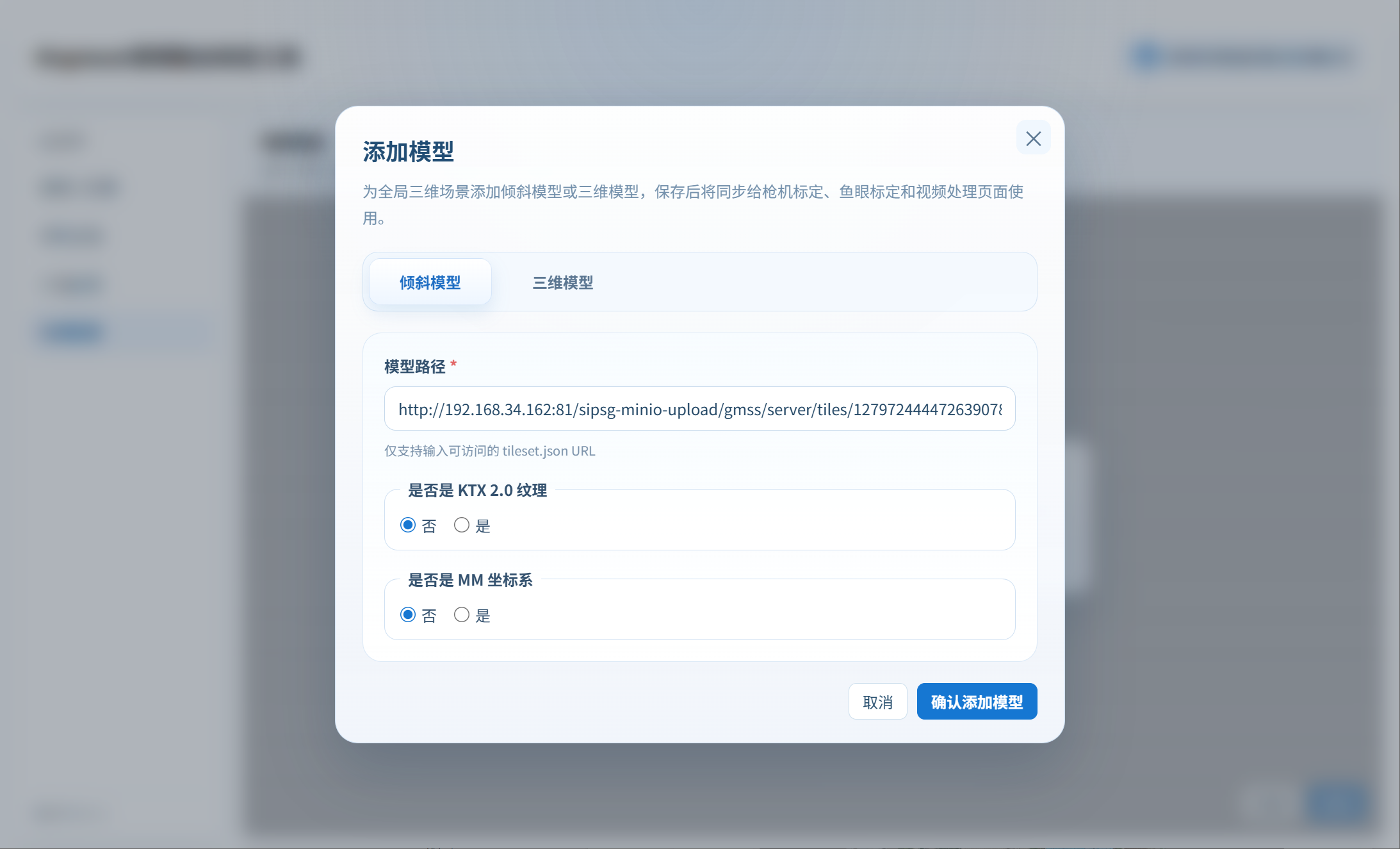
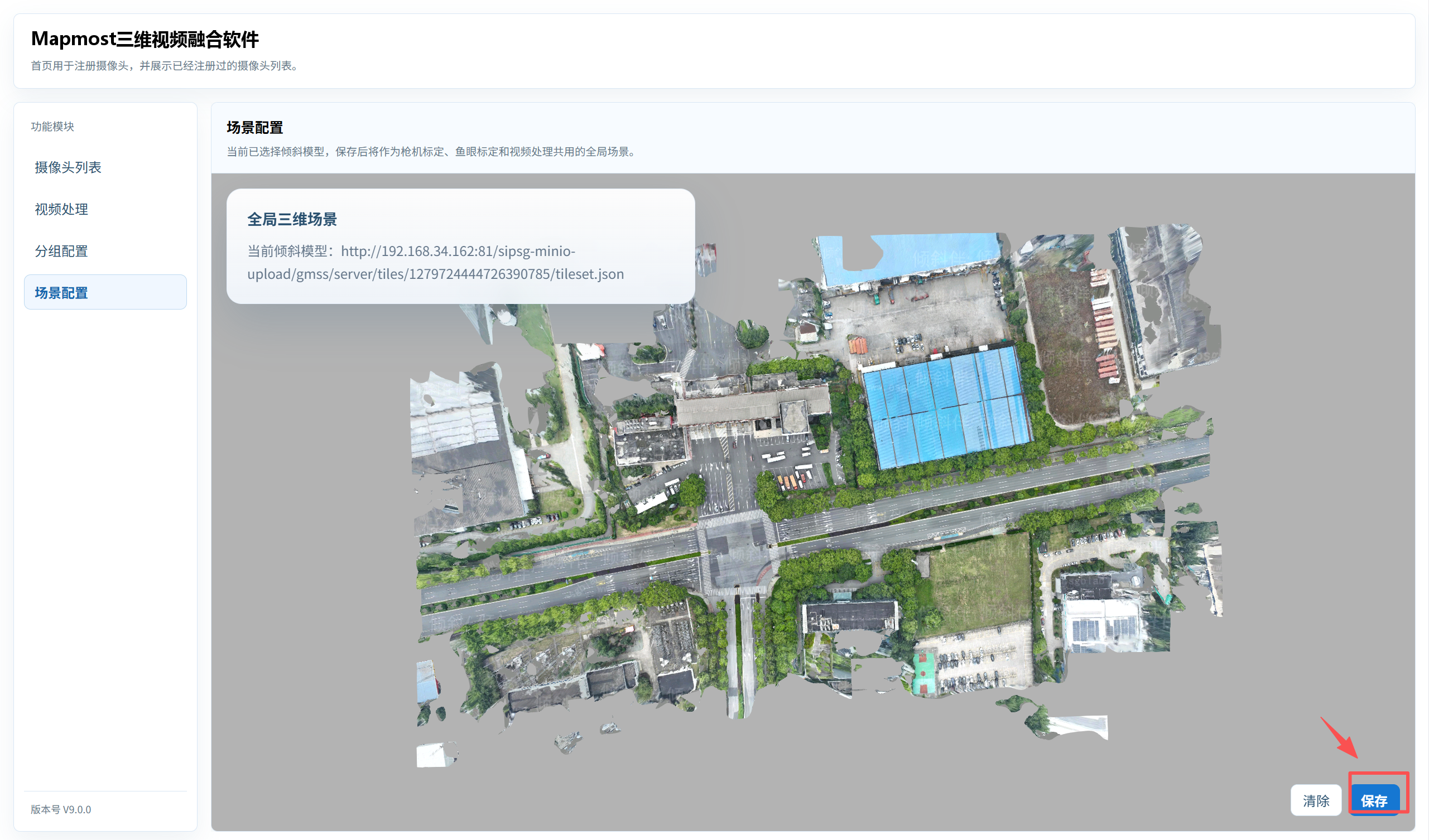
Open Scene Configuration, click Add Model to add the global 3D model scene, review the preview, and click Save.
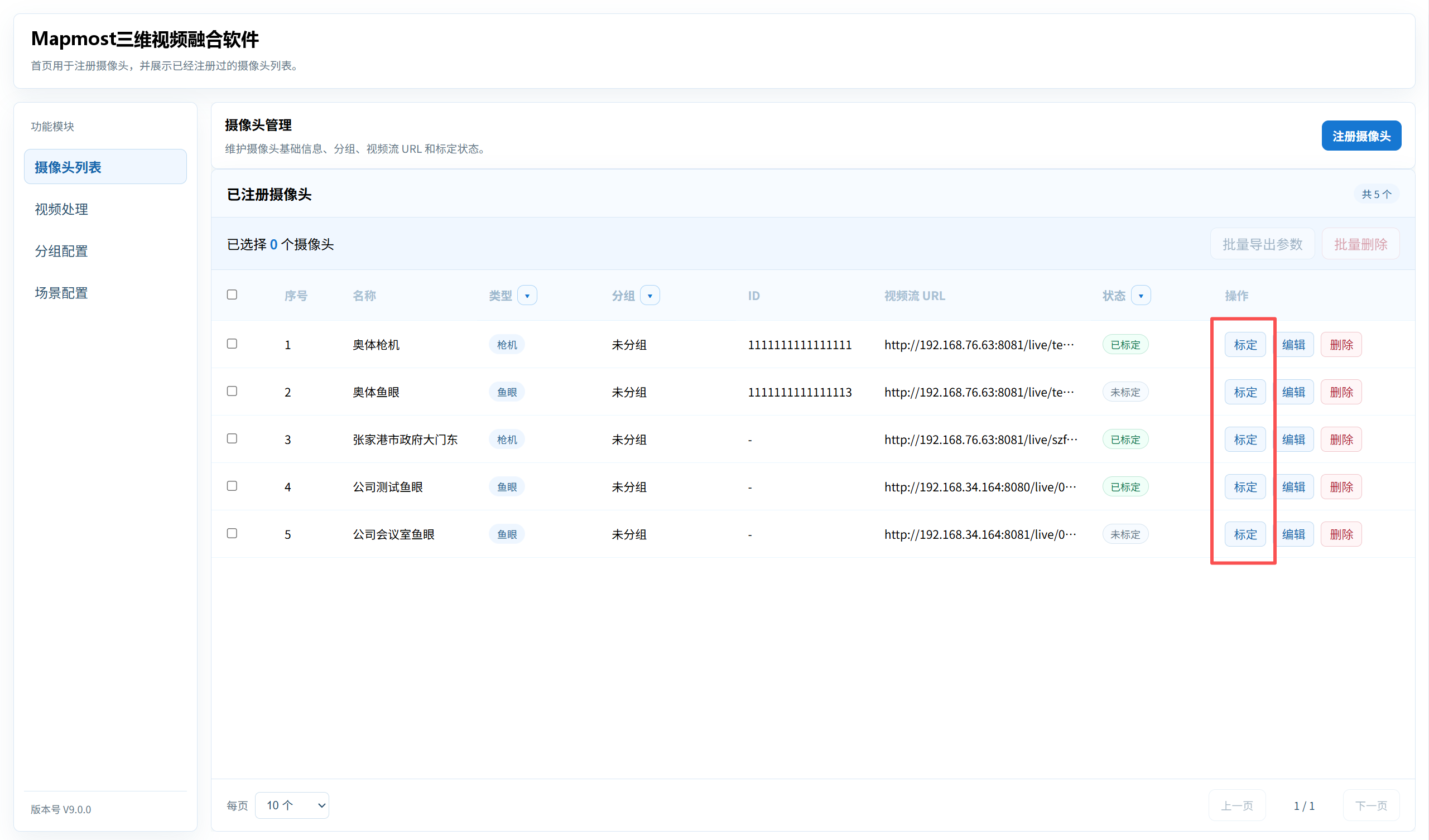
Return to Camera List, click Calibrate, and open Fixed Camera Calibration or Fisheye Calibration according to the camera type.
Open Video Processing, select cameras by group, and configure visibility, color matching, and crop regions. This list contains calibrated cameras only.
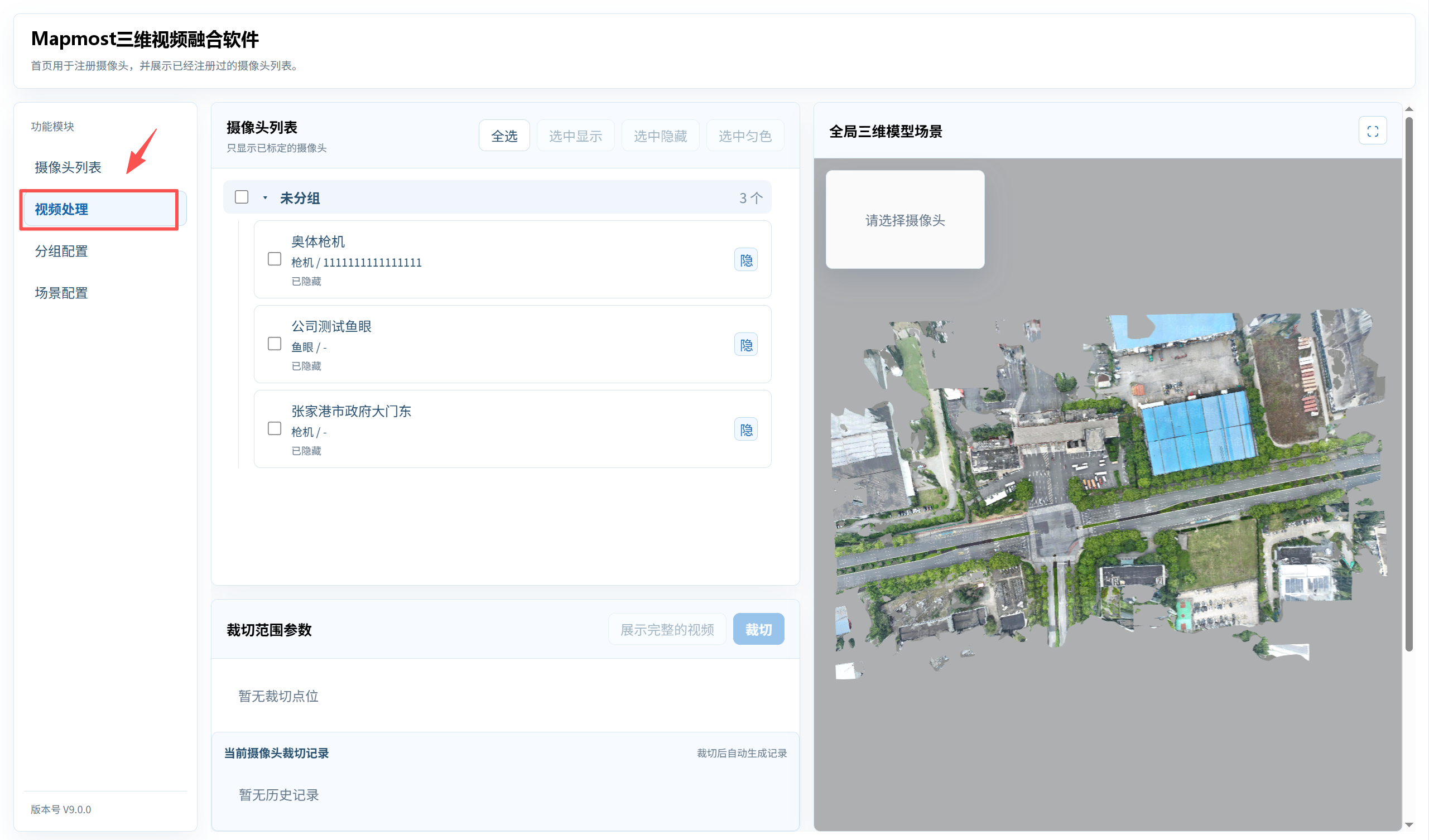
Configure the scene before camera calibration because fixed-camera calibration, fisheye calibration, and video processing reuse the global 3D model scene.
Export Configurations in Bulk
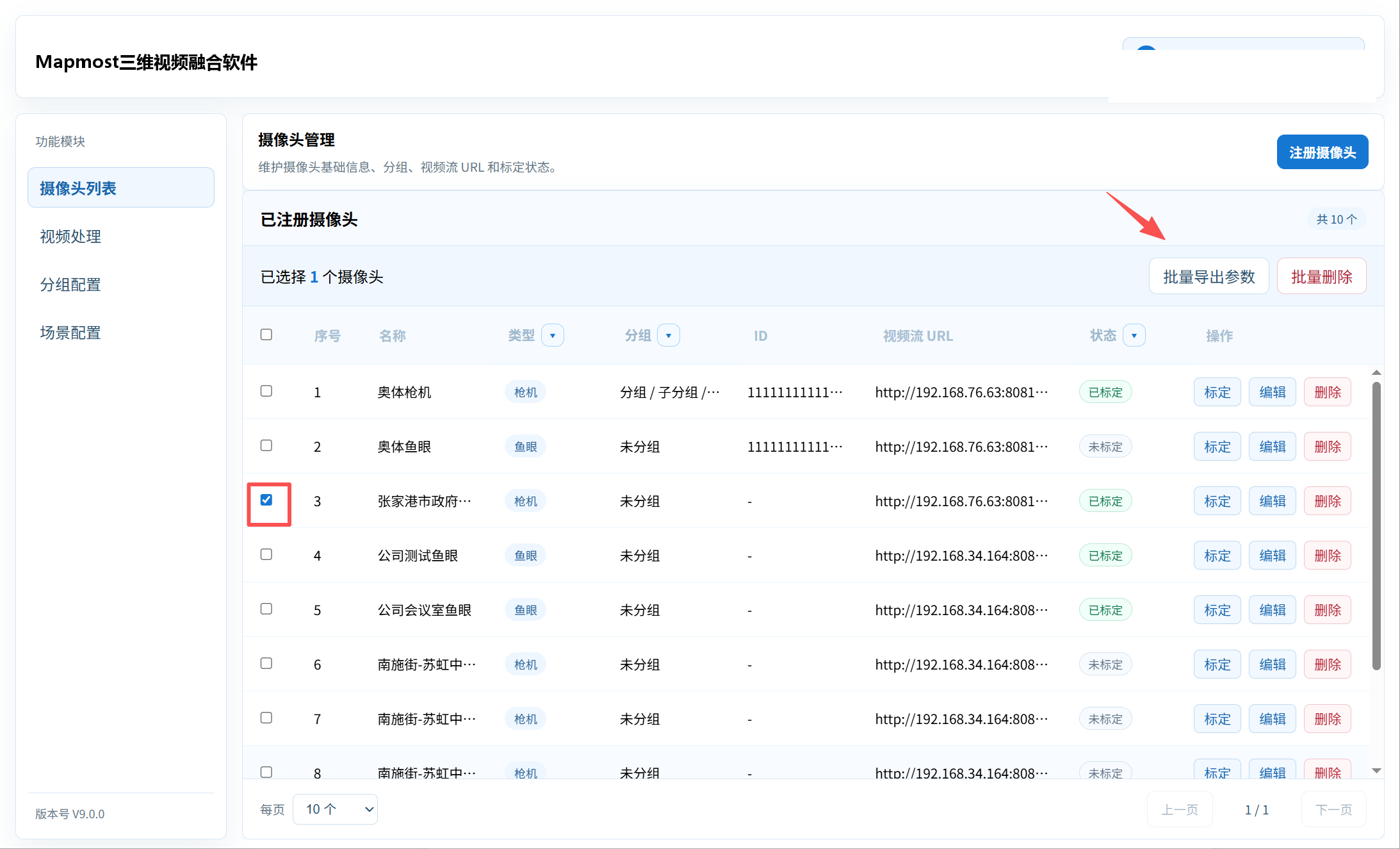
Select the cameras to export and click Export Parameters in Bulk.
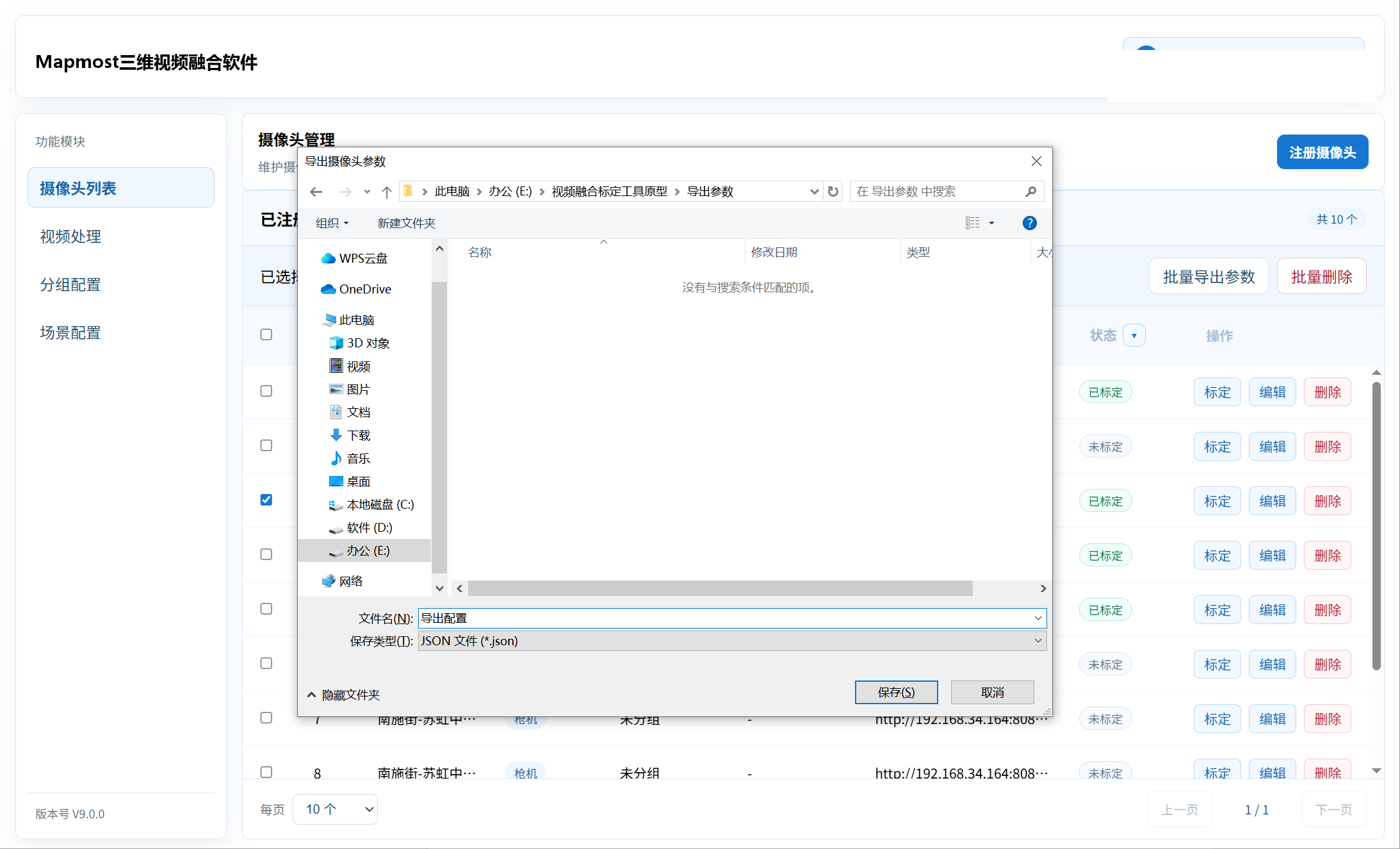
Choose an export location, enter a file name, and click Save.
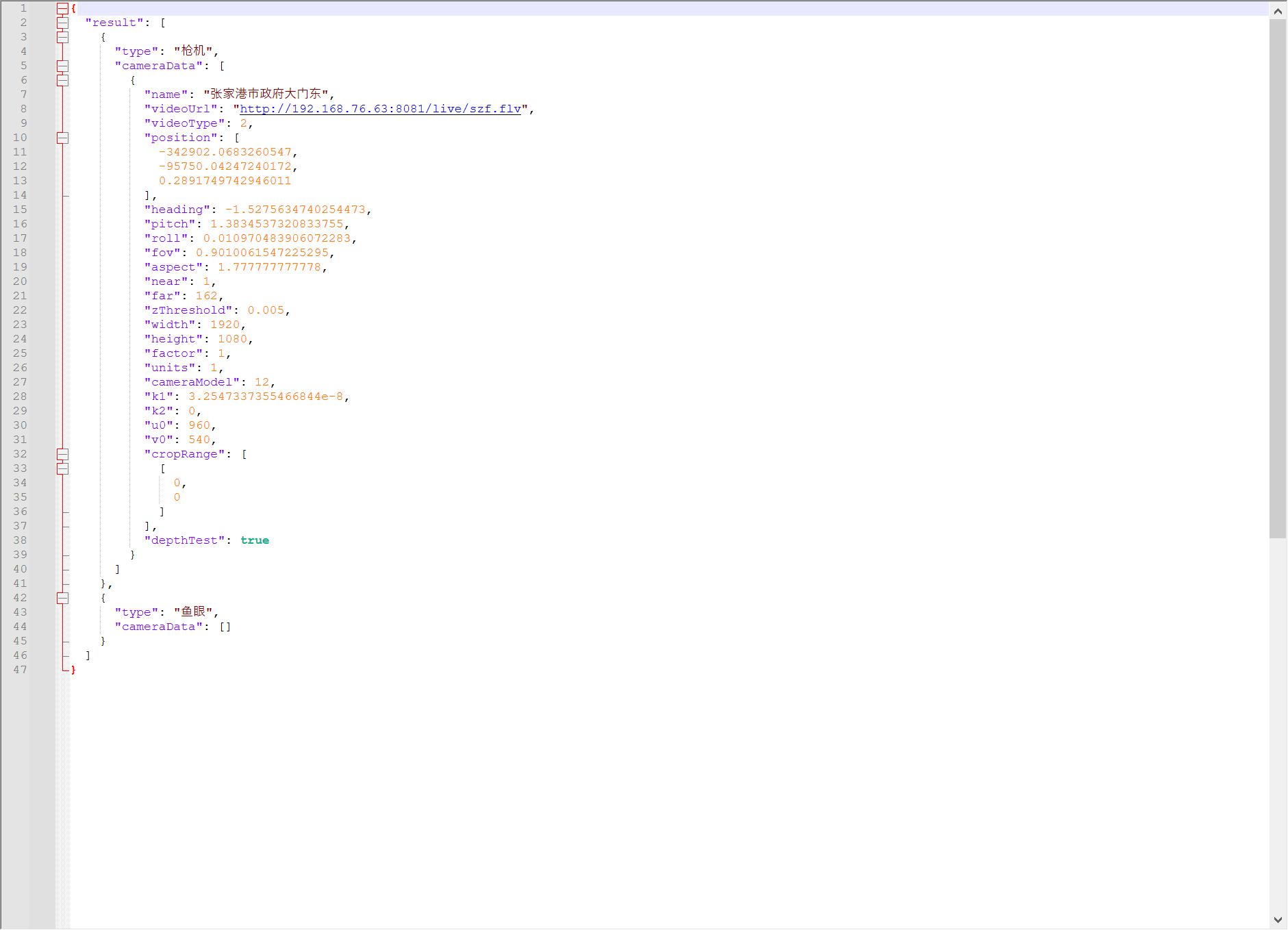
Use in Mapmost SDK for WebGL
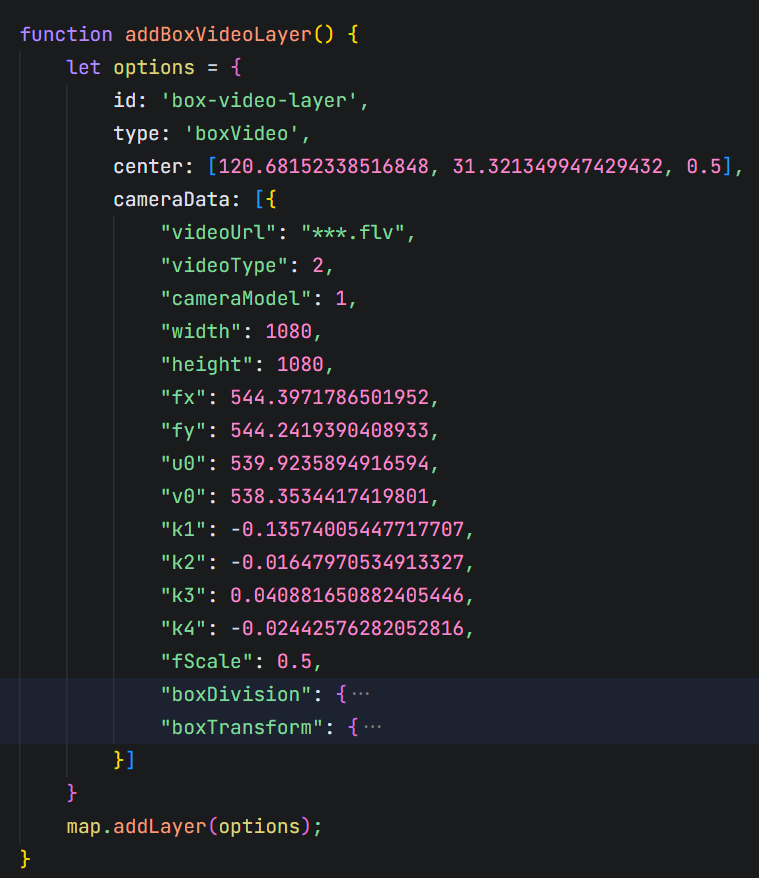
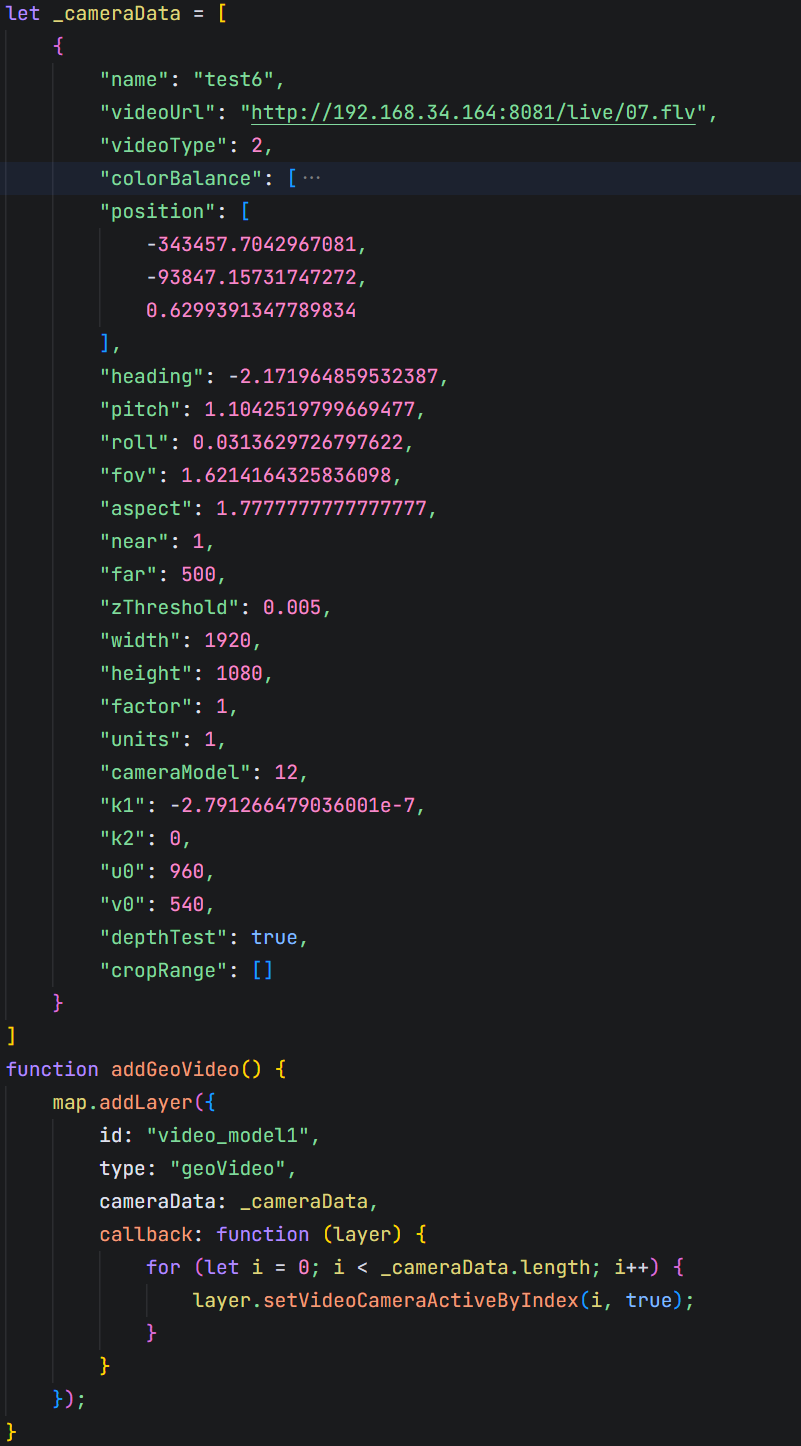
Copy the parameters to the relevant Mapmost SDK for WebGL API to add video fusion.
For fixed-camera video fusion, use the following API:
For fisheye video fusion, use the following API: