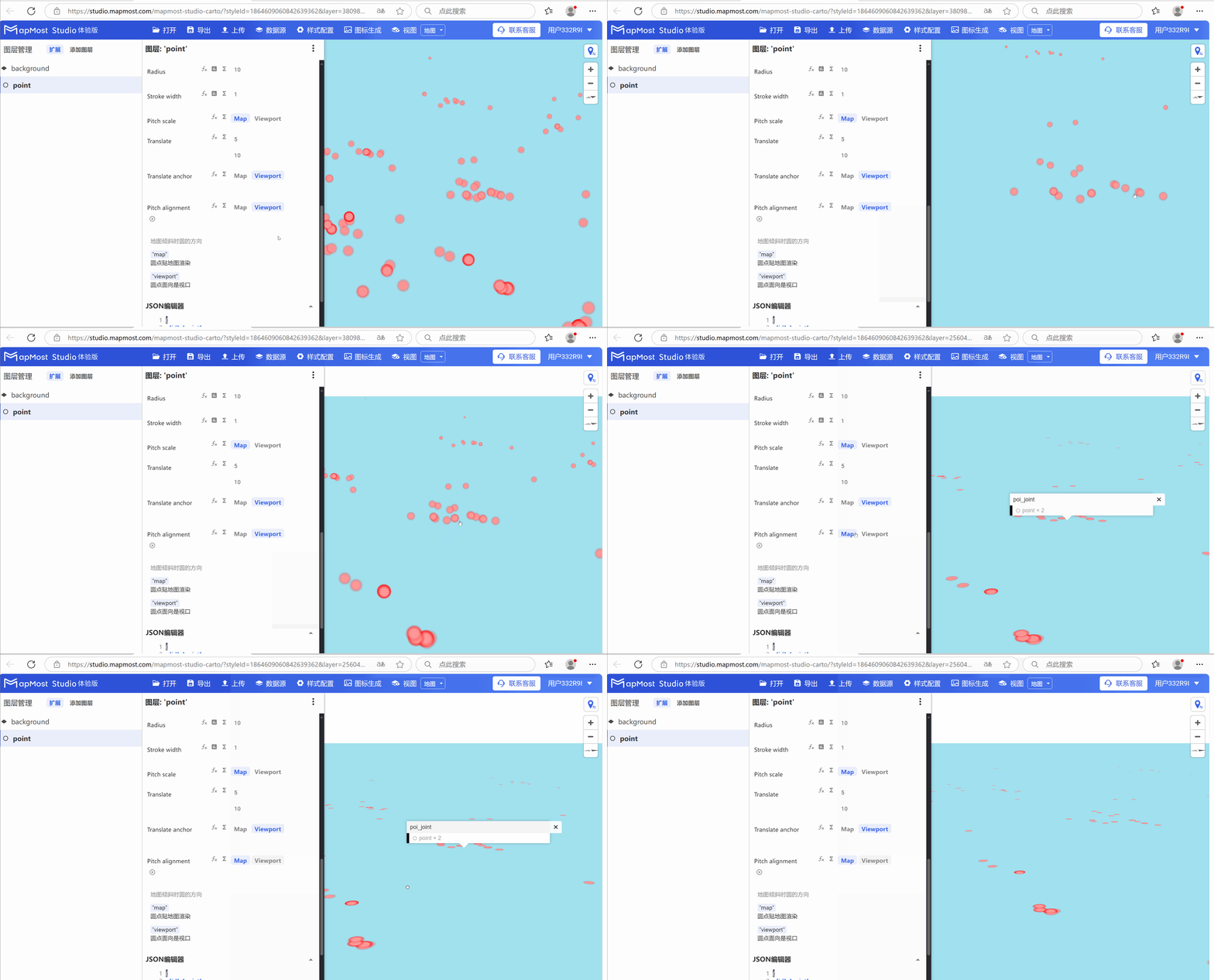
Point layer Circle configuration
- Point layer is used to display point data. For details, please refer to "Background layer Background:1.2";
- Add the data source. If the data source already exists, ignore this step. For details, refer to "Cartography Prerequisite: 2";
- The "∑" button behind the parameter value can realize numerical changes at different levels. For details, please refer to "Icon Point Layer Symbol: 3.3.2";
- The "fx" button behind the parameter value can convert the parameter information into an expression. For details, please refer to "Icon Point Layer Symbol: 3.3.3";
1. "Layer Properties" module
The "Layer Properties" module is used to adjust the layer data source, data type, display level, etc. For details, please refer to "Background layer Background: 1";
1.1 Set layer type
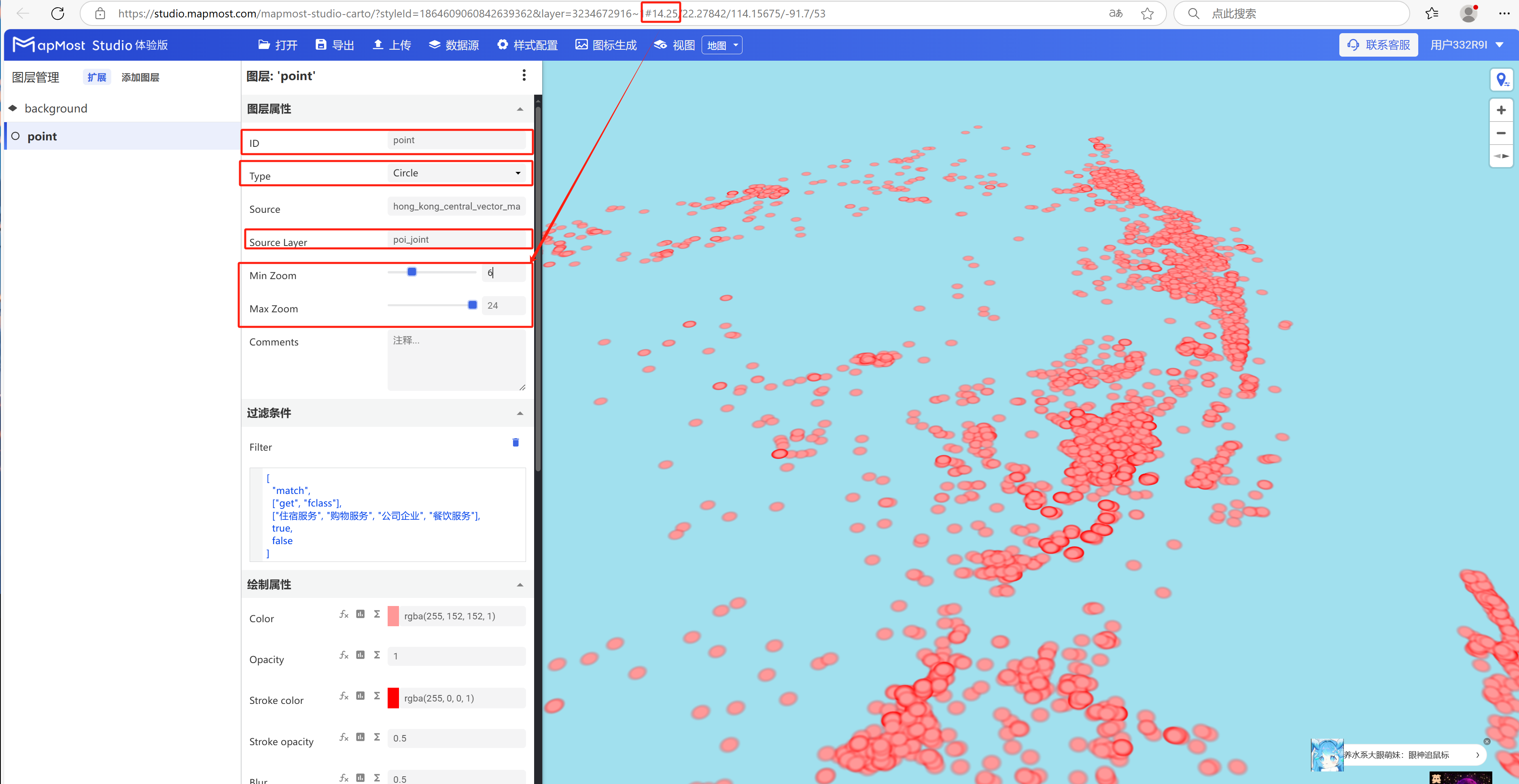
- Change "Type" to "Circle", change "Source Layer", set "Min Zoom", set "Max Zoom";
2. "Filter conditions" module
The "Filter Conditions" module supports filter condition selection and expression writing. For details, please refer to "Icon Point Layer Symbol: 2";
2.1 Set filter conditions
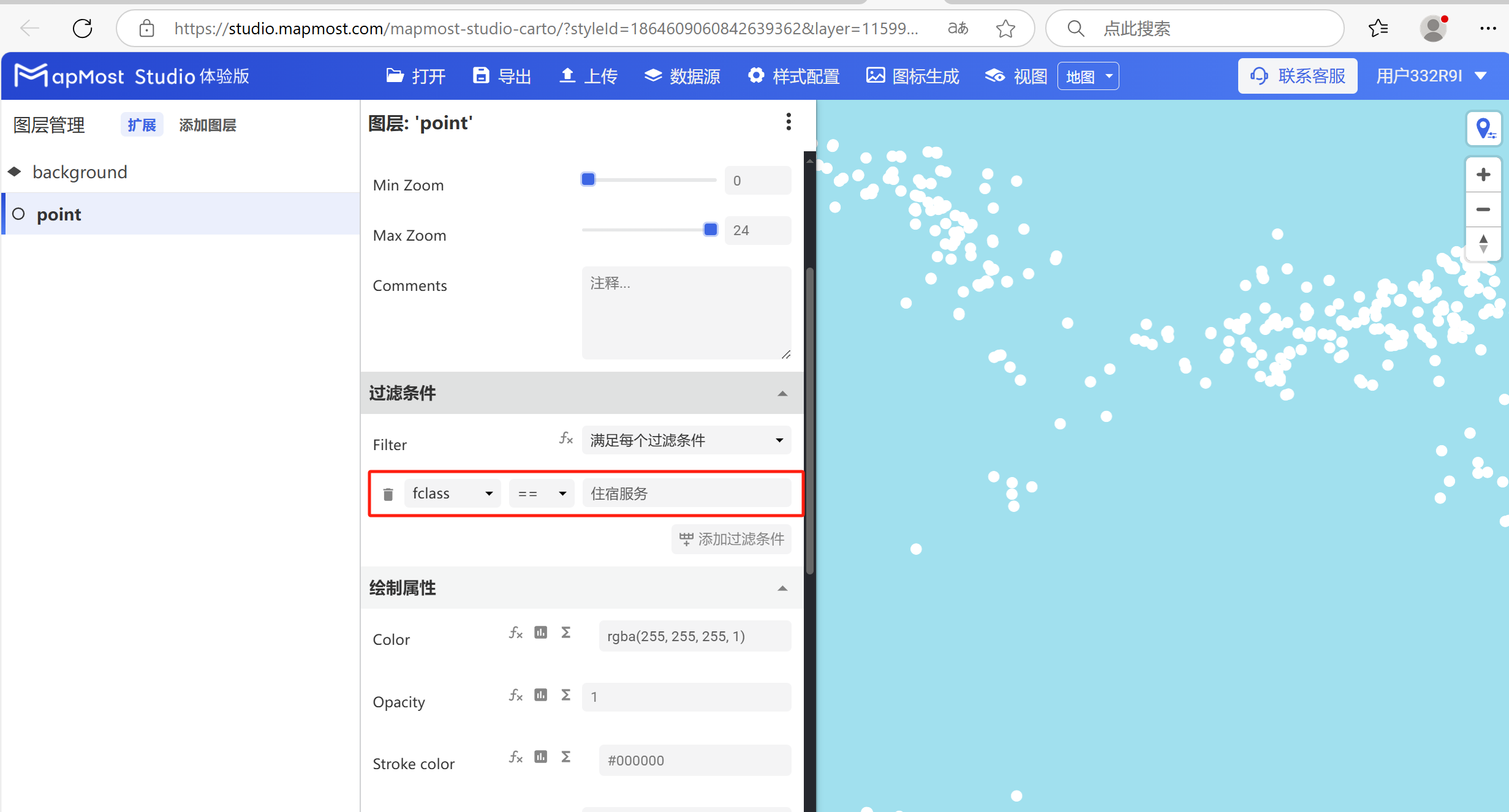
- Set the filter conditions to filter out the "accommodation service" data. For the data field search method, refer to "Icon Point Layer Symbol: 2.5". For the solution to data not being displayed, refer to "Icon Point Layer Symbol: 2.6";
3. "Drawing Properties" module
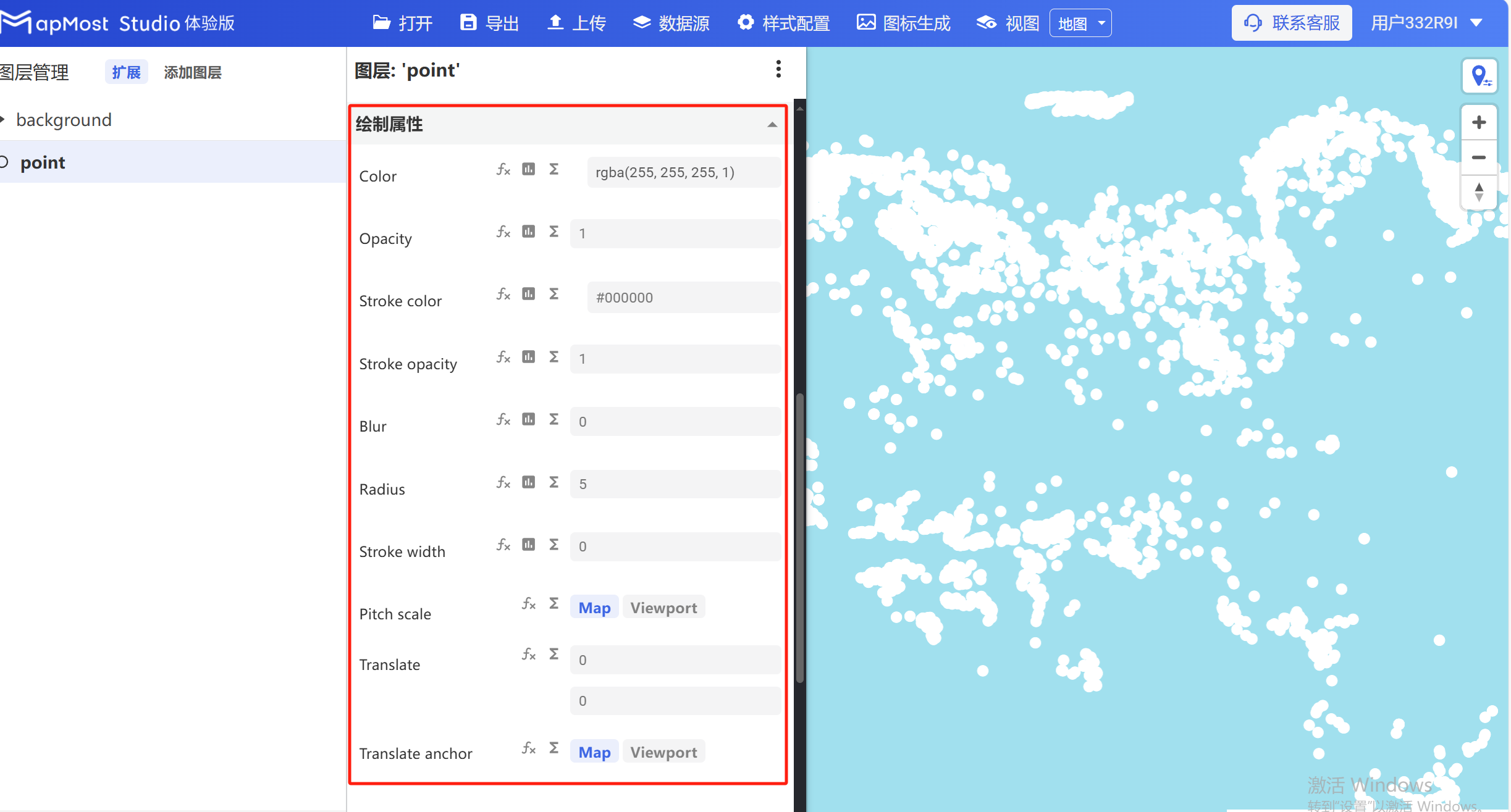
The "Drawing Properties" module is used to set the fill color, transparency, stroke color, etc. of the point layer.
The initial interface is as follows:
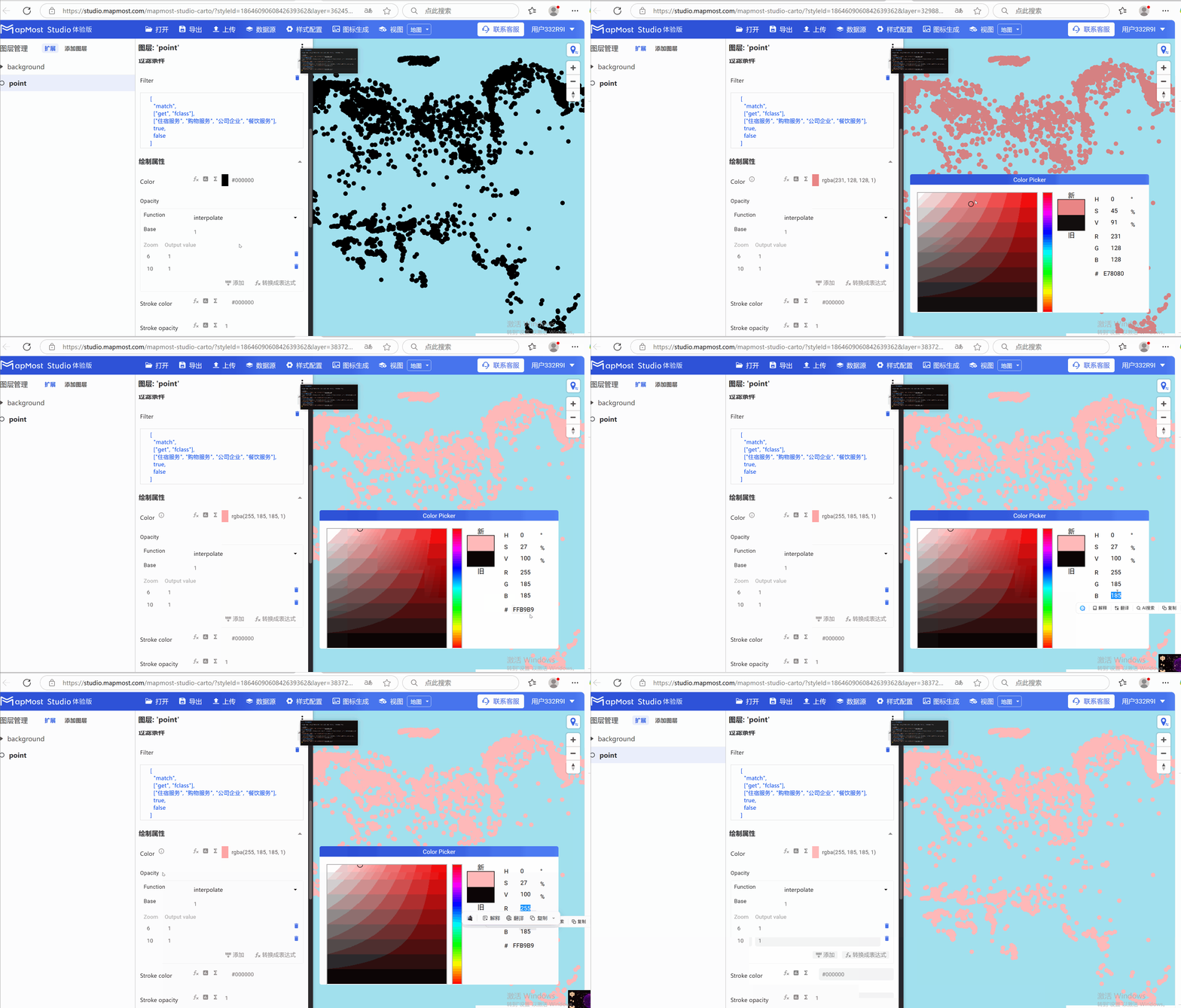
3.1 "Color" parameter setting
- "Color" parameter, control the color of the point;
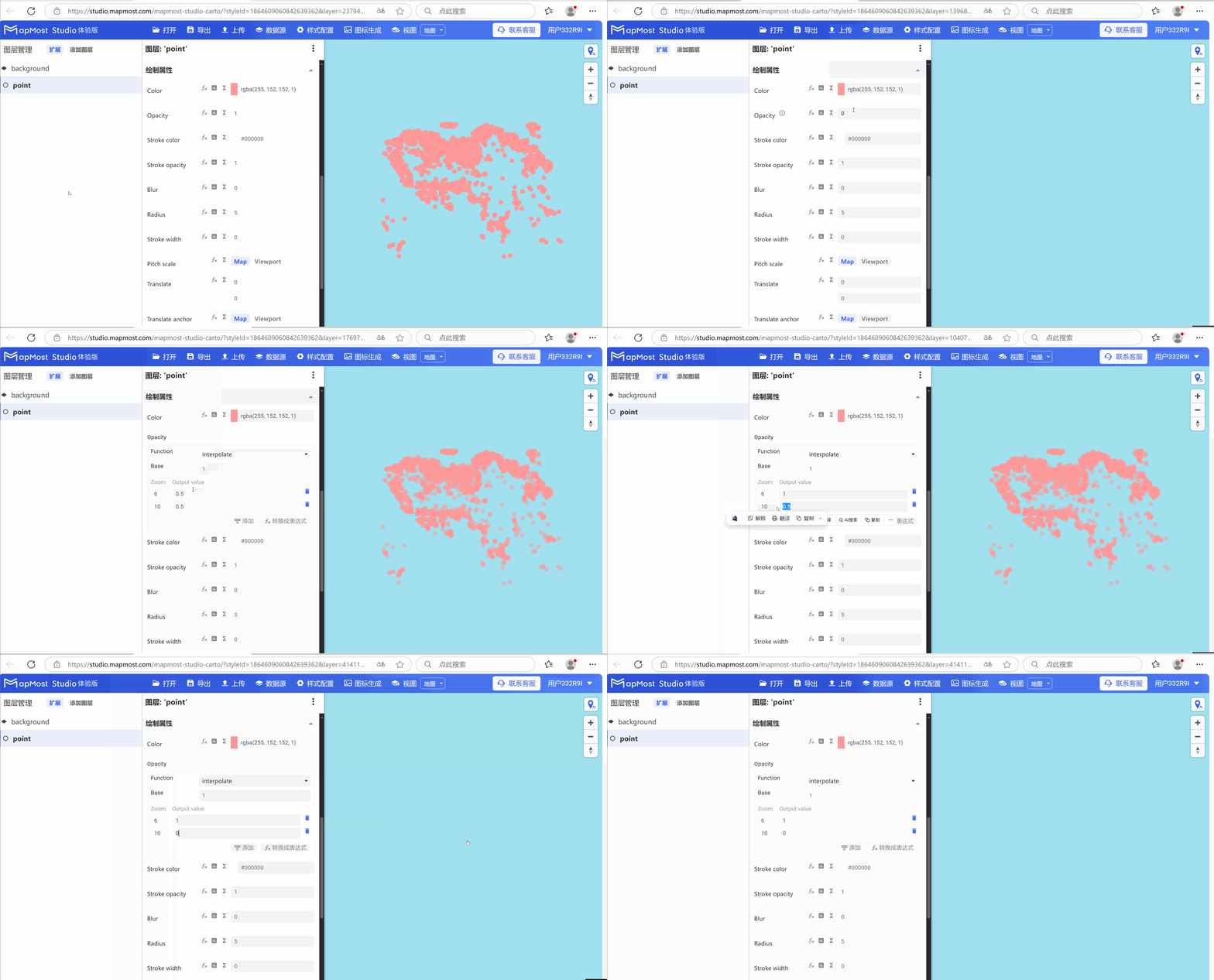
3.2 "Opacity" parameter setting
- "Opacity" parameter controls the transparency of points;
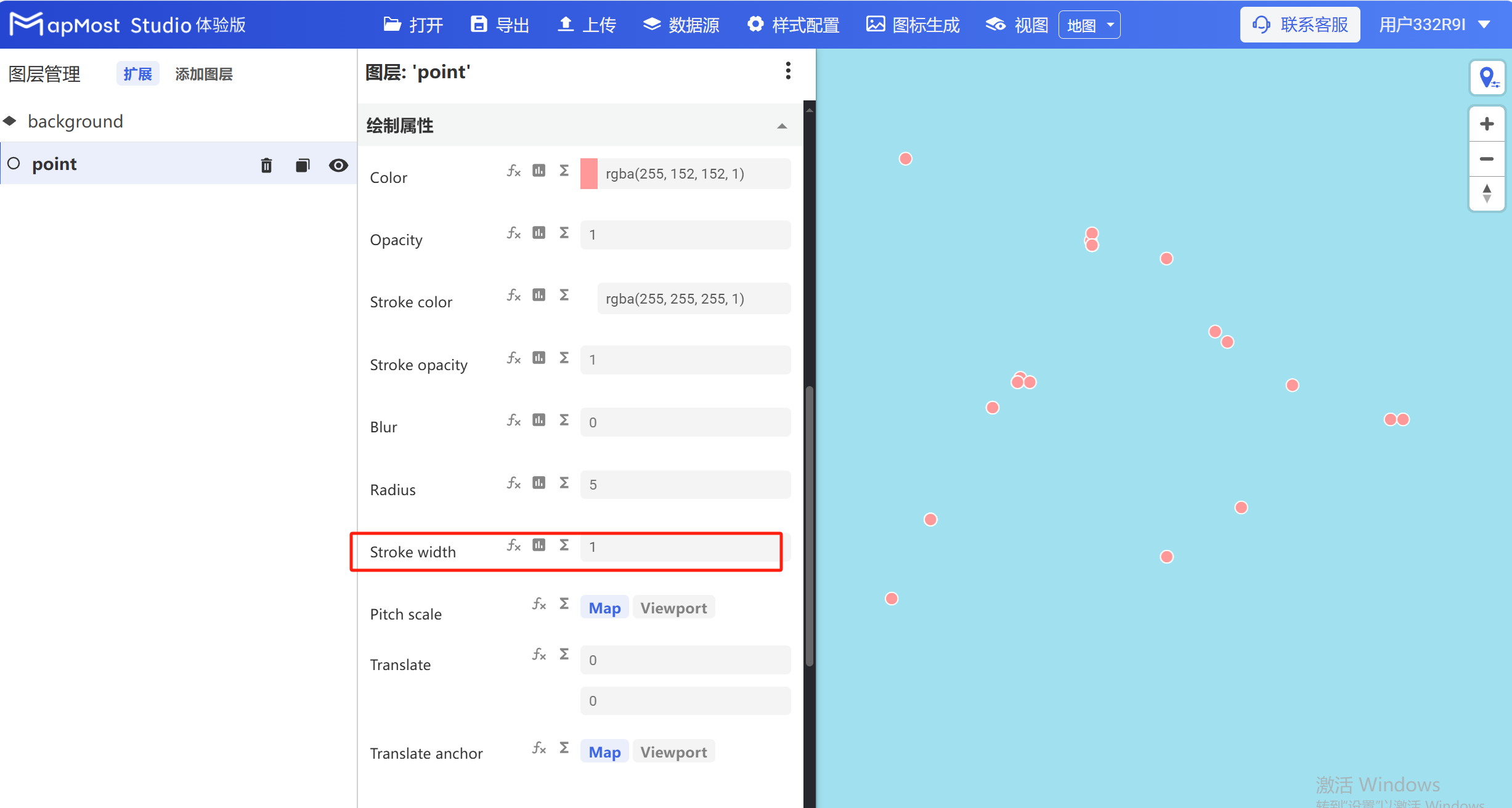
3.3 "Stroke width" parameter setting
- "Stroke width" parameter controls the stroke width of the point;
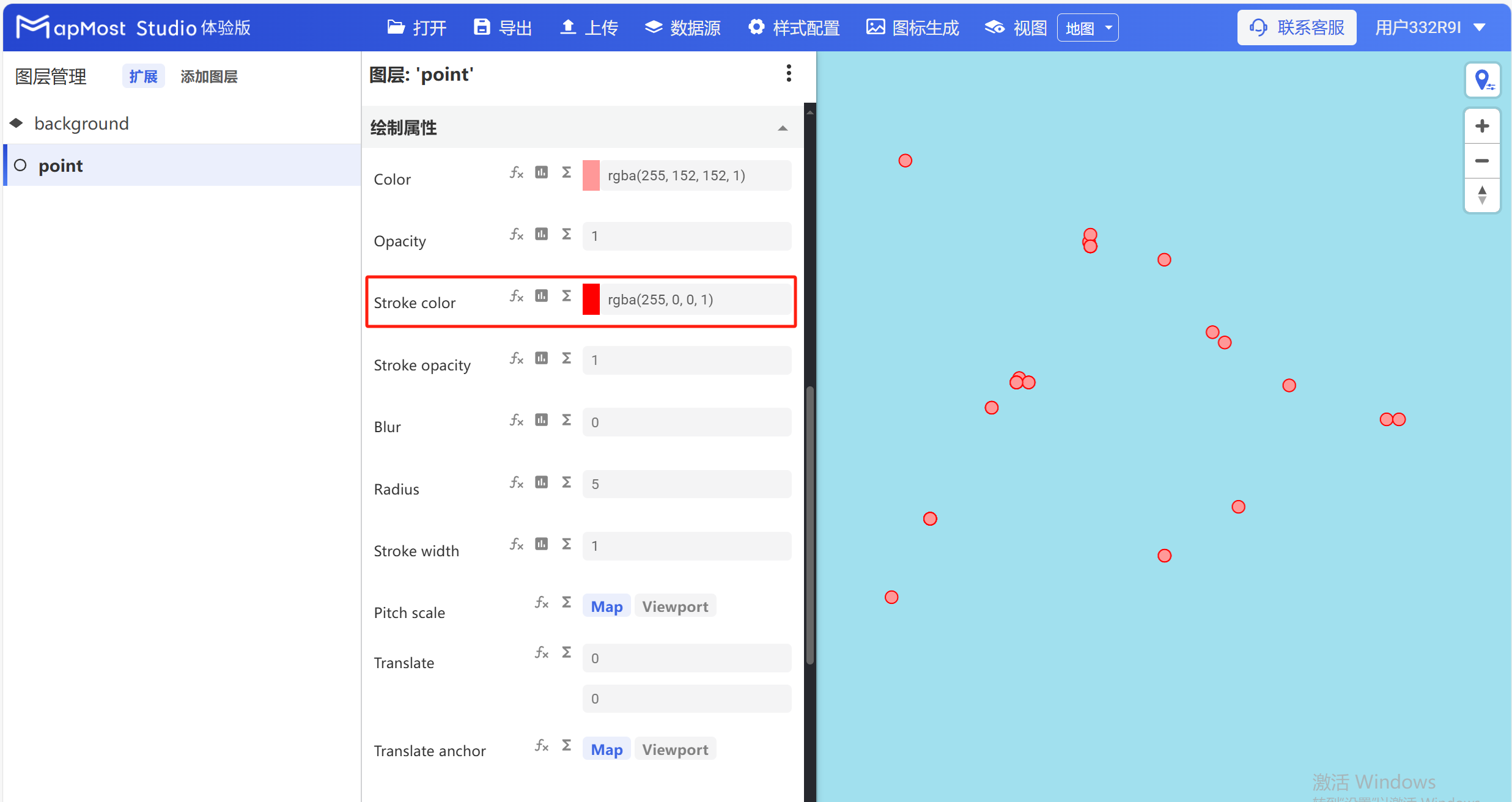
3.4 "Stroke color" parameter setting
- "Stroke color" parameter controls the stroke color of the point;
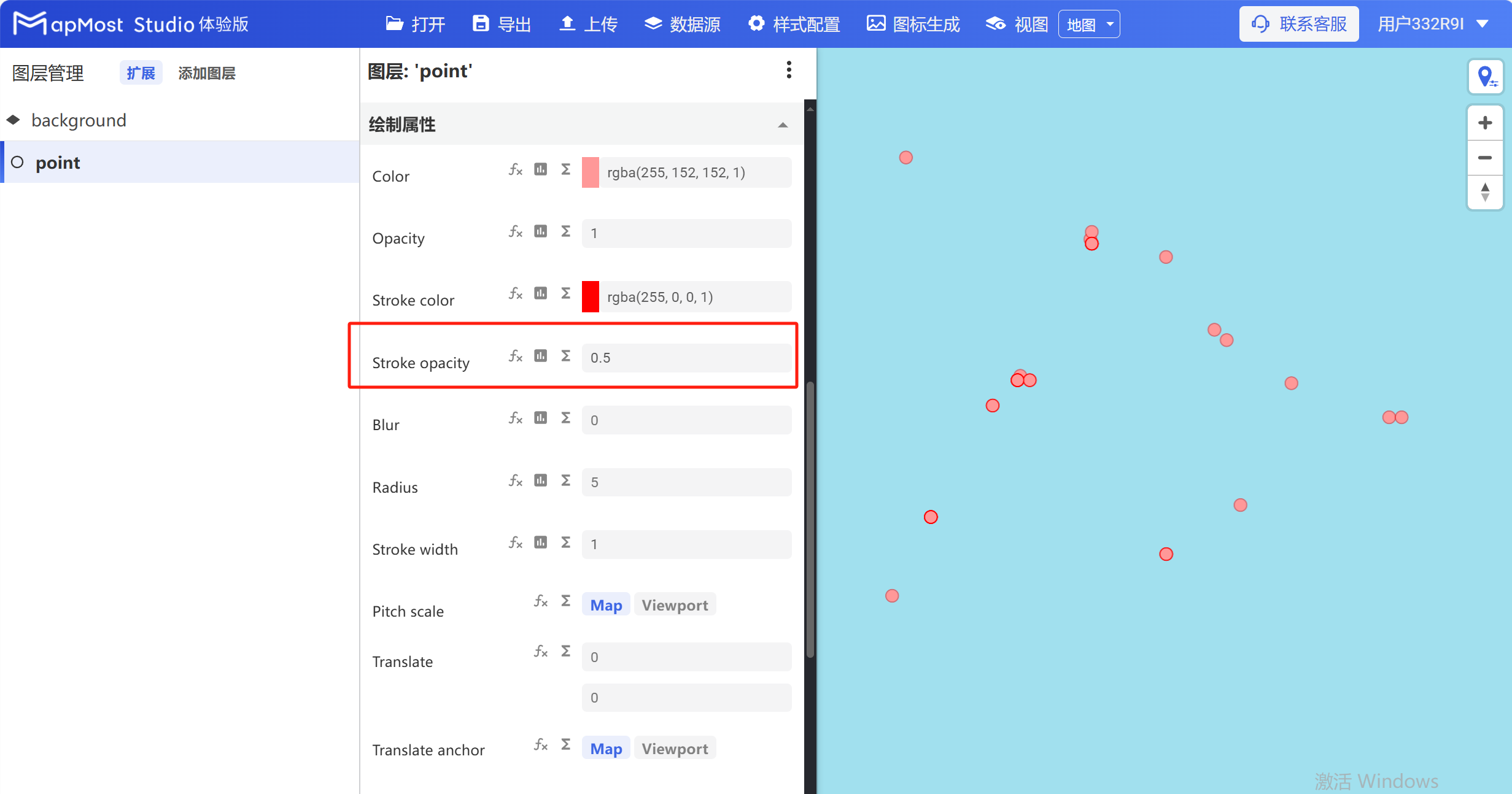
3.5 "Stroke opacity" parameter setting
- "Stroke opacity" parameter controls the stroke color transparency of points;
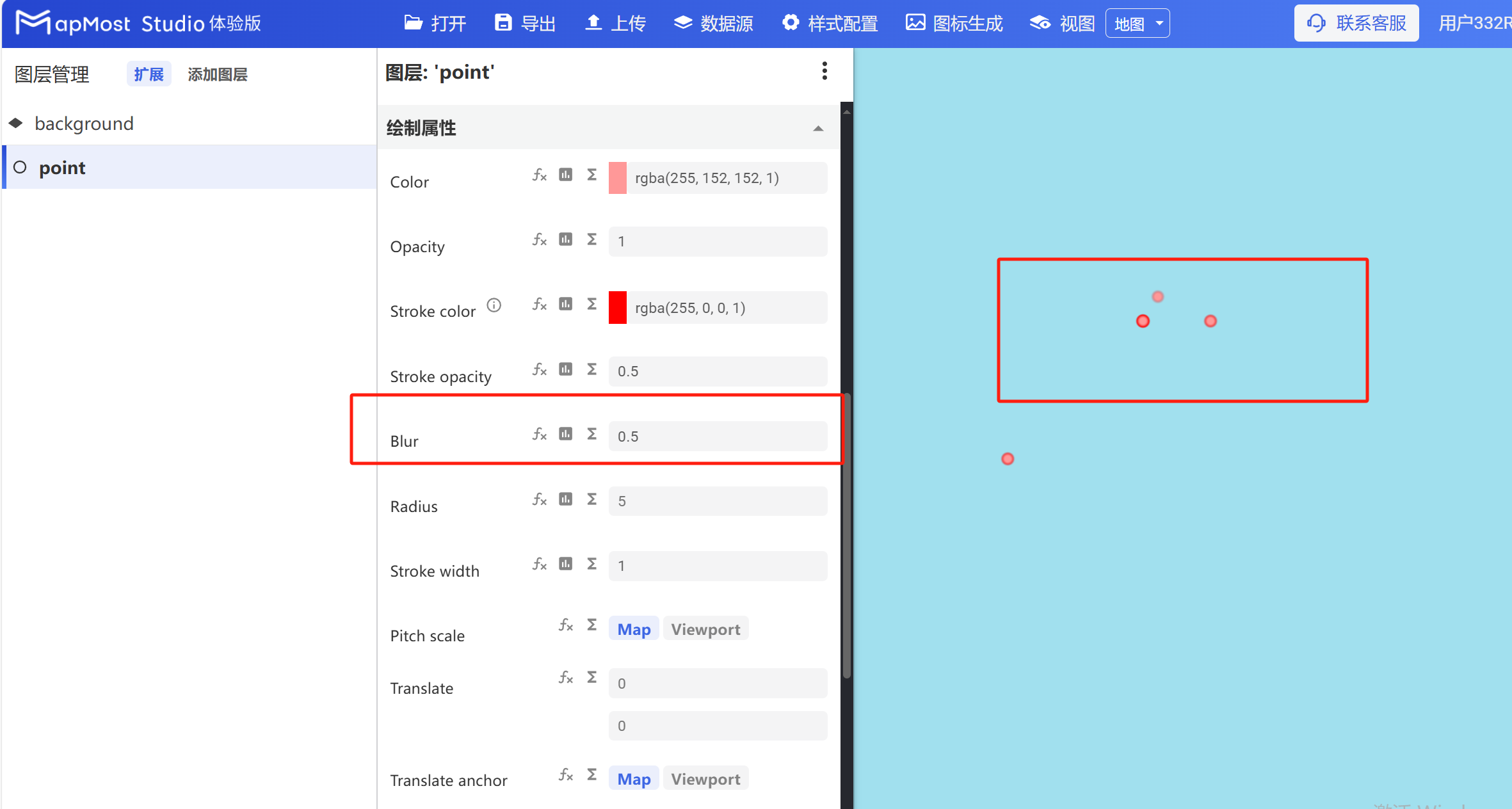
3.6 "Blur" parameter setting
- "Blur" parameter controls the blur of the point;
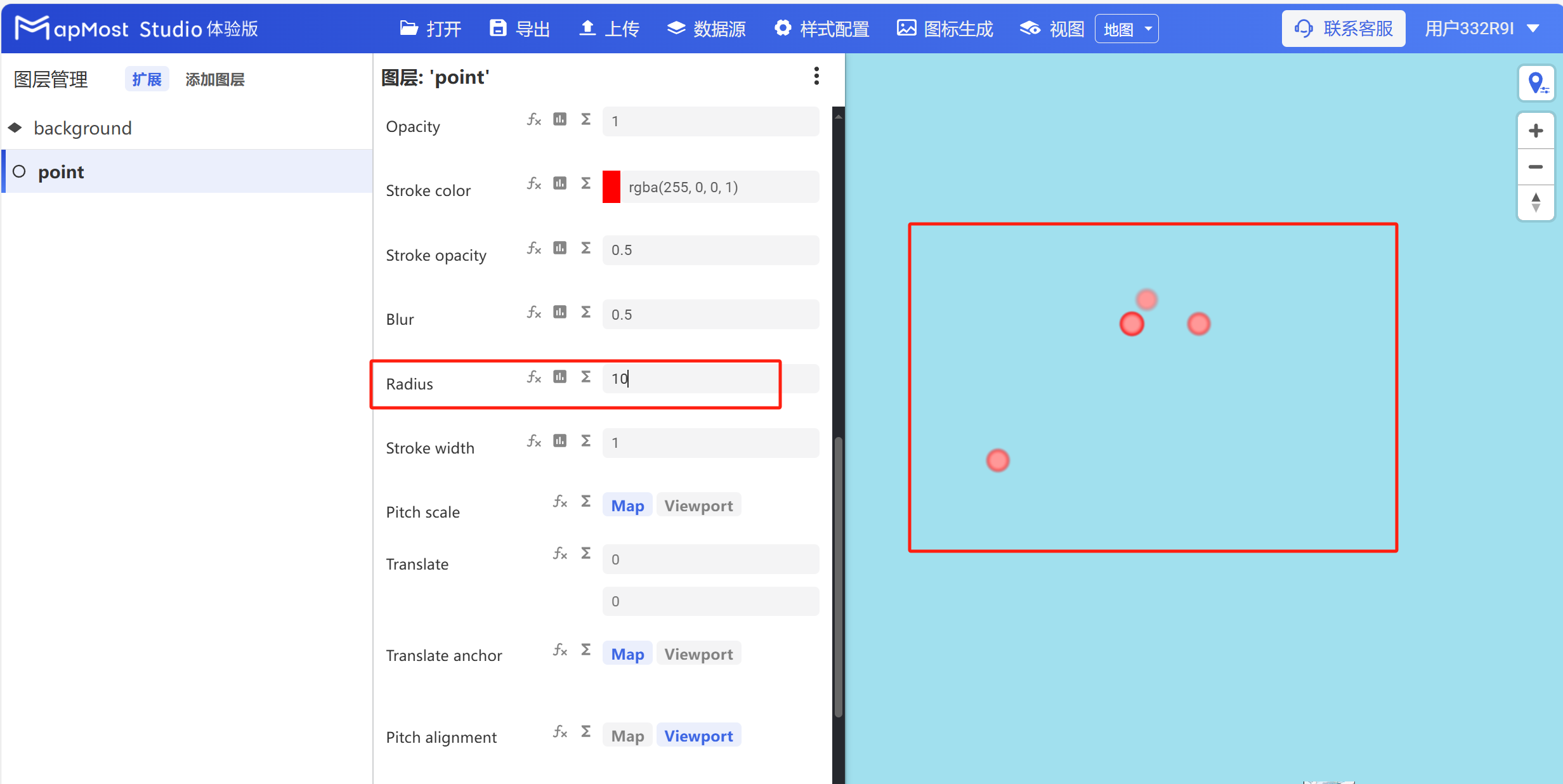
3.7 "Radius" parameter setting
- "Radius" parameter, controls the radius of the point;
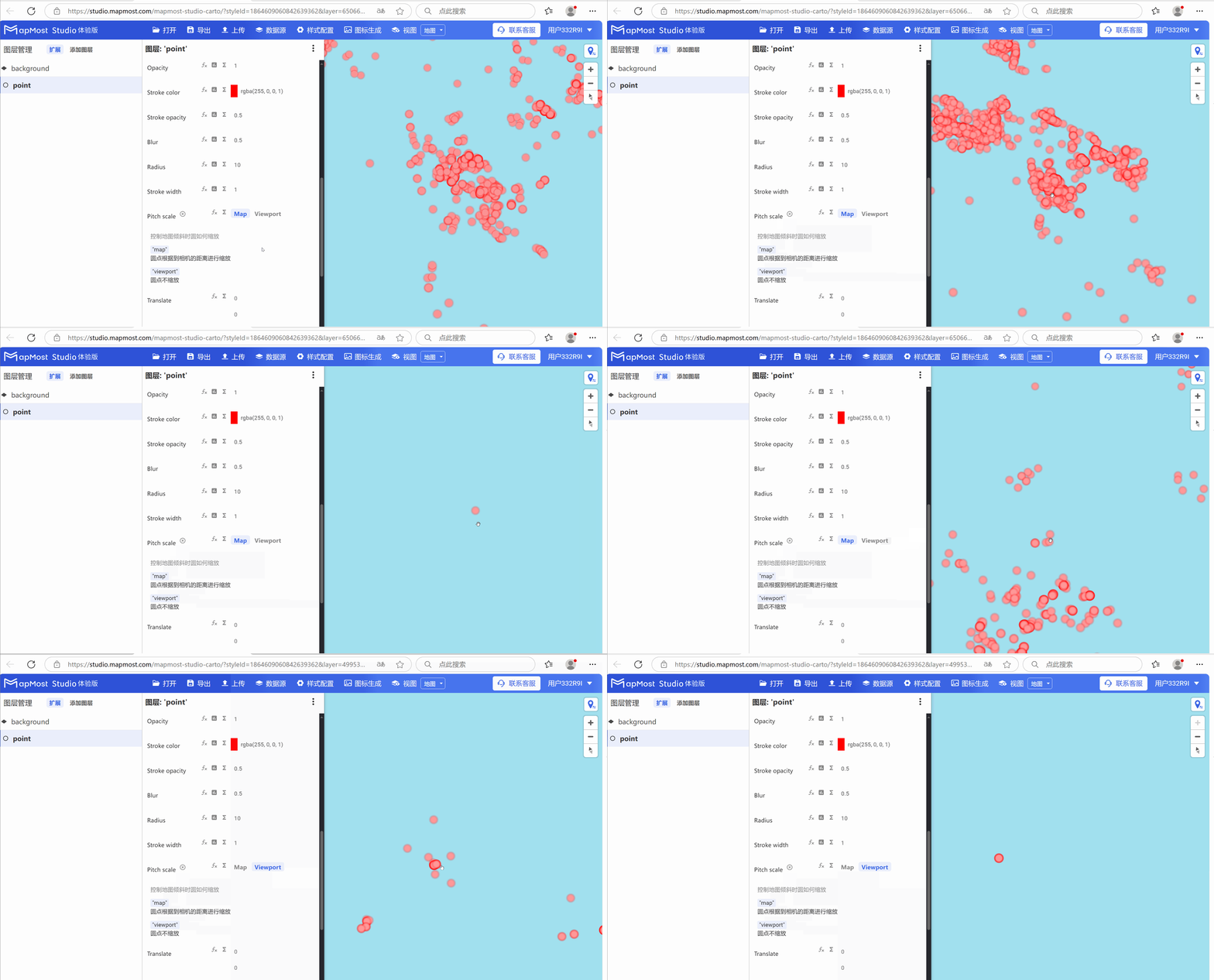
3.8 "Pitch scale" parameter setting
- The "Pitch scale" parameter controls the point scaling method. The "map" button indicates that the dots scale according to the camera distance, and the "Viewport" button indicates that the dots do not scale;
3.9 "Translate" parameter setting
- "Translate" parameter, controls the offset of the point in the X\Y direction;
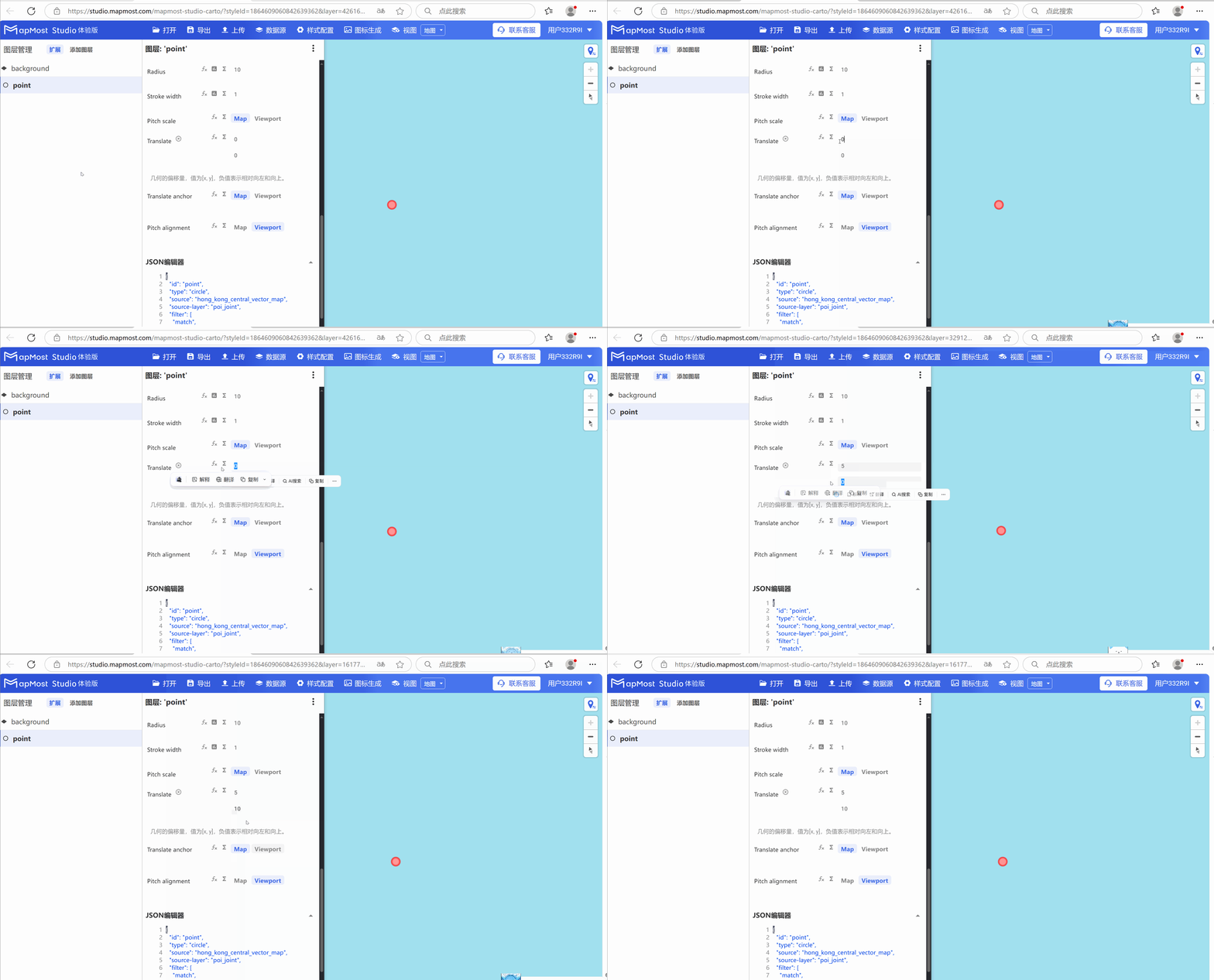
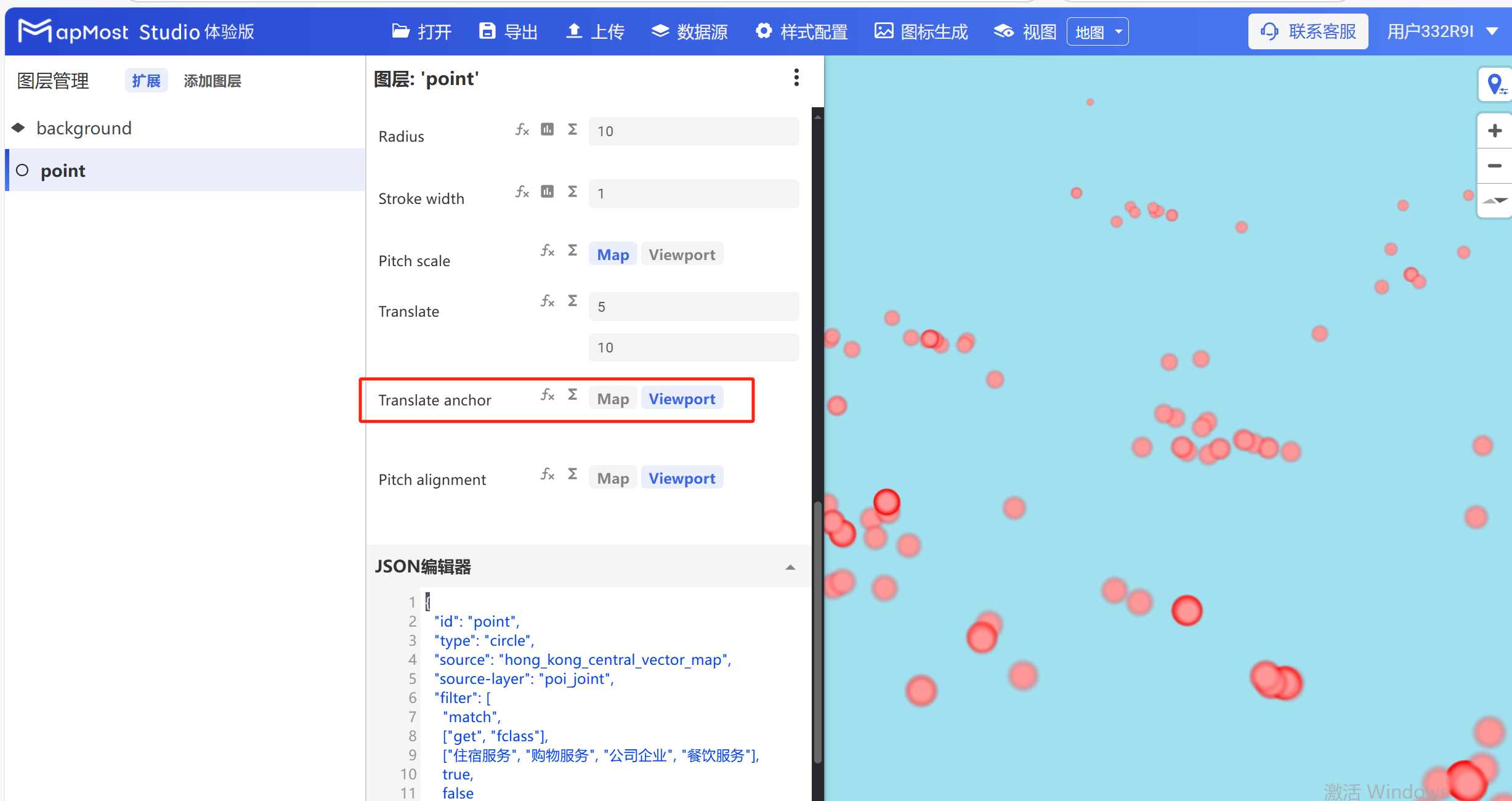
3.10 "Translate anchor" parameter setting
- The "Translate anchor" parameter controls the point conversion method. The button "map" indicates that the point layer is converted relative to the map, and the button "Viewport" indicates that the point layer is converted relative to the viewport;
3.11 "Pitch alignment" parameter setting
- "Pitch alignment" parameter, controls the direction of the point. The button "map" means point map rendering, and the button "Viewport" means the point faces the viewport;