Extruded body layer Fill Extraction configuration
- Stretch the volume layer to stretch the surface data into three-dimensional data. For details, please refer to "Background layer Background:1.2";
- Add the data source. If the data source already exists, ignore this step. For details, refer to "Cartography Prerequisite: 2";
- The "∑" button behind the parameter value can realize numerical changes at different levels. For details, please refer to "Icon Point Layer Symbol: 3.3.2";
- The "fx" button behind the parameter value can convert the parameter information into an expression. For details, please refer to "Icon Point Layer Symbol: 3.3.3";
1. Layer Properties module
The "Layer Properties" module is used to adjust the layer data source, data type, display level, etc. For details, please refer to "Background layer Background: 1";
1.1. Set layer attribute parameters
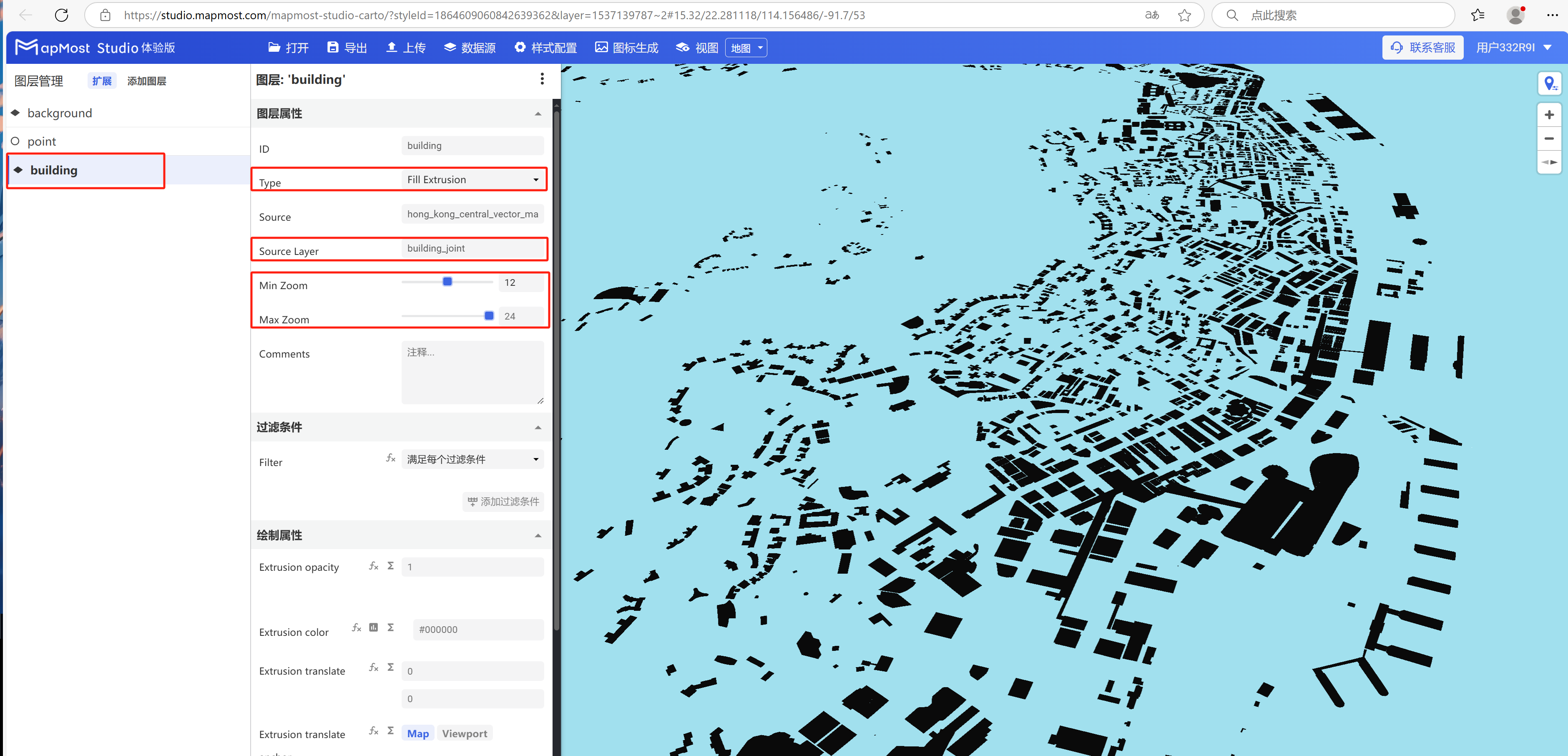
- Change "Type" to "Fill Extrusion", change "Source Layer", set "Min Zoom", set "Max Zoom";
2. "Filter" module
The "Filter Conditions" module supports filter condition selection and expression writing. For details, please refer to "Icon Point Layer Symbol: 2";
2.1. Set filter conditions
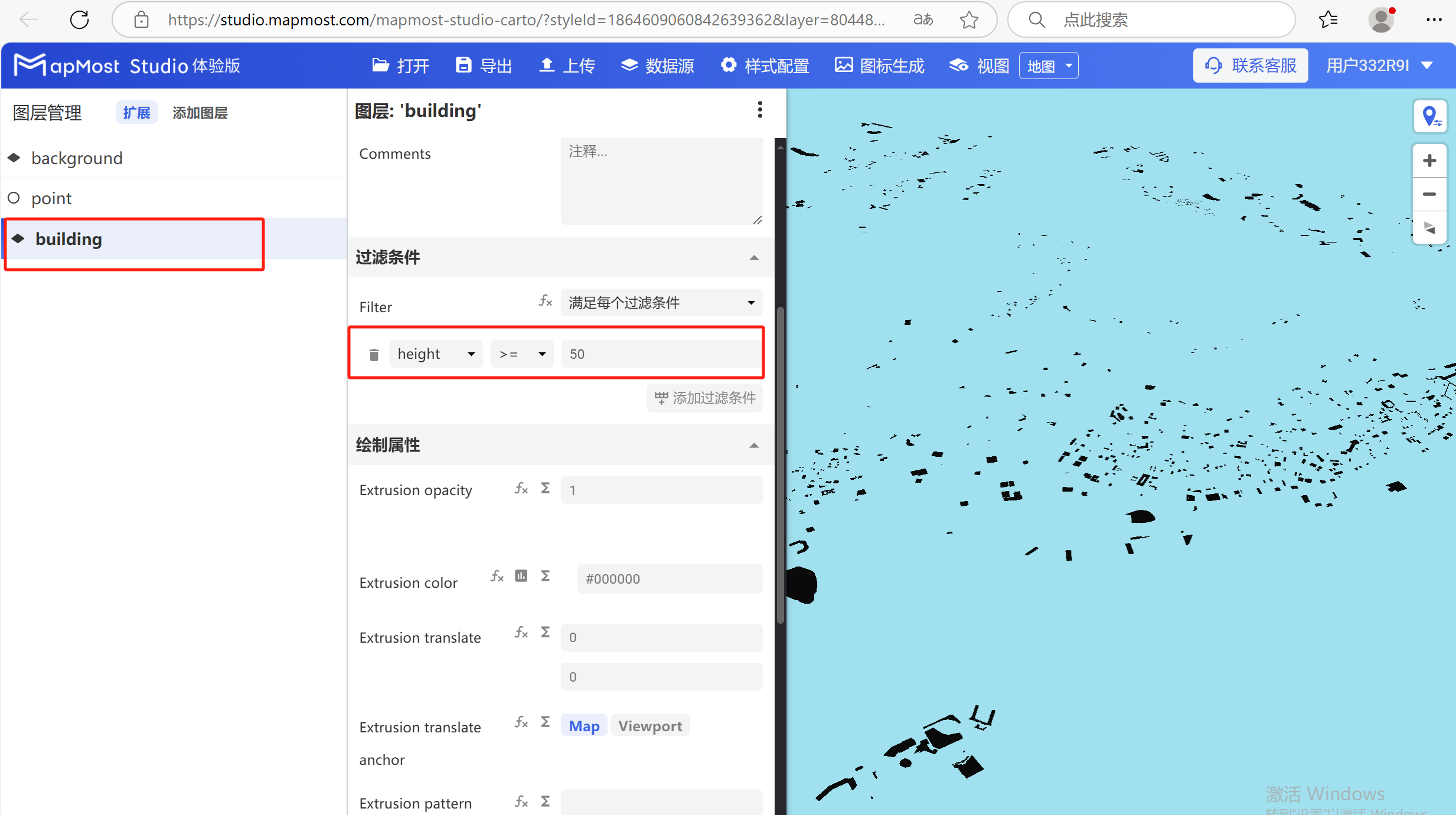
- Set filter conditions to filter out data with a height greater than 50 meters. For the data field search method, refer to "Icon Point Layer Symbol: 2.5". For the solution to data not being displayed, refer to "Icon Point Layer Symbol: 2.6";
3. "Drawing Properties" module
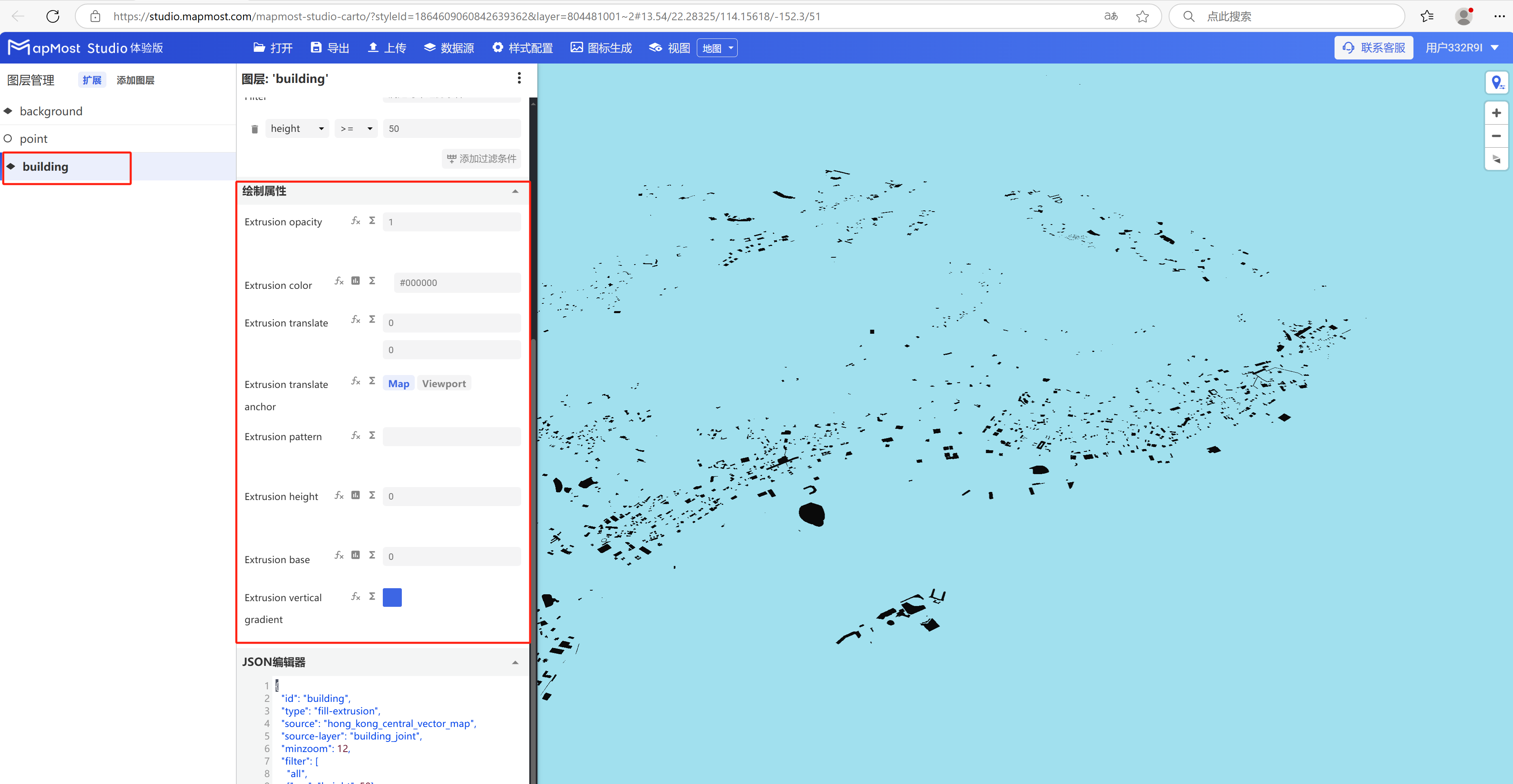
The "Drawing Properties" module supports parameter settings such as obtaining data height, changing color, changing transparency, and assigning textures;
The initial interface is as follows:
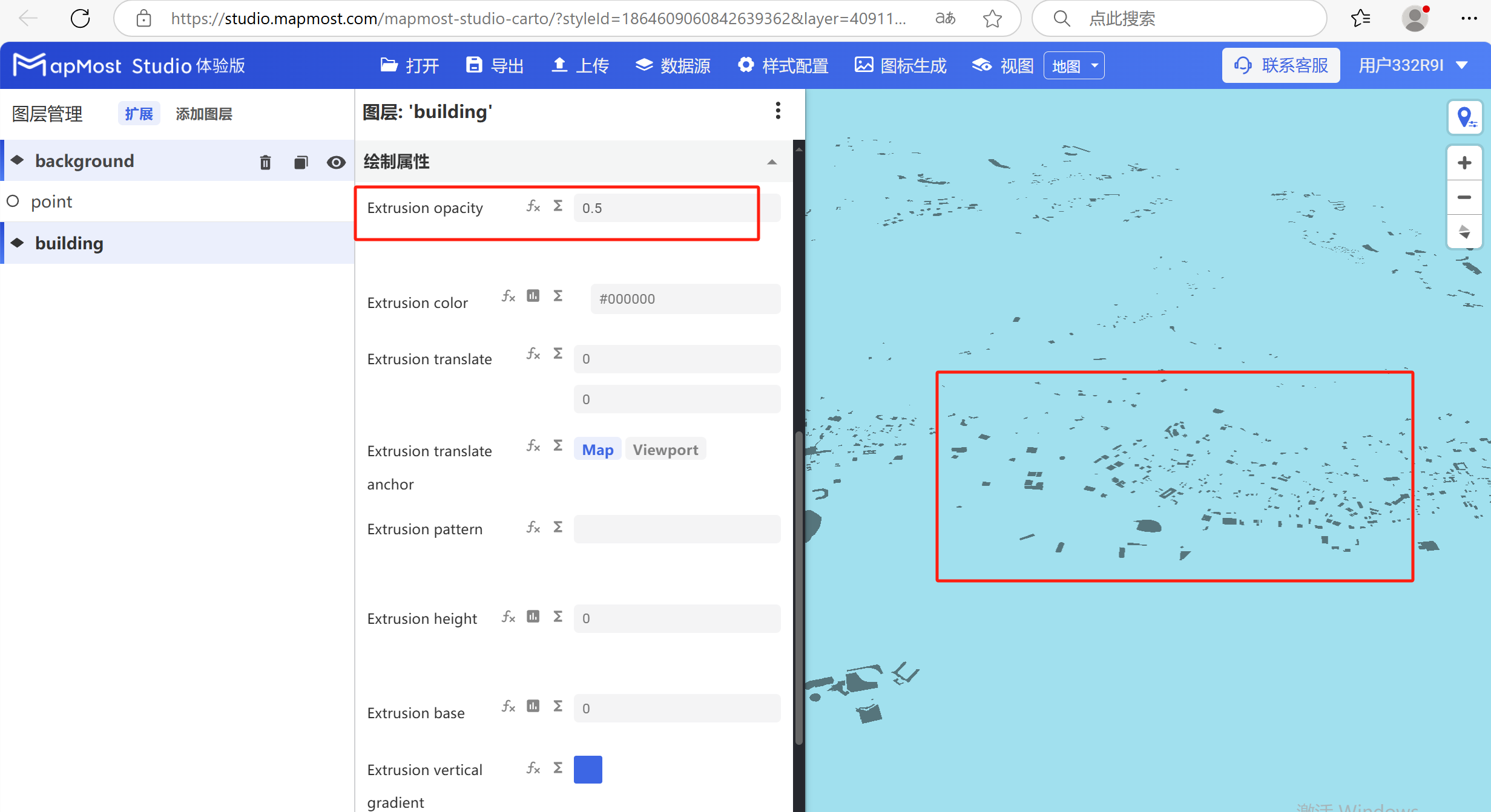
3.1. "Extrusion Opacity" parameter setting
- "Extrusion Opacity" parameter controls surface data transparency;
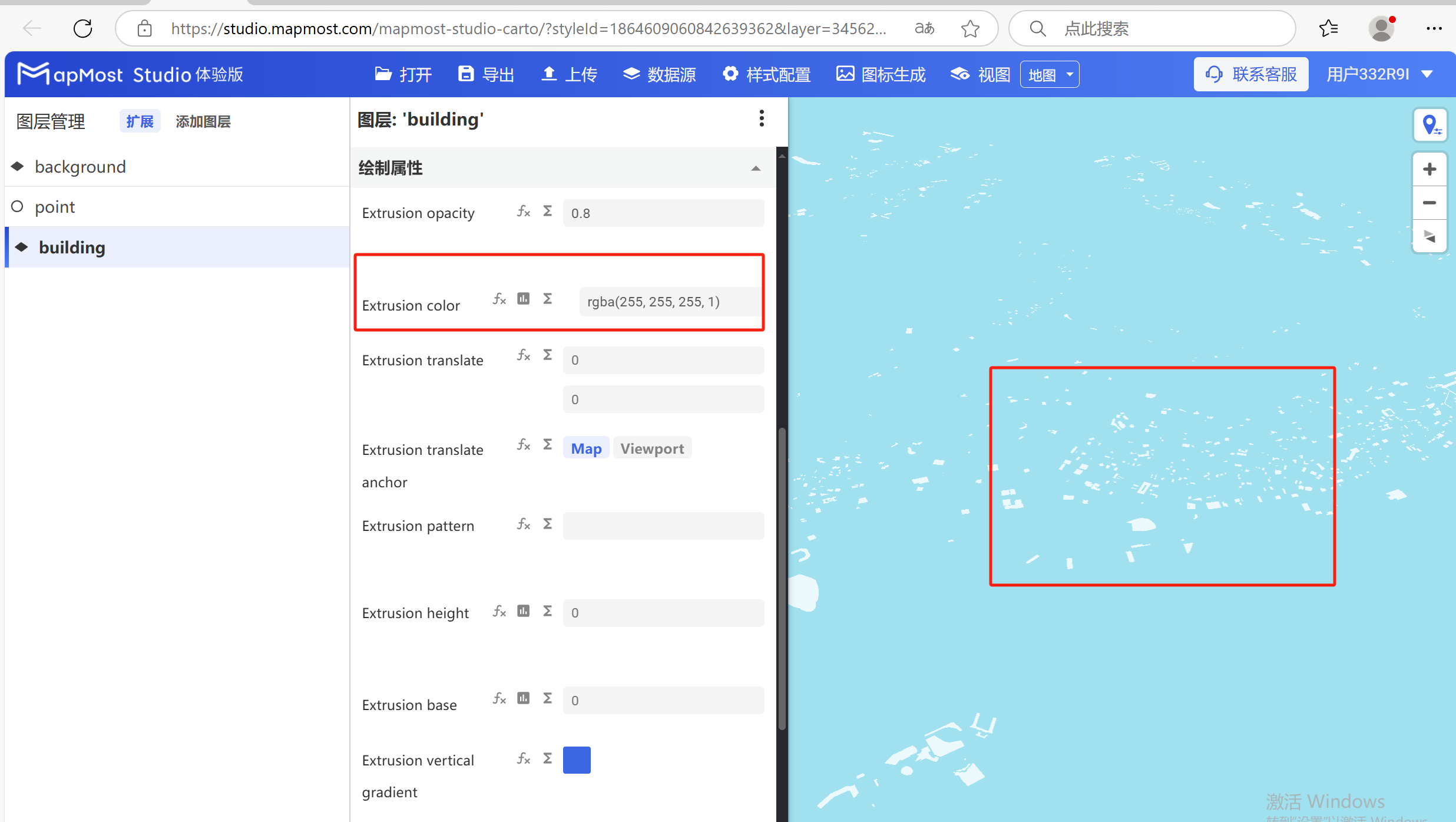
3.2. "Extrusion color" parameter setting
- "Extrusion color" parameter, control surface data color;
3.3. "Extrusion translate" parameter setting
- The "Extrusion translate" parameter sets the offset of the surface data in the X\Y axis;

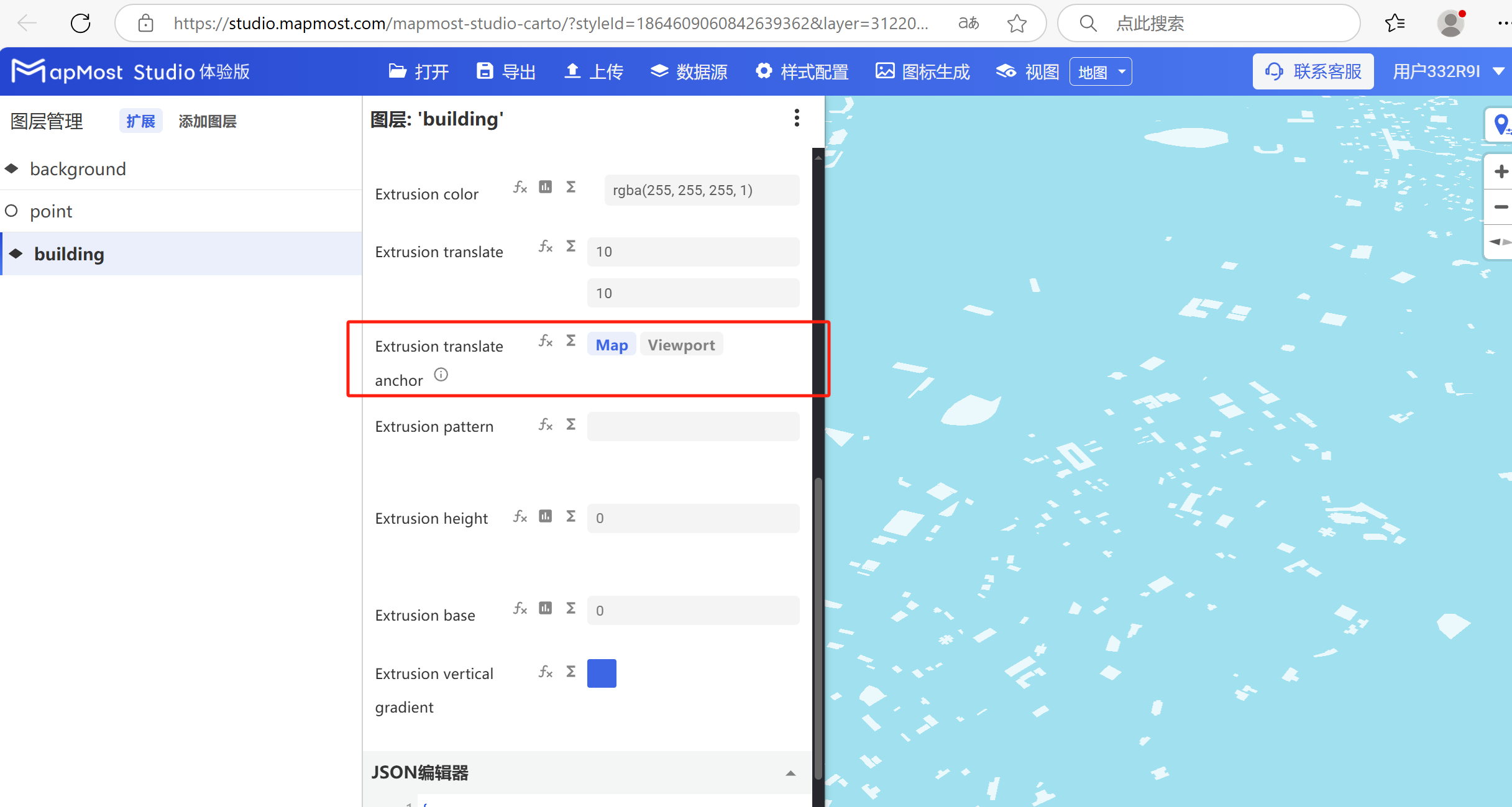
3.4. "Extrusion translate anchor" parameter setting
- "Extrusion translate anchor" parameter, if the surface data has a texture set, it can solve the texture seam problem;
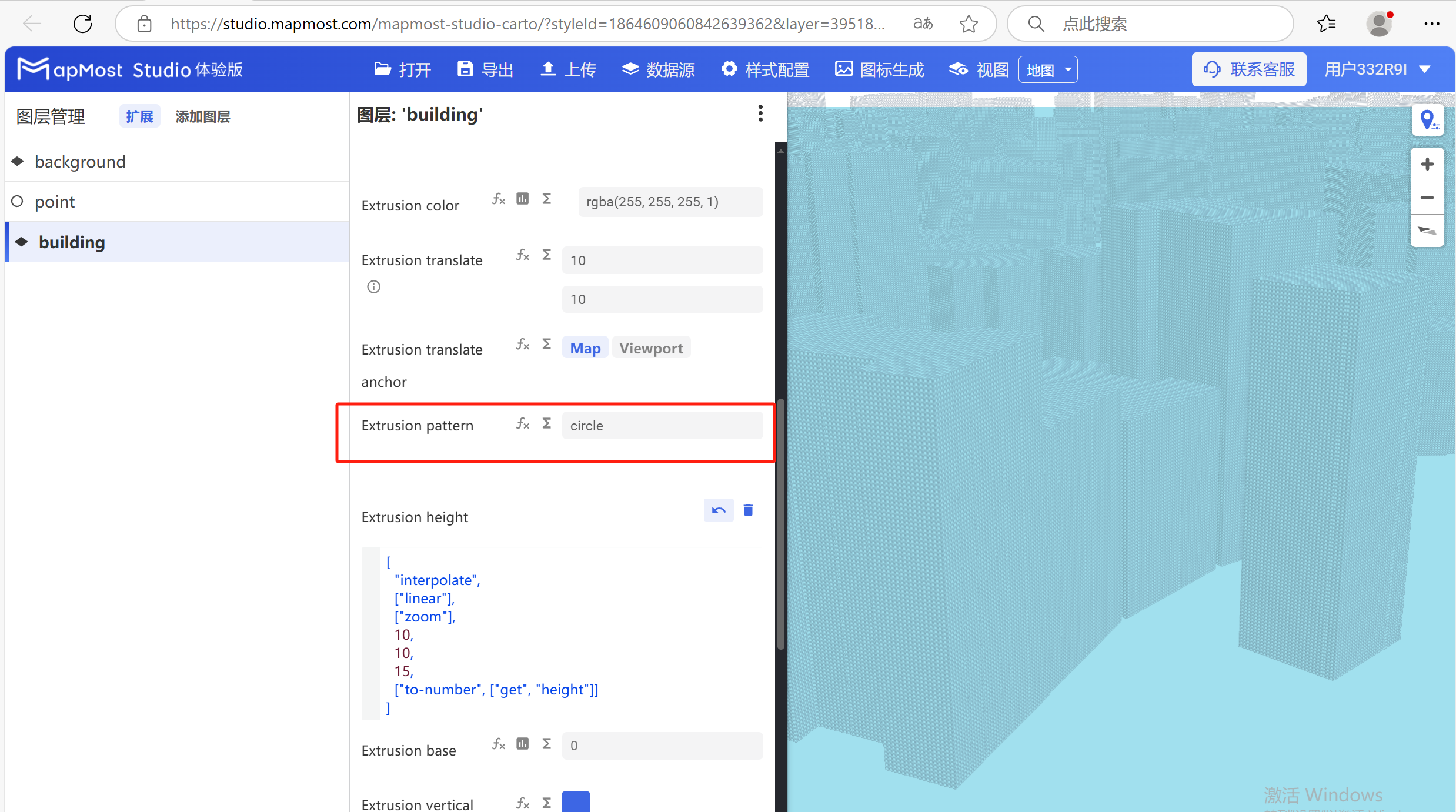
3.5. "Extrusion pattern" parameter setting
- The "Extrusion pattern" parameter adds texture to the surface data;
3.6. "Extrusion height" parameter setting
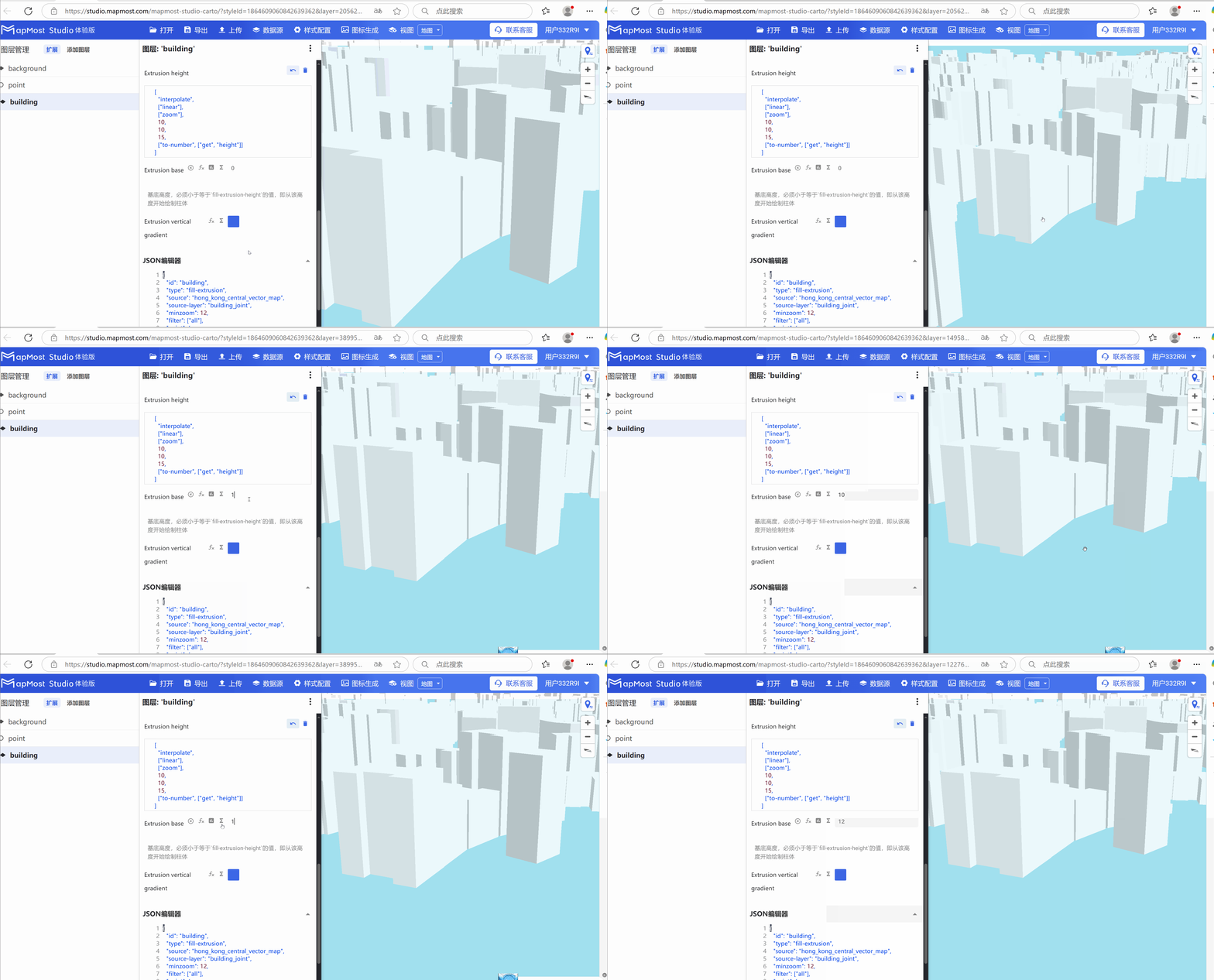
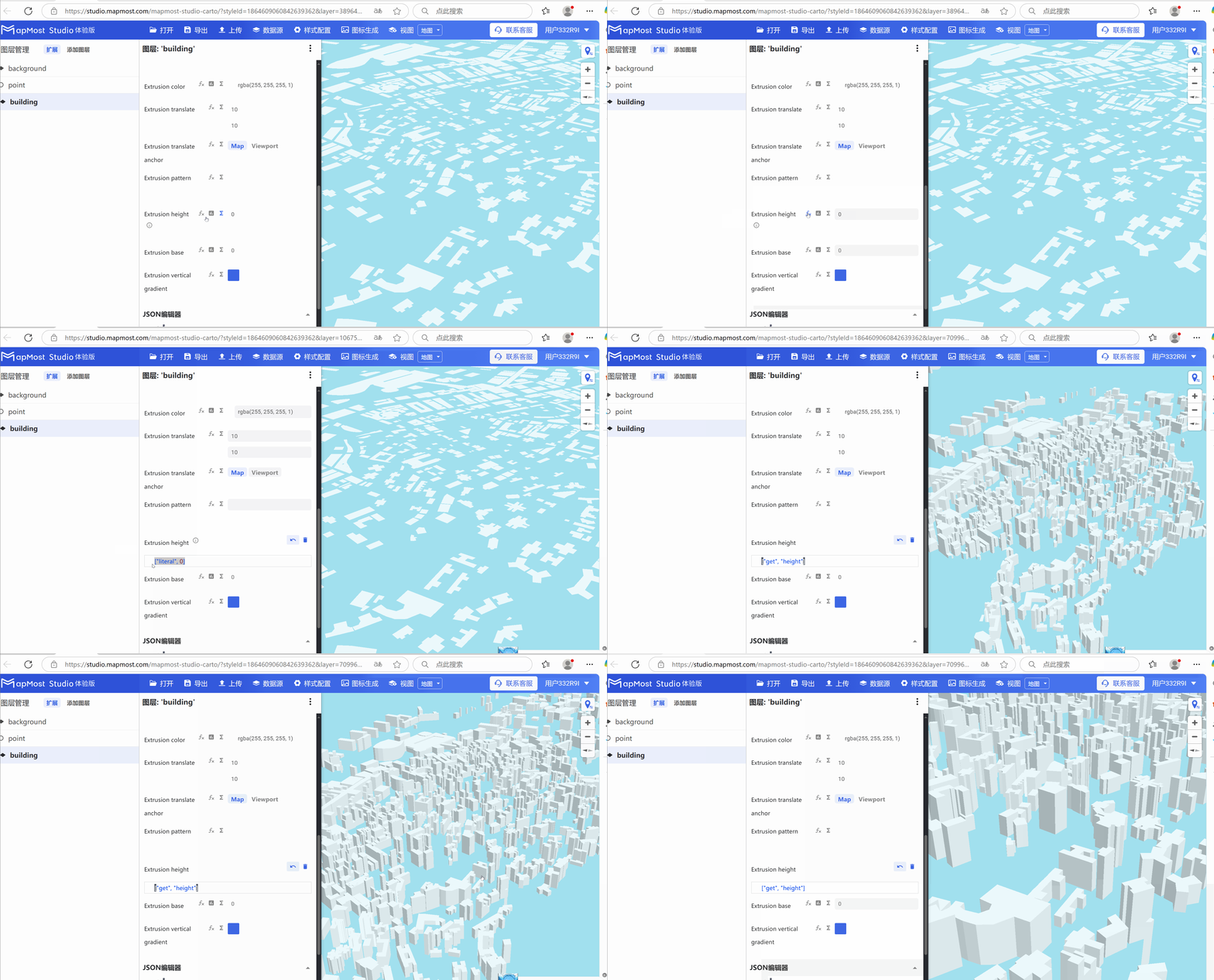
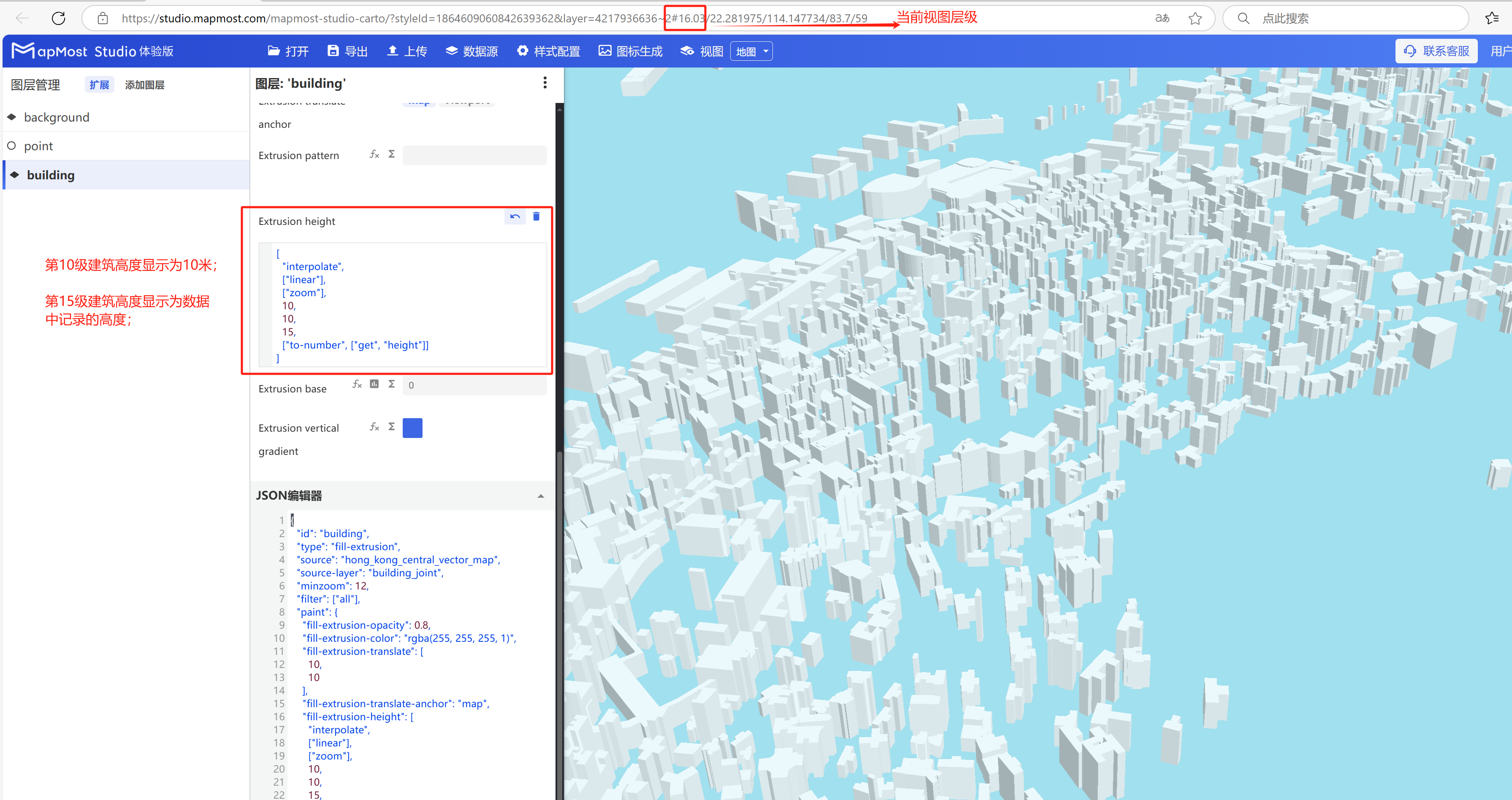
- The "Extrusion height" parameter is used to obtain the data height. Click the 'fx' button and enter '["get", "height"] ' to stretch the building. Figure 1 shows the regular operation, and Figure 2 shows the advanced operation ("height" is the field that records the height in the data. If the height field is not "height", you need to enter ["get", "field name"]). For the data height field name viewing method, refer to "Icon Point Layer Symbol: 2.3";
3.7. "Extrusion base" parameter setting
- "Extrusion base" parameter, clipping data height;