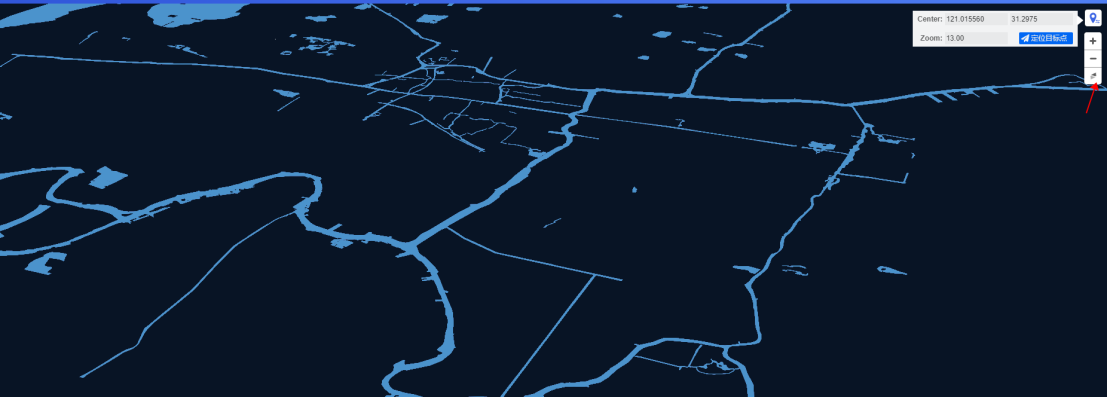
Locate target point and zoom

In the upper right corner of the mapping module, there are four icons, representing from top to bottom: positioning target point, zoom in, zoom out, north arrow;
1. Locate target point
Click to locate the target point
 to display the center point and display level of the current view. The values change in real time according to the current view;
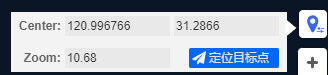
Enter the coordinates of the center point yourself, or display the level, click to locate the target point, and the current view will be positioned at the customized center point position and level;
2. Zoom and North Arrow
The zoom level specified by this platform is 0~24. Each time you click to zoom in
 , the view will be enlarged by one level; each time you click to zoom out
 , the view will be reduced by one level;
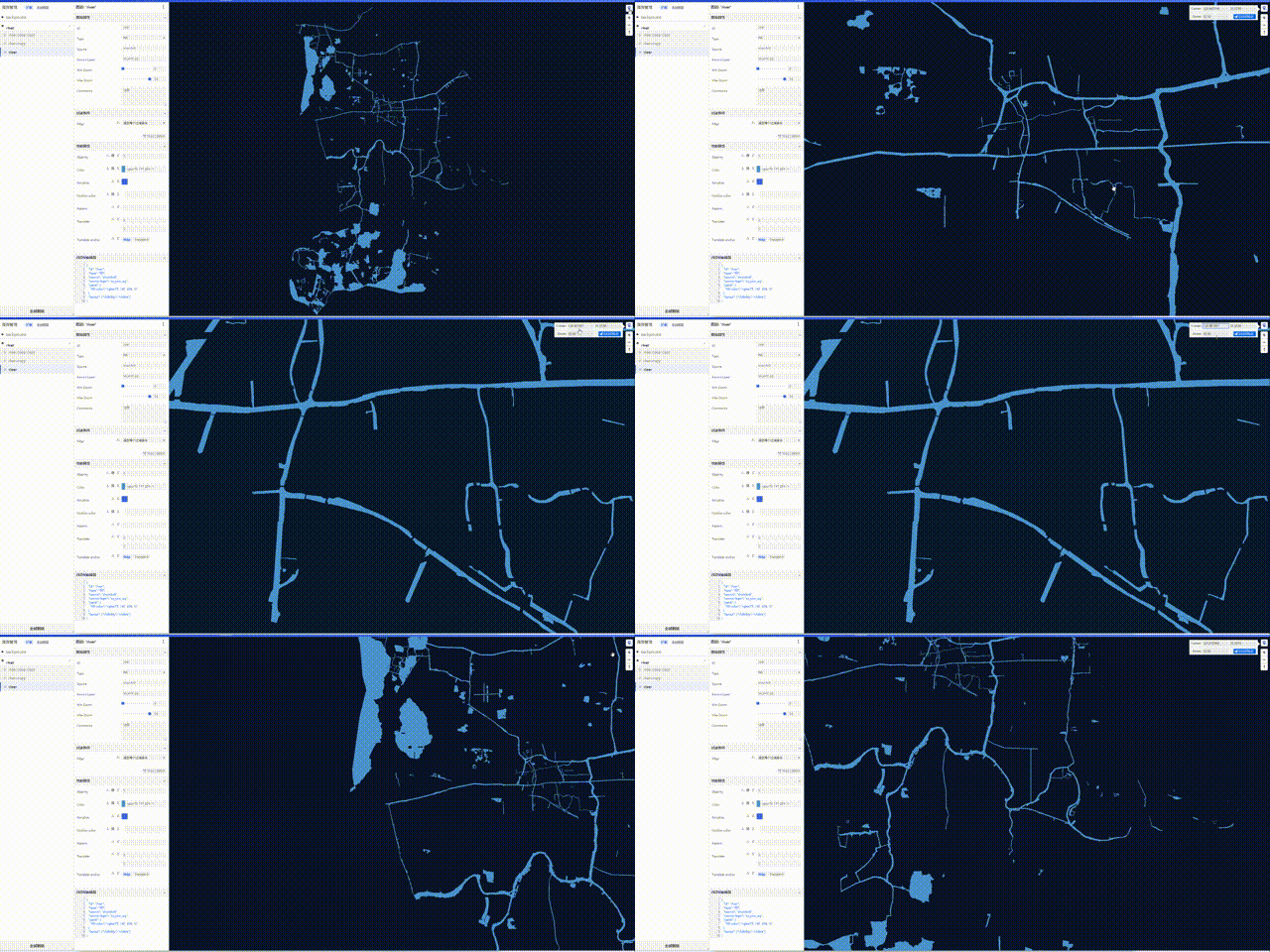
This map is a 3D map that supports arbitrary rotation. Use the north arrow
 to restore the view to the perspective of true north upward;